TwentyTwentyFour child theme, Site Editor, Navigation, I have a menu defined.
I was looking for a way to have that menu display in the free version of Elementor, in the page header.
The first solution I found that looked good was the Elementor Header & Footer Builder plugin. It isn’t perfect, so when I find a better solution I’ll make a note here.
Elementor Header & Footer Builder wants to use the old-style menus. There is no Appearance, Menus anymore — that is not for WordPress 6.5.4 block themes. (It is, of course, still the way to use menus for classic themes).
When in Elementor Header & Footer Builder I try to add a Navigation Menu, EHFB (at least June 2024) gives you an error on screen about nav-menu.php and says “Your theme does not support navigation menus or widgets.”
How do I get a header in Elementor Header & Footer Builder with a menu, since Navigation blocks are not available?
Temporary workaround
Install Max Mega Menu https://wordpress.org/plugins/megamenu/ which adds Appearance, Menus and a menu editor, so the Elementor Header & Footer Builder’s Navigation Menu works.
You might also want to make a Mega menu. I haven’t tried that, but it looks like a nice plugin.
What’s Next?
Since the documentation and the support explanations for EHFB are terrible, please let me know if you find a plugin that is better, specifically for reading the Site Editor’s Navigation blocks and importing them into the format Elementor or this Elementor header/footer plugin want.
As a new wet shaver with big hands, I found the Baili Classic 3-Piece Double Edge Safety Razor (model BD176) to be a great introduction to double-edge shaving. Here’s a breakdown of my experience:
Model: BD176 (mild aggression, good for beginners), aka Victory 176
Features:
Mild design: This is a good choice for beginners, as it offers a close shave with a lower risk of nicks and cuts (compared to the more aggressive BD171 model). Note that many brands do not specify “mild to aggressive”, so check shaving experts reviews.
76g weight: The razor feels well-balanced and easy to control.
Length 94mm / 3.7”: Short for travel. With my “size L” hands, I place my pinkie finger past the handle. I use my thumb and forefinger to control the razor.
Three-piece design: Easy to disassemble and clean, and put in a new blade. I prefer this over the “Butterfly” or “twist-to-open” design, fewer moving parts that could get jammed or break. Three-piece razors should last longer (decades) than butterfly razors.
Mirrored travel case: Perfect for storing and transporting the razor.
Tips for Beginners:
Identify the sharp blade: Be careful when handling the razor, especially the blade compartment. All razors are very sharp. Know what sides are sharp. (The long sides of the blade are very sharp, the short sides are safe to gently handle.)
Loading the razor: Place the razor head on a flat surface, handle pointing up. Unscrew the handle, then carefully remove the baseplate and blade (holding it from the narrow sides). Insert a new blade and reassemble the razor, screwing the handle until snug but not overtightened.
Baseplate: must be installed proper direction. Upside down you will cut yourself.
Light pressure: Apply minimal pressure when shaving, unlike using cartridge razors. Bad habits from using cartridge razors with thick shave cream, will get you nicks with a single-blade razor. With proper technique, these razors will get your shave smoother than any cartridge razor, at much lower cost.
My Shaving Experience:
Learning curve: After reading and watching YouTube videos on using a double-edged razor, I experienced a few minor nicks during my first few shaves, but zero nicks with a little practice. Use minimal pressure against your skin, letting the weight of the razor head hold the blade against your face.
Close shave: After a few shaves, I achieved a close shave with minimal irritation. A few areas, like under the jawline, require a second pass for me. I have coarse hair, that grows in different directions. Notice what directions your hairs grow, in different parts of your face; first pass always with the grain, then you can touch up, only where needed, with 90 degrees across the grain.
Shaving soap and brush: I recommend using a shaving brush and soap (like Proraso) for a richer lather. Store-bought shave creams are far too thick! The thick creams force you to use too much pressure.
Blades: I am using a sampler pack of blades, and while the Dorco blade (mild) worked well, I expect the Astra Platinum blade to be even better.
Easy to clean: The razor rinses clean easily, unlike cartridge razors that can get clogged with shaving cream.
Overall:
The Baili Classic 3-Piece Double Edge Safety Razor is an excellent option for beginners who want a close shave with a lower risk of irritation. The mild blade, well-balanced weight, and easy cleaning process make it a user-friendly razor.
Remember, everyone, the “Reply To:” field is Easily faked.
Looking at that is Not a way to check whether an email is legitimate.
Your email reader software (whether a website or an app on your phone or an app on your computer)
should indicate whether an email passes some validation (e.g. DMARC, DKIM, SPF) or not.
Do not click on links in an email.
The “link text” can show anything, different than the link address
Verify the link address has no “tricky characters” in it.
Copy the link address to your clipboard, paste it into a text editor (preferably with a mono-spaced font like Fira Code) and verify it.
Or, browse to your “known important site” your normal way (e.g. your bank) and read the message directly on the Real site.
p.s. Fira Code is on Google Fonts https://fonts.google.com/specimen/Fira+Code , free to install on your computer, easy to set your programming editor and spreadsheet to use it. It was designed so all the “look similar” characters, such as a one and an el and an eye, are easily distinguished.
The Apple A1407, also known as the Thunderbolt Display, is a high-resolution monitor that was designed primarily for use with Mac computers. However, its compatibility extends beyond just Apple products. Below, I’ll detail the compatibility with various brands and models of computers, as well as any necessary hardware or software.
Apple Computers
MacBook Pro (Mid 2011 and newer): Supports Thunderbolt and Thunderbolt 2 connections. No additional hardware is necessary.
MacBook Air (Mid 2011 and newer): Also supports Thunderbolt and Thunderbolt 2. Directly compatible without additional adapters.
iMac (Mid 2011 – Late 2015): These models have Thunderbolt ports that can directly connect to the A1407.
Mac Mini (Mid 2011 and newer): Equipped with Thunderbolt ports, making them compatible with the A1407.
Mac Pro (Late 2013): Features Thunderbolt 2 ports for direct connection.
For these Apple computers, macOS should automatically recognize the Thunderbolt Display without needing additional software.
Windows and Linux Computers
Compatibility with Windows or Linux PCs is less straightforward due to the specific hardware requirements (Thunderbolt 2 port), which are less common on non-Apple devices. However, some workstations and laptops are equipped with Thunderbolt ports.
Dell XPS 15 (9550 and newer): Models with a Thunderbolt 3 port can connect to the A1407 using a Thunderbolt 3 to Thunderbolt 2 adapter.
Lenovo ThinkPad X1 Carbon (5th Gen and newer): These also feature Thunderbolt 3 ports and require an adapter for connection.
HP EliteBook (G3 and newer): Select models come with Thunderbolt 3 ports, making them compatible through the use of an adapter.
For these connections, ensure your PC’s BIOS settings are configured to enable Thunderbolt support. Additionally, Windows or Linux may require the installation of specific Thunderbolt drivers available from the PC manufacturer’s website.
Required Adapters and Software
Thunderbolt 3 to Thunderbolt 2 Adapter: Necessary for connecting newer devices that have Thunderbolt 3 ports to the Thunderbolt 2 input of the A1407.
Drivers: Windows PCs may need Thunderbolt drivers installed, available from the manufacturer’s support site.
Important Consideration
While the Apple Thunderbolt Display can technically be connected to a wide range of devices, its functionality is best supported on Macs. Features like the built-in camera, speakers, and USB ports on the display may require specific drivers or may not be supported at all on non-Apple computers.
Conclusion
The Apple A1407 Thunderbolt Display offers broad compatibility with both Apple and select Windows or Linux computers. Its use outside of the Apple ecosystem may require additional adapters and driver installations. Before attempting to connect the display to a non-Apple computer, verify the presence of a Thunderbolt port and the availability of any required adapters or software to ensure the best experience.
The form has been submitted successfully!
There has been some error while submitting the form. Please verify all form fields again.
When making a long video, you will get better AI results if you break the video into sections. Have AI make a video script for just a few minutes of the long video. Then repeat for every section of your long video.
If you give a lot of detail in an AI prompt, the AI will have to generalize; this is to keep within the “token length” limit (either the AI default or what you specified).
The first section should be your video introduction, then the content sections, then a closing section with a call to action.
Take the best sentences from each AI result, to make your script. Obviously, skip the repetitive introductory sentences and closing sentences.
Part 1
What is your video about, what’s the topic? This presentation is designed to provide straightforward, actionable steps and advice for enhancing the security of your WordPress website. I will also cover security topics directly affecting your website, though outside of WordPress.
What is the ‘call to action’ that they should do at the end? Sign up for more about my upcoming course, “WordPress Websites: from Overwhelm to Mastery” at https://lc.lndo.site/wpom/
List a few of your key achievements and successes: [This is where I put the topics I will cover in my video, one section worth at a time.] – Provide easy-to-implement steps and actionable security advice for WordPress users, – For people from WordPress beginners to highly advanced website developers – Things you can do on your WordPress site and connected to your WordPress site – Nothing that only your website hosting company can do, nothing about security in plugin development – Why Worry About Security? – Even if your content is thoroughly boring to hackers, your hosting account is valuable – Hackers place ads on your site to make money, or place links to hopefully make another site rank better – They learn your password, to better break into other websites – They have their customers download files they stored on your account, saving storage charges on their account – They combine with thousands of other accounts, to launch a massive attack on a valuable website [etc, all the topics I want to cover in this few-minute section of the video] Then, I will run this AI prompt again, changing this section of the prompt, for the topics of the next section of the video
Describe the tone, style or voice you want for your video. I specialize in supporting course creators, life coaches, and website owners, to launch and sell their programs successfully. I guide them through WordPress setup & security, creating engaging content, and implementing effective marketing strategies to attract and sell to their ideal students.
Run This Prompt Again, for Each Portion of the Video
Take from the output for the video Intro. Take the best sentences from the output of the prompt, and make a video script for the entire section. Run the prompt for the remaining sections. Take one of the sentences for the video close and call to action.
I had a client with a large WooCommerce site, using Astra, Astra Pro, Elementor, Elementor Pro, and several payment processors. It was on a good hosting company that paid attention to site speed, but the PageSpeed score was 42 for Mobile (with a First Contentful Paint of 8.1 seconds). There were simply too many plugins needed!
I moved that website to 10Web Hosting and the 10Web Booster, and the PageSpeed score for mobile was, even with the same plugins running, 91. The desktop score was 98.
I recommend hosting with 10Web, and this plugin will speed up your website on any hosting company.
Use the coupon code 10WebFeb2024 for a discount on 10Web hosting
George
Here is the old hosting score:
Here is the 10Web PageSpeed Booster score for Mobile viewers, with no customization of the Booster:
Then I adjusted the settings for the site logo, which was getting “lazy loaded” (waited until the rest of the page was loaded) slowing down the First Contentful Paint. That one change brought the PageSpeed score to 91.
That score is for the same site, with the same plugins, plus the 10Web PageSpeed Booster and the AI Assistant by 10Web plugins. No other changes to the site, other than the hosting and the plugins.
And the 10Web PageSpeed Booster score for Desktop viewers:
8.1 seconds down to 2.1 seconds, by installing the 10Web PageSpeed Booster on 10Web Hosting!
As an ambitious entrepreneur, safeguarding your digital assets is paramount for seamless operations. Whether you’re a life coach, course creator, or a visionary leader, your mission to make a positive impact shouldn’t be hindered by technical setbacks. Understanding and implementing effective power solutions, such as Uninterruptible Power Supplies (UPS) and Automatic Voltage Regulators (AVR), can be a game-changer in maintaining the integrity and continuous workflow of your computers. You really want one for each of your computers. Here’s a simplified guide to navigating these often overlooked, yet essential components of your business infrastructure.
The Role of Uninterruptible Power Supplies
Why A UPS Is Essential for Your Business Every business leader understands the consequence of unexpected disruptions. In the whole computer realm, power fluctuations or outages can cause data loss, hardware damage, and unscheduled downtime. A UPS is your first line of defense against these interruptions, providing emergency power without skipping a beat when your primary source fails.
Protection: Safeguard hardware and maintain operations during power surges or failures. All top UPS brands have very good surge suppressors in them, and if the surge suppressor fails (it did its job and stopped a large surge) the UPS will deliver no power rather than leave your computer equipment unprotected.
Peace of Mind: Focus on core business processes without fretting over data loss or unscheduled downtime. All top UPS models communicate with your computer, telling it in a power outage to save your work and hibernate or shut down, before the UPS battery is drained.
Productivity Assurance: Prevent disruptions that can affect your team’s productivity and client experience.
Estimating Your Power Protection Needs
Before investing in a UPS, it’s crucial to understand your system’s specific power needs. Thankfully, resources are available to make this process less daunting.
Sites like APC provide specialized calculators designed to help you discern the power requirements of your system based on individual components like your CPU, storage devices, and graphics cards. By inputting your system’s specifics, you can obtain a more accurate estimate of what you’ll need in terms of power protection.
Shut-Down Time: Additionally, consider the operational aspect: the time it takes to safely save your work and shut down your systems. This often-overlooked detail is vital in selecting a UPS with sufficient battery capacity. It’s not just about keeping your systems running during an outage but also allowing for a proper, orderly shutdown. This process prevents data corruption or loss, ensuring the integrity of your valuable digital content.
Capacity Reduction: Over time, UPS batteries undergo natural degradation and wear, which is a normal aspect of their operation. This wear leads to a reduction in their capacity to hold charge, which subsequently affects their performance.
First Year: Most quality batteries retain optimal functionality through the first year of use, with minimal capacity loss.
Year 2-3: From the second year onward, capacity loss becomes more noticeable. A quality UPS battery may lose approximately 30% of its capacity by the end of the third year, depending on usage and environmental conditions.
Year 4-5: As the battery approaches the end of its typical lifespan, the capacity could degrade by as much as 50% or more, significantly impacting its ability to provide power during outages.
When selecting your UPS, factor in this natural reduction and aim for a unit that guarantees an adequate shutdown period, even as the battery ages. It’s an investment in the resilience of your business, ensuring continuity and peace of mind.
Invest in a reliable UPS today to keep your business running smoothly
Not sure where to start? Contact me for personalized recommendations tailored to your needs.
Stabilize Your Success with AVR: Automatic Voltage Regulators (AVR) are unsung heroes, quietly normalizing voltage levels that can otherwise harm your computer equipment or affect performance. By instantly correcting voltage fluctuations, AVRs ensure that your devices receive consistent power, thereby extending their lifespan and reliability.
Consistency: AVRs provide a consistent power supply, vital for the optimal performance of your hardware. Low voltage “brownouts”, such as from an air conditioner turning on and off, are especially hard for computers. Computers with “cheap” power supplies can freeze or reboot.
Longevity: Protect your investment in technology by preventing premature failures due to power fluctuations. AC power “noise” and voltage fluctuations make computers fail sooner.
Efficiency: Enhanced operational efficiency by reducing the risk of downtime and maintaining the performance integrity of your equipment.
You can plug an AVR into the AC outlet, and plug your UPS into the AVR. The AVR will protect your UPS, and your UPS likely costs more than the AVR.
AVR models include: “Tripp Lite Voltage Regulator And Line Conditioner LS606M 6 Outlet”,
Some UPS models have AVR built-in. Some are:
Selecting the Right Product
Navigating the Technical Landscape: Choosing the appropriate UPS and AVR can be daunting. However, it’s crucial to align these solutions with your business demands. For instance, models like the APC Back-UPS 1000 (BX1000M) offer compelling features for computer systems. Still, the key is to consider your specific requirements.
Check Specifications: Always verify product details from official sources like APC’s official website. Not all models may suit your needs regarding voltage regulation or noise filtering. Look for “AVR” or “voltage regulation” in the product description; or buy a separate voltage regulator.
Buy Sufficient Capacity UPS: Sites like APC’s have calculators for you to estimate your needs, based on the power your CPU, storage devices, and graphics cards use. Also, time how long it takes you to save all your application data and shut down completely. You need a battery with capacity to shut your computer down properly, even as the battery ages and has reduced capacity.
Quality Matters: Opt for new, quality batteries to enhance the service life and reliability of your chosen UPS.
Price Shopping: Compare prices from different vendors once you’ve settled on a model. Platforms like eBay often offer competitive pricing but be wary of the conditions under which the equipment is sold.
[Image Block: Product Images or Comparison Chart]
[Section 4: Beyond Standard Solutions] Demand More from Your Hardware It’s not uncommon to find motherboards or power supplies that fall short in ensuring the stable operation of your systems. Entrepreneurs should consider hardware that goes beyond standard provisions for power stability. Commit to brands and models known for superior in-built voltage regulation.
Informed Buying: Make future hardware purchases with power stability in mind. Research and invest in brands that offer superior internal voltage regulation.
Non-Negotiables: Establish your standards. Knowing the technical requirements that align with your business needs helps avoid future disappointments.
[Conclusion] Take Charge of Your Digital Environment Your journey as an entrepreneur is about creating impactful experiences and a legacy that resonates. Don’t let technical hiccups stand in your way. By understanding and investing in the right UPS and AVR solutions, you’re not just protecting your hardware; you’re safeguarding your business vision, ensuring that every step you take is powered with confidence and reliability.
[Call to Action or Contact Block] Struggling with technical specifics or need guidance tailored to your business? Reach out today, and let’s ensure your digital foundation is unshakable. Get in touch for a consultation.
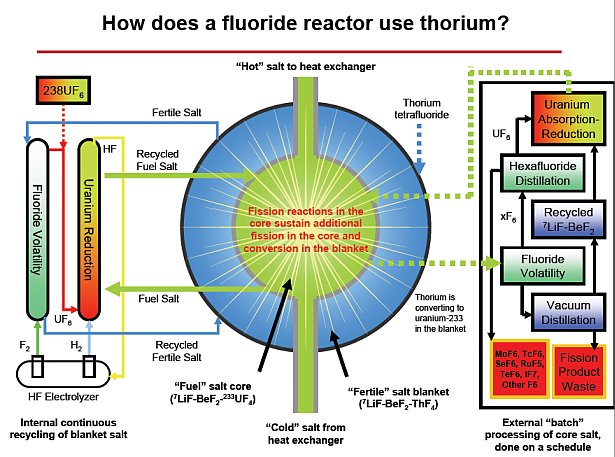
Molten Salt Reactors (MSRs) are a type of nuclear reactor that is gaining attention in the scientific community due to their potential to revolutionize the energy industry. Unlike traditional nuclear reactors, MSRs use a liquid fuel (a molten salt) that is circulated through the reactor, eliminating the need for solid fuel rods; this allows safety, less waste, greater control over the reaction.
One of the most significant advantages of MSRs is their inherent safety features, including no “loss of coolant accidents” and no risk of nuclear meltdown. This has made them an attractive option for countries looking to transition to more sustainable forms of energy without sacrificing safety.
As research into MSRs continues, it is becoming increasingly clear that they could play a crucial role in meeting our future energy needs.
A Molten Salt Reactor fissions over 99% of its fuel. Light Water Reactors (the most common type of nuclear reactor in the world, solid fueled, water cooled) only fission about 3% of their fuel.
The waste generated in MSR is harmless within 350 years (radioactivity below background levels), with 83% of it safe in just 10 years. This is in contrast to the waste produced by Light Water Reactors, which requires storage for over 100,000 years to become safe.
To run a 1 gigawatt Molten Salt Reactor for a year uses only 1 ton of fuel, and produces only 1 ton of waste; instead of 250 tons of waste from a solid-fueled reactor.
MSR uses coolant that is stable even at very high temperatures, and no water — no high-pressure to contain, no loss of coolant accidents, no risk of hydrogen explosions; therefore, no massive containment structure is needed.
Molten Salt Reactors possess natural safety features, such as the coolant won’t boil away; as well as automatic safety measures, like the secure drainage of fuel to cooling tanks where there is no chance of nuclear reaction, regardless of any power outages.
“No water” also means that water-soluble waste products such as cesium, that in LWR can easily get into food, are instead strongly chemically bound to the fuel salt. The fuel salt solidifies (cools to solid) quickly in any leak, doesn’t dissolve in water, doesn’t chemically react with anything in the reactor or in the environment. Any accident cleanup would be a few cubic meters of chemically stable solid materials.
Any type of MSR has an inherently stable reaction rate. The molten fuel expands/contracts with temperature, regulating fission; that strongly regulates the fuel temperature.
While in LWR the temperature inside the fuel pellets is always higher than the materials can handle if cooling fails, in MSR the fuel temperature is always far below what the materials can handle, even without power or operator intervention.
Aside from the obvious “the fuel is already molten”, a “nuclear meltdown” where the fuel melts through the reactor vessel, is physically impossible in MSR.
And we even operated one for 5 years, in the 1960s. Now several companies in countries around the world are designing and starting to build them.
Please visit my Molten Salt Reactor website. It is fascinating, and we would like what happens when we build them.
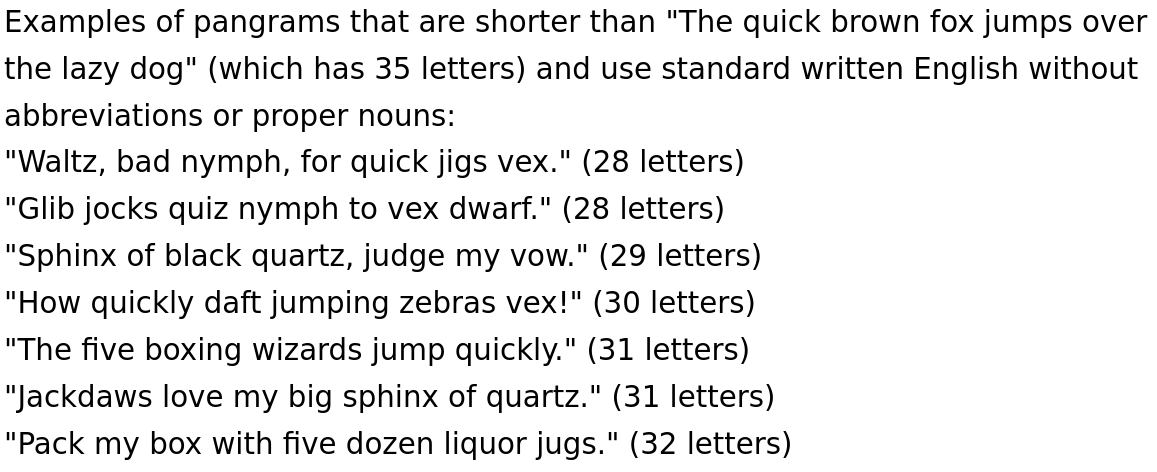
Examples of pangrams that are shorter than “The quick brown fox jumps over the lazy dog” (which has 35 letters) and use standard written English without abbreviations or proper nouns: “Waltz, bad nymph, for quick jigs vex.” (28 letters) “Glib jocks quiz nymph to vex dwarf.” (28 letters) “Sphinx of black quartz, judge my vow.” (29 letters) “How quickly daft jumping zebras vex!” (30 letters) “The five boxing wizards jump quickly.” (31 letters) “Jackdaws love my big sphinx of quartz.” (31 letters) “Pack my box with five dozen liquor jugs.” (32 letters)
Perfect pangrams
A perfect pangram contains every letter of the alphabet only once and can be considered an anagram of the alphabet. The only perfect pangrams of the English alphabet that are known use abbreviations or other non-dictionary words, such as “Mr Jock, TV quiz PhD, bags few lynx”, or use words so obscure that the phrase is hard to understand, such as “Cwm fjord glyphs vext bank quiz” (developed by Robert L Birch (ca.1965), & improved for meaning by JRBirch), in which cwm is a loan word from the Welsh language meaning a steep-sided glaciated valley, and vext is an uncommon way to spell vexed. The meaning, clear only to those with an above average vocabulary, is less concisely that the petroglyphs found on the cwm walls of a Nordic fjord, challenged the validity of an archaeological quiz about the banks of that fjord.(–JRB)
Spanish
Benjamín pidió una bebida de kiwi y fresa. Noé, sin vergüenza, la más exquisita champaña del menú. (“Benjamin ordered a kiwi and strawberry drink. Noah, without shame, the most exquisite champagne on the menu”) uses all diacritics and the foreign letters k and w.
Scientific Papers
The scientific paper “Cneoridium dumosum (Nuttall) Hooker F. Collected March 26, 1960, at an Elevation of about 1450 Meters on Cerro Quemazón, 15 Miles South of Bahía de Los Angeles, Baja California, México, Apparently for a Southeastward Range Extension of Some 140 Miles” has a pangrammatic title, seemingly by pure chance. As of January 2022, its English Wikipedia article is the only English Wikipedia article to have a pangrammatic title without having been constructed as a pangram.
Welcome to the companion webpage for my WordPress Security Presentation. This page provides comprehensive details on all the topics covered during the presentation.
Hello, I’m George Lerner, your guide through the intricate world of WordPress. Whether you’re a course creator, a life coach, a passionate blogger, or an aspiring website owner, the digital landscape can often feel like a maze.
My course, “WordPress Websites: From Overwhelm to Mastery”, is tailored to transform your experience of making and marketing your website or online course. I will cover the most confusing or frustrating or overwhelming parts of making and maintaining your website, so you know what to do and how to proceed, with confidence and mastery.
In this introduction to my full course, I will explore actionable security advice for WordPress users, from beginners to advanced developers. Let’s dive in!
Are you ever plagued by the fear of your WordPress website being vulnerable to cyber attacks and potential data breaches? Do you sometimes lie awake at night, worrying about the devastating consequences that a hacked website could have on your business or personal brand?
Imagine the peace of mind you’ll experience knowing that your website is impenetrable, your visitors are safe, and your hard work is secure. Get ready to say goodbye to sleepless nights and hello to a worry-free online presence.
Most website attacks are against any website they can find — hackers probably probe your site hundreds of times a day. It’s time to take control and safeguard your WordPress website like never before.
Overview
This presentation is designed to provide straightforward, actionable steps and advice for enhancing the security of your WordPress website.
I will also cover security topics directly affecting your website, though outside of WordPress.
This is tailored to a wide range of people, from those just starting your WordPress journey to highly experienced website developers.
I will focus on security measures that you can implement directly on your WordPress site and those services you use associated with your website.
What Will Not Be Covered Here
I will not delve into areas that are solely controlled by your website hosting company, content delivery network, or other technical things you can’t control. If hackers get into those companies, there’s nothing you can do about it.
Nothing about the intricacies of security in plugin development. While this is a very important part of WordPress security, it is only for developers.
I also won’t cover attacks on you or your company specifically. There are many ways of finding out about a company, sometimes as simple as keeping an “open ear” at the local café. If a world-class hacker group or government intelligence agency wants your information, they are going to get it.
Why Worry About Security?
In today’s digital age, where cyber threats are becoming increasingly sophisticated, it’s crucial to protect your online presence from potential hackers and malicious attacks.
Even if your content doesn’t seem enticing to hackers, your hosting account is valuable. Therefore, securing your WordPress site should be a top priority.
The Importance of Prioritizing Security
Even if you believe that your content isn’t of interest to any hackers, it’s crucial to understand that your hosting account itself holds significant value. Many hacks are to control your site, not to get information.
Hackers can exploit your site to generate revenue by placing ads, or links that could potentially enhance the ranking of another site.
If they crack your password, it provides them with a blueprint to breach other websites more effectively. People tend to make passwords the same ways, or even use the same passwords.
They can use your account as a storage space for their customers to download files, thereby saving on their storage expenses.
Furthermore, the computing power of your account could be combined with thousands of other accounts, to launch a massive attack on a high-value website.
Hackers Using Your Site Among Thousands
Hackers can coordinate thousands of computers to guess passwords of millions of websites, making it hard for security software to track the attacks. To counter this, ensure you have software that checks for unauthorized changes on your site and alerts you to change your password promptly.
Understanding the Way Hackers Think
Hackers often orchestrate large-scale operations involving thousands of computers attempting to crack passwords of millions of websites. Each hosting account tries a random password from their list against a random website from their list.
Due to the sheer volume of IP addresses involved, even robust security software on thousands of websites might struggle to track which computer is attacking where on the network.
Moreover, these attempts may not even register as an attack, as they may appear as sporadic incorrect password attempts from unknown IP addresses, too infrequent to raise any alarms.
The solution to counter such “password cracking gangs” is not to limit your security measures to a few aspects of your website.
For instance, even if someone manages to obtain your password, you should have software in place that checks for unauthorized installation of new plugins or modifications to existing plugins or themes, or new admin users.
This way, even if they know your password, they can’t do much damage.
You would be alerted to change your password, and any unauthorized changes they made could be promptly deleted.
Is There a Single, Foolproof Defense? No.
A fundamental principle of website security is to deploy multiple strategies for detecting and thwarting attacks. Given that hackers continually refine their attack methodologies, it is imperative that you employ a variety of defenses to counter them.
Choose a reliable hosting provider with strong security measures
Create strong and unique passwords for all accounts
Regularly update plugins and themes to fix security vulnerabilities
Install a website application firewall for blocking password-guessing attacks, preventing malware, detecting bad people accessing your site.
Use secure connections (HTTPS) for your website, and for your Wi-Fi router
Separate your website delivery server from your website making server
and More
Use Excellent Hosting – security, support, speed
Choosing a hosting provider that focuses on security, is crucial. Select a hosting provider endorsed by those in your WordPress community who manage client sites.
They see more problems on more sites, including sites with problems from the hosting company before the client moved to them; they have fixed more problems, so they know what to look for; they know about more plugins, more themes, and types of websites with more needs.
The best hosting companies offer WordPress-specific excellent security, great support, and fast page load times.
Choosing the Right Hosting
Ignore social media comments, ads, and people who are not sure what their hosting company provides.
Ignore people who say they’ve been with a host for years with “no problems”. This means they likely have not been checking for problems, and likely don’t know if they have already been hacked.
Ignore hosting companies that don’t offer specific enhancements for WordPress sites. Security, technical support, page caching, database configuration, and more, must be fine-tuned to WordPress needs.
Outdated server software is an immediate disqualifier. Update your PHP version to the latest version available on the host. (As of February 2024, look for version 8.2 or 8.3) https://www.php.net/supported-versions.php says PHP7.__ does not get active support, nor updates “for critical security issues only”. Must be recent versions for database (usually MySQL or MariaDB), Linux, server (usually Apache or NGINX; don’t use IIS), server caches, etc. If they don’t know how to reliably update their software, they don’t know how to prevent errors on your site.
Opt for hosting within your budget that offers both superior security and exceptional customer support. Technical support quality is strongly tied to security quality; the company has to be skilled at both.
The best hosting companies also ensure rapid page load times, even for intricate eCommerce sites via slow mobile phones.
Here are some top-notch hosting services you might want to consider: 10Web (lc.lndo.site/10web), SiteDistrict.com, SiteGround, A2 Hosting. These hosting companies are reasonably priced, billed annually at about $120, and for most sites nothing else is needed.
There is one (and only one) free hosting to ever consider: wordpress.com offers free hosting that is reliable and secure.
Your subscription could not be saved. Please try again.
Your subscription has been successful.
Content Delivery Network – speed and security
A Content Delivery Network (CDN) like Cloudflare can deliver pages fast to your visitors while blocking “bad visitors” before they reach your hosting server. This not only reduces the resources your hosting account uses but also improves your site’s security.
The Role of a Content Delivery Network (CDN)
A CDN not only ensures swift page delivery to your legitimate visitors but also bolsters security.
Services like the free version of Cloudflare can effectively block a significant number of “bad visitors” before they even reach your hosting company’s server, reducing the resources consumed by your hosting account. You won’t get charged by your hosting company for hacker “excess traffic” or CPU or RAM use.
Hackers are exposed to cached pages of your site, not the WordPress program that generates your site. If the CDN determines any of your pages have changed, it requests updated copies of them from WordPress.
Consider upgrading to a paid version of Cloudflare, only after you have secured top-quality hosting and your site is making you money.
A CDN maintains a network list of malware signatures and current hacker IP addresses, enabling it to detect a hacker anywhere on the network and block them across the entire network.
However, it’s important to note that a CDN doesn’t replace all the comprehensive security measures provided by tools like Wordfence.
Wordfence — Many More Ways of Preventing Hackers
Wordfence offers additional security features that a CDN won’t, such as Two-Factor Authentication, blocking repeated password guessing attempts, Web Application Firewall, email alerts for plugin/theme updates, and scanning for modified plugins and themes.
Leveraging Wordfence for Enhanced Security Measures
Update Wordfence automatically when a new version is released?
Enable this, to stay up to date with the latest security features.
Two-Factor Authentication: That mildly annoying “type in a code” really works, to add an extra layer of security.
Use 2FA included with your anti-virus, or Google Authenticator.
Block Repeated Login Attempts: Prevent repeated attempts to guess passwords. Also, block common usernames hackers will guess, such as ‘admin’, ‘administrator’, or your domain name.
Web Application Firewall: This feature is still crucial even with a CDN, as it blocks additional types of malicious visitors. If a hacker figures out one way to bypass security, have another security rule still blocking it.
Email Alerts: Get notified when there’s an available update for a plugin/theme, especially if it includes a security patch.
Disable Code Execution for Uploads directory
This is vital for security, as it prevents hackers from executing any files in that directory.
Many plugins allow uploading files, always in the uploads folder. Hackers can try to upload malware.
Scan for Modified Plugins and Themes: This feature compares your plugins and themes against the WordPress Repository, alerting you to any unauthorized changes. It also alerts you to plugins that haven’t been updated in a long time or have been removed from the Repository, indicating potential security risks, and future server or WordPress updates could be make the plugin incompatible.
Report New Administrator Users: Get alerts when new administrator users are created, especially if you didn’t authorize it.
Report Files with Sensitive Information: Wordfence will notify you if files containing sensitive information (like wp-config.php or backups) are accessible from the Internet.
For a detailed guide on how to set every Wordfence setting, visit my website at lc.lndo.site/wordfence.
Your subscription could not be saved. Please try again.
Update Wordfence automatically when a new version is released?
Enable this, to stay up to date with the latest security features. Automatically updates Wordfence to the newest version within 24 hours of a new release.
Where to email alerts
Put your webmaster’s email address, or whoever should receive technical emails about security issues and plugin updates. You can add multiple email addresses here and separate them using commas.
Disable Code Execution for Uploads directory
This is vital for security as it prevents hackers from executing any files in that directory.
Many plugins allow uploading files, and always in the uploads folder. Hackers can try to upload malware.
Web Application Firewall Status
When you are first installing Wordfence, you will want “Learning Mode”. This gives Wordfence an opportunity to see what your plugins do normally. Also can use Learning Mode to test if a new plugin isn’t working because Wordfence is interfering — but always consider Wordfence might be right to block something, maybe it is the plugin that is bad. After a learning period, Wordfence switches to “Enabled and Protecting”.
Protection Level
You always want Extended Protection enabled
Enable brute force protection
Enable blocking “brute force” login password guessing attacks, trying millions of passwords.
Don’t have another plugin that does the same thing; disable that other plugin or that feature in the other plugin. Wordfence does this in the WAF.
Immediately lock out invalid usernames
The list of “invalid usernames” should include “admin”, “administrator”, “webmaster”. Hackers know these are the most common user names for when a WordPress website is first created. Another common username is your domain name.
If you use admin or another “top pick” by hackers, log in with an administrator account, make a new administrator account with a better user name (e.g. your name followed by several random characters) and make a nickname in the Users account to display on your pages & posts (never display your login name on your site, only display a nickname). Then, delete the old admin user, and WordPress will prompt you for a username to assign that user’s posts to. Then add the now-deleted username to Wordfence’s list of usernames to block.
Prevent the use of passwords leaked in data breaches
I set this to ‘For all users with “publish posts” capability’
Enforce strong passwords
Set to ‘Force admins and publishers to use strong passwords’
Prevent users registering ‘admin’ username if it doesn’t exist
This is Important, so you can immediately ban any IP address trying to login with the default WordPress user name.
Do not allow anyone else to make the user ‘admin’, as they could fool others to disclose sensitive information.
Participate in the Real-Time Wordfence Security Network
Let Wordfence on your site take advantage of knowledge from the entire Wordfence network, including hostile IP addresses and malware detection.
In Scan Options, the entire General Options section
Exception: these two entries
Scan files outside your WordPress installation
Scan images, binary, and other files as if they were executable
You don’t need these. If you like, you can occasionally run a scan with these set, and then un-check these again.
Wordfence Emails
Regularly scan through the emails Wordfence sends you. This will help you get familiar with what is normal and identify any abnormal activities or suspicious behavior.
Pay attention to the “Top 10 Failed Logins” section, as it may indicate a customer forgetting their password. Ignore the other failed logins, they are blocked hacking attempts.
Keep an eye on the “Recently Modified Files” list. Take note of any files that you don’t recognize or that seem out of place. While most of the files will be normal and harmless (mostly cached files or .css style sheets), watch out for any unknown files that could be a sign of hackers trying to gain access to your website. Wordfence is better than most security plugins, not often listing a plugin update as “modified”; it checks plugin files against the WordPress Repository.
I ignore “Top 10 IPs Blocked”, and “Top 10 Countries Blocked”; there is nothing to learn from those. “Recently Blocked Attacks” will likely be dozens to thousands every day; say “good, Wordfence is working”. If you are using excellent hosting and a CDN like Cloudflare, more attacks will be blocked before getting to Wordfence.
Password Keeper — logins and other structured data, secure
A Password Keeper will automatically create, securely store, and manage complex passwords for all your online accounts. It also provides a secure repository to safeguard several types of sensitive information, such as hosting account info, FTP connections, SSH keys, credit cards, software licenses, and notes.
All information is encrypted with your “master password” before being transmitted across the Internet; as long as your master password is “lifetime secure”, hackers can’t get your unencrypted information.
What a steal
What’s happening: You might want to change your passwords ASAP.
Here’s why: Last month, nearly 10 billion passwords were uploaded on a hacking site. It’s being called the largest password leak of all time.
What it means for you:
It’s much easier for someone to empty your bank account, run up your credit cards, or steal your identity if they can access sites where you’ve stored financial and other personal info.
So consider updating your passwords—a strong one is 12 characters long with a mix of numbers, symbols, and lower and uppercase letters, says the Federal Trade Commission.
Don’t reuse passwords from site to site, and avoid sharing them on calls or in emails or texts.
Enabling 2-factor authentication, which requires an additional step beyond entering a password to access an account, might also help shore up your logins.
from Fidelity Smart Money newsletter, August 20, 2024
The Importance of a Password Keeper for Secure and Convenient Password Management
Traditional methods of coming up with “strong” passwords can now be cracked within minutes to days. The top 1 million passwords, and top million username + password combinations, are readily available for hackers as “password cracker dictionary entries”.
Use a password keeper software to generate and remember long, random passwords.
Create a unique password for each website. You should not use your bank’s password on your local pizza restaurant’s website.
There are exceptions for alias domain names for the same site. For instance, Google owns YouTube and you log into YouTube with your Google account. Password keepers are aware of common aliases, and you can specify others if you need to.
It’s best to create a new password for your testing site when you copy your production site, though setting up an alias is acceptable.
Information to Store in Your Password Keeper:
Not just passwords, they have predefined fields for many types of information, and note fields for each.
Store your SFTP connection, SSH keys, hosting company info, domain registration info, email hosting, credit cards, Wi-Fi passwords, and more.
You can also store website client contact info (if you don’t have dedicated software for managing contacts), their social media details, everything you want to keep for making their webpages, social media accounts, videos, ads.
Store your Google ReCaptcha keys, software licenses, payment processor info, and any other information you want to access anywhere.
Choosing the Right Password Keeper Software:
Avoid using browser password storage, or iCloud or similar services to synchronize passwords on your browser. It’s too easy to have unsynchronized passwords on your different devices. They can’t store all the types of data that password keepers can.
LastPass.com is a free and cross-platform password keeper. Its paid version offers better sharing options and supports multiple devices.
Install the app on your phone and desktop, and add the browser extension in each of your web browsers.
Securing Your Password Keeper:
Make your Password Keeper’s Master Password “lifetime secure”, easy to type, and unforgettable. Visit lc.lndo.site/password for tips on creating such a password, such as picking a “movie mini-scene” and describing it in 5 to 7 words, preferrably including a word not in the “top 5,000 words of the English language”.
Keep your phone or computer locked when not in use and set your password keeper to lock after a brief period of inactivity.
Make hackers guess both your username and password simultaneously. Don’t use “admin” as a WordPress username; see above “Immediately lock out invalid usernames”.
Turn off your browser’s saving passwords. Don’t get confused by having passwords in two places. As you login to a site not yet in your password keeper, it will ask to save the new password; once the password isn’t needed in your browser’s password storage, you can delete it from the browser.
Secure Connections to Your Website
Always use secure connections like HTTPS, SFTP, and SSH to protect your WordPress logins and connect securely over insecure Wi-Fi. FileZilla and most other FTP programs offer SFTP, so you should always use secure FTP. Ensure your home and office Wi-Fi uses the latest security protocols.
Ensuring Secure Connections to Your Website (HTTPS, SFTP, SSH)
Always use HTTPS to protect your WordPress logins. Over HTTP, your WordPress username and password are transmitted from the login form to your site without any security.
Always connect securely, even over unsecured Wi-Fi, by using HTTPS, SFTP, and SSH.
Use FileZilla for SFTP and avoid plain FTP. If your hosting company doesn’t offer SFTP, it’s time to switch.
Implement the latest Wi-Fi security protocols on your home and office Wi-Fi networks.
Disable WPS (Wi-Fi Protected Setup) on your router. Exception: for a few minutes while you’re connecting someone.
For the best security, set your router to use WPA3 + AES-CCMP/AES-GCMP if it has it, or else WPA2 + AES. As you move down the list (WPA2 + AES, WPA + AES, WPA + TKIP/AES, WPA + TKIP, and worst WEP), you’re getting less security for your network.
Consider isolating your “Internet of Things” (IoT) devices (like security cameras, refrigerators, thermostats) from your computers.
IoT devices, like an Internet-enabled baby monitor, are powerful computers connected to the Internet, often without sufficient security measures, or even with known insecure software.
These devices can communicate with unknown servers and receive new tasks if they’re hacked. In large numbers, they can launch significant attacks.
Place these devices on a separate Wi-Fi router, connected to your main router, with guest permissions for internet access. They should have no access to your computers on the main router.
To stream videos from your phone to your TV, disconnect your phone from your main Wi-Fi and connect it to the IoT Wi-Fi.
For more information on how to use more capable routers to prevent IoT devices from attacking each other, and restricting internet access for your IoT device to a whitelist of allowed domains, visit Beyond Three Dumb Routers – pcWRT.
I know, you were wondering when I’d mention this, right? Update plugins and themes frequently and only install ones recommended by your WordPress community experts. Avoid plugins from outside the WordPress Repository and minimize the number of plugins you use. For themes, opt for block-based ones like TwentyTwentyThree or TwentyTwentyFour, Spectra One, or Kadence.
Adopting Best Practices for Plugin Management
Regularly update your plugins and themes, at least twice a month.
While a bad plugin update can be fixed in minutes, fixing a hacked site typically requires the expertise of a professional, such as Wordfence or Sucuri. If Wordfence alerts you to a plugin update that includes security improvements, update promptly.
Consult with your WordPress Meetup or user group for expert recommendations on the best plugins for specific purposes. For instance, the Arizona WordPress Meetup https://arizonawp.org/ has an active Slack channel.
Only install plugins from the WordPress Repository, with the exception of paid versions of plugins in the repository. Avoid plugins from “plugin shopping malls” that lack quality checks, update frequency, and malware protection.
Do not install plugins based solely on social media posts or advertisements.
Minimize the number of plugins you install. Delete any you’re not using.
Be aware that any plugin can have security issues. Check Wordfence emails regularly and promptly update any plugins with identified security issues. If a plugin has a security issue that isn’t swiftly resolved, replace it.
Learn how to install a specific version of a plugin in case you need to undo a bad update. For example, the wp-cli command allows you to update or install a specific version of a plugin; or you can download a version and install it as a “new” plugin.
Choosing Themes (only the Best)
Use themes such as TwentyTwentyThree, TwentyTwentyFour, Spectra One, or Kadence.
The color palette and fonts are the easiest elements to customize in a theme. If you find a website with colors you like, instruct your “computer person” to add those colors to your theme’s palette (in theme settings, theme.json, or as a child theme).
Don’t select a theme for its pretty images. You’ll likely change all the images anyways.
With Full-Site Editing, you can create your own site header and footer, modeled after any site you like. This is part of the Block Editor. You can even design different header/footer for specific pages.
These are block-based themes that have been extensively checked for security, and coded for fast site speed, which is crucial for user experience and search engine ranking.
Only use a theme that pays attention to accessibility, including working for your site visitors who can not use a mouse or need high-contrast color combinations or screen readers.
Test and Learn on a Separate Site
Use a Testing Site, so making mistakes while learning, doesn’t affect your website. Try a new plugin, or a new layout, or a new color palette, without breaking anything.
Local Development: Professional developers in the AZ WordPress Meetup highly recommend Local for local development. Free, cross-platform.
Lando is another local development tool, ideal for bug testing. It offers even more options than Local does, for different versions of Linux, database, WordPress, and PHP. Free, cross-platform.
Enable full debugging options on your testing site. Make sure these are logged to a file and not displayed on the screen.
Most top-tier website hosting companies offer an easy way to create a clone of your current website, known as a “staging” site.
Email Security and Delivery
Managing Emails Effectively
Be cautious of phishing attempts and suspicious emails. Use email reader programs that alert you to the sender not being validated (Google Workspace and Zoho are among these). Don’t trust email links; for example, your bank will have important notices if you log into their site directly instead of using an email link. If your software says the message is spam or phishing, it usually is; if it says something more serious you should avoid every link.
Ensure that your emails originate from your domain name, not your email service’s domain name or your Internet provider. “Email Sender Reputation” matters!
Utilize services like Brevo, Google Workspace, or Zoho to send emails. This applies to all your newsletters, password reset requests, order confirmation emails, and other transactional emails.
These services enhance the delivery rate of your emails.
Your recipients are more likely to respond to your emails if their email software verifies your identity.
Set up your DNS records to include MX, DMARC, SPF, and DKIM. With these, your customer’s email software can verify your emails came from your domain, not a spammer. Spammers can easily pretend their email came from your account, putting anything in the “To:” and “From:” fields of emails. These DNS records are where you connect your email sending service to your domain’s email.
Consult your Domain Registrar and Email Hosting company for assistance in setting this up.
Never purchase email lists, that is unnecessary and damages your email reputation. Always require people opt-in to your email list. The best way to avoid being “blacklisted” is to “send high-quality content, relevant to people who opted-in to get it”.
Further Resources
Further Resources for Enhanced Security
Reach out to your WordPress Meetup or user group, or the AZ WordPress Meetup’s Slack channel, for security advice and recommendations. Arizona WordPress Meetup top right corner link to the Slack channel.
Utilize the Wordfence support forums and subscribe to their newsletters for regular updates and insights.
Report any security bugs through the Wordfence secure bug reporting channel.
Explore the Wordfence YouTube channel for a wealth of information and tutorials on securing your WordPress site. Visit Wordfence YouTube for more.
The point of this post is simple: Don’t believe anything based on an email’s “From” or “Reply To” fields.
Don’t get indignant or even mildly annoyed. Don’t make any decision, based on “fakers!”, or based on getting suckered. Just press or click “Delete”.
One of the decisions to avoid is “another spam from ___ sender, can’t trust them at all” (GMail, Apple Mail, any trusted source will be “fake used” by spammers, because they are a trusted source).
Should you trace where your emails actually come from, like I show here? Nope! Waste of your time. Just get this fakery exists. (Do this for 1 or 2 emails, you’ll know you don’t have time for this…)
How kind of “them”, they gave me an actual example to show.
The “From:” field of an email is easily faked. Just like you can write anything on the outside of an envelope, the From field is an easy place for an email spammer to lie. The “Reply To:” field is easily faked too.
This was delivered to my Spam folder:
Oh look, it is even “from a GMail account”, so we’re supposed to believe it is real.
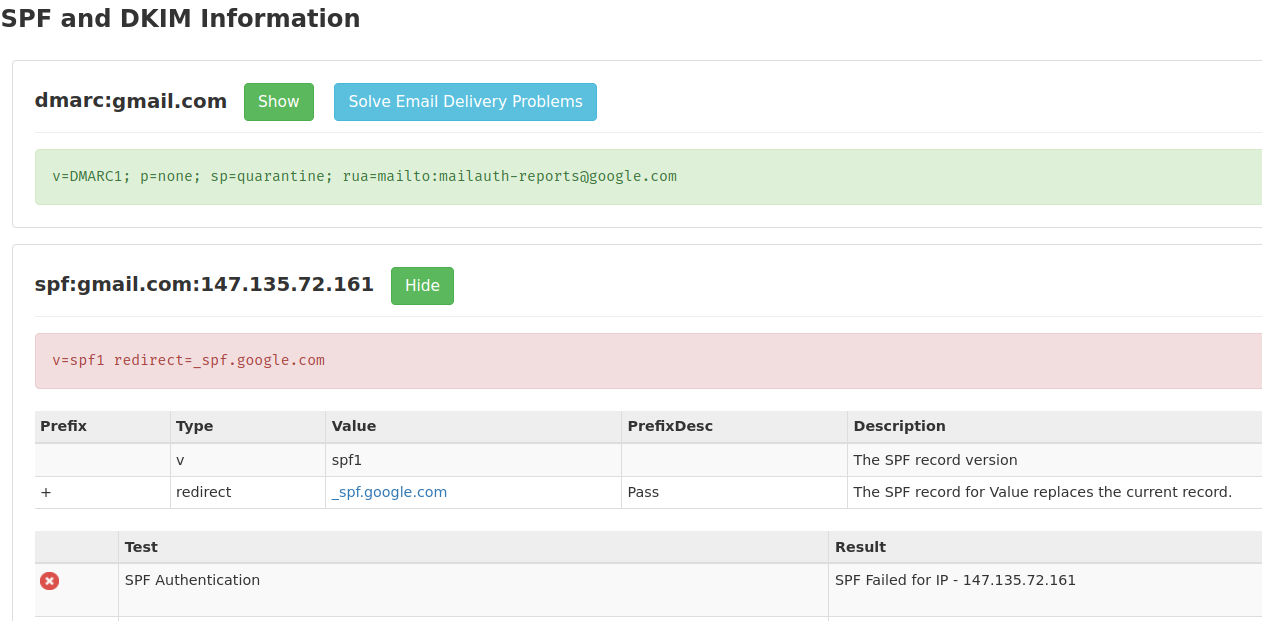
Is this email actually from a GMail account? No!
Notice these things from the summary below:
transitioning domain of _spf.google.com does not designate 147.135.72.161 as permitted sender
nope, phony sender
smtp.mailfrom=george@gmail.com; dmarc=fail
nope, phony sender
from mtx1.gskrmail.com (mtx1.gskrmail.com [147.135.72.161])
actual sender
That equals “It was sent from gskrmail.com, not from GMail”.
They “lied on the outside of the envelope”, putting a wrong “From” email address.
This is from my email program’s summary of the email headers:
Authentication-Results
mx.zohomail.com; spf=softfail (zohomail.com: transitioning domain of _spf.google.com does not designate 147.135.72.161 as permitted sender) smtp.mailfrom=george@gmail.com; dmarc=fail(p=none dis=none) header.from=gmail.com

Received
from mtx1.gskrmail.com (mtx1.gskrmail.com [147.135.72.161]) by mx.zohomail.com with SMTPS id 17050598302871018.8032972489663; Fri, 12 Jan 2024 03:43:50 -0800 (PST)
In the “full headers” I can see these:
Received-SPF: softfail (zohomail.com: transitioning domain of _spf.google.com does not designate 147.135.72.161 as permitted sender) client-ip=147.135.72.161;
Paste the “full headers” of your email. Your email software has a way to “Show Source” or “View Original Headers”, or something like that.
Nope, not from GMail, but from gskrmail
and it shows the sender is “On a Blacklist”, a known spammer.
Nope, not from GMail, the email failed the SPF Authentication.
What To Do About Phony Senders?
Hopefully, your email program now alerts you when an email sender is unverified.
Don’t waste your time following up on these suspicious emails.
Just click “Delete” or “Spam” or “Phishing” (whichever you think is best) in your email program.
What Should You Pay Attention To?
Pay attention to what you want for your family.
Pay attention to what you want for your neighborhood, for your groups, for your closest friends.
You are more likely to get what you pay attention to.
Don’t pay attention to what gets you irate, indignant. Those emotions are addictive. “They” want you addicted, because every addict believes anything their drug dealer says.
When you are addicted, you can not pay attention to anything else.
Corporations want you to “buy more”, whether it is good for your family or not.
Too many politicians want you to “vote me into power”, not caring about your family at all.
Email spammers either want you to buy from a corporation, or vote for a power-greedy politician, or help them (the spammers & hackers) commit a crime.
Pay attention, instead, to what you want for your family and who will help you have what you want for your family.
Welcome to a transformative journey where Artificial Intelligence meets WordPress development.
This guide is tailored for AI developers venturing into what is available using WordPress, specifically those who have not yet tried plugin development within this platform.
I am going to introduce an innovative concept: WordPress plugin designed to integrate seamlessly with ChatGPT, enabling the creation of advanced AI prompts and revolutionizing AI prompt creation while reducing development effort.
Revolutionizing Content Creation with AI and WordPress
This innovative tool is more than just an AI integration into WordPress; it’s a paradigm shift in content creation, management, and customization. It’s designed for content creators who are intelligent, confident, and looking to make a substantial impact in their communities and businesses, as well as their personal lives, without being overwhelmed by technical details.
The Foundation: Layout and Design
Utilize the WordPress TwentyTwentyFour theme for all layout aspects, ensuring consistency in design and user experience.
Rely on WordPress’s inherent styling capabilities for elements like headings, paragraphs, and buttons.
Emphasize accessibility with checks for color contrast and menu design, ensuring that the tool is user-friendly for all audiences.
WordPress already knows how to display entire pages so they look good on desktop monitors, tablets, and mobile phones.
This approach leverages the powerful features of WordPress, allowing developers to focus more on the plugin’s functionality rather than the nuances of layout and presentation.
Creating a Basic WordPress Plugin
Develop a plugin that introduces ‘SYM-Question’ and ‘SYM-Response’ blocks, tailored for seamless AI integration.
Inherit core functionalities from the WordPress Block Editor’s existing blocks, such as Form Fields and Text blocks, for inputting and displaying text.
Each Block in a WordPress page comes with its own settings panel, offering customization options like text input, radio buttons, checkboxes, multiple-selection check boxes.
The settings panel can also have more complex elements, such as: selecting from posts or categories, or custom post types.
All settings in the block’s settings panel, are developed using the WordPress API, so you do little more than specify each setting to use (e.g. description on screen, data type).
This method streamlines the development process, ensuring that the plugin aligns well with the WordPress ecosystem, is secure from hacker inputs, and is user-friendly.
Storing and Managing Prompts and Results
Store each ChatGPT conversation as a WordPress page.
Enable users to save and resume conversations, enhancing the functionality and user experience of the plugin.
Some complex prompts will likely save the result to a new WordPress page, and display just the URL for the new page. Example: “Make a sales page for this potential client, for this course”.)
Reusable Information for Prompts and from Results
Allow users to manage their AI prompts and AI responses as they would with any standard WordPress content.
Offer the flexibility to copy, edit, and reuse portions of prompts, across various AI conversations, enhancing the overall utility of the plugin.
Use Custom Post Types for structured prompts, as they will aid in the organization and retrieval of the specific information needed for each type of advanced AI prompt.
Users will then be able to select from several variations of their prompt sections. For example, have multiple niches and ideal customers defined, for writing content for multiple client websites; or have health & wellness descriptions for everyone in your family, for translating doctor recommendations into understandable steps.
These features ensure that the plugin is not only powerful but also versatile and adaptable to various content creation needs.
Make Custom Post Types for structured prompts
If you ask several questions to prepare for a complex prompt, make a custom post type for asking for, and storing, and retrieving, each set of answers to the questions. Then make custom blocks for the input form and the results.
These custom post types and blocks can inherit the abilities of what you have already written. In many cases, a complex prompt would just be assembling the text from several input fields, with any additional prompting statements; submitting that as an AI prompt; getting the results back; any processing you need to do for formatting and storing the results.
Provide a detailed and user-friendly interface for customizing and previewing complex prompts.
Make a Block, to input each custom prompt’s information,
Make a Block, to receive the results from the AI and display it. Your results block can translate the AI’s responses to display them in a better way.
The input form for the custom post type would show all instructions for making the AI prompt, such as what the overall prompt is to accomplish, what each field is for, and recommendataions of what to include in each field.
The entire form’s data gets saved as a page (of the custom post type), much like you can have an “employee info” custom post type that keeps their name, department, job title, email address, a description, a favorite quote.
Let the users “preview the entire assembled prompt, and make any edits” (in the original form) before submitting it to the AI.
How to make, input, save, display, query all the information in a custom post type, is well documented, and easily coded. Mostly coding for a custom post type involves describing the fields you want to store, and what type of data to store in each (text line, text box, check box, selection list, radio button, etc.)
This level of customization makes the plugin an invaluable tool for content creators looking for precision and control in their AI interactions.
Diverse AI Prompt Types
Create custom blocks for inputting and receiving AI results, tailored to the specific needs of the AI prompt.
You specify what elements (text input, radio button, check box, multiple-select check box, URL selector, image selector, etc) you want for settings, or for more complex inputs.
what Knowledge Domain(s) the AI is to use and what levels of expertise (“AI, you are ___”)
What do you want to learn? what is your current knowledge of that? What learning style do you prefer?
What is your niche, who is your ideal client, what is your brand?
What is needed to make a sales page, once the AI has a good description of your product?
Product name,
URL (probably the domain’s main page),
Signup page URL (for the “Register Now” button), phrase for the “Register Now” button,
List of testimonials,
List of key features of the course,
List of benefits of the course,
What people get out of the course,
List of objections to registering and answers to each,
Guaranty,
Payment methods.
“Publish as a sales page” assembles everything in a new page and tells the user the new page URL.
“Rewrite this page and make an excerpt”
prompt for an existing page URL on this site,
Specify the knowledge domain the AI should use,
Specify your niche and target audience
Publish the results on a new page. Have the AI make a new title and excerpt based on the new page contents. When everything on the revised page is how you want it, item on the Settings panel of the new page to redirect traffic from (old page _____) to this new page”. Use the Redirection plugin https://wordpress.org/plugins/redirection/
Online Training articles
what kind of people are you training?
what learning styles do people prefer? (Most groups have multiple learning styles)
what specific skills will people learn, so you and they can tell they learned every part of the lesson?
how will you know whether a person has learned? What measurable results would show that?
Rewrite a list
ask who to write for, what domains of knowledge to be an expert in, prompt user for a list item heading and list item text, repeat, until user responds “done”;
Option for the list: do not rewrite item headings (e.g. you are writing documentation for software, matching the on-screen prompts)
Option: unordered, or numbers or letters for the list ordering
AI generates the new list, output as an HTML list (the item heading) and paragraph (the rewritten item text)
Option: whether to give a summary of the new list
These diversified block types cater to a wide range of AI outputs, making the plugin a comprehensive solution for various AI prompting requirements.
Saving and Selecting Prompts
Allow users to save the same prompt fields for different clients or projects or family members
Input each prompt as the custom post type, save it with a post title
In a complex prompt, the user selects each prompt element by its “Title” in a selection field that lists posts of that custom post type. (Describing it is hard, using it is very easy.)
Instead of copy/pasting in “AI You Are “, “My Niche Is”, “My Ideal Client Is”, “Output in This Format”; you simply pick each of those from a selection box, just like WordPress has a “Categories” selection in each post’s Post Options panel.
Each of those selections should have a “create new” option, so users don’t have to save what they have done so far, go to the Add page for that prompt type, and come back to what they were doing.
Short selections can create a new one simply in a text field. Longer entries can use a pop-up window of the current page, and save as a new post using the appropriate custom post type.
This feature makes the plugin able to re-use whole sets of answers, in different combinations, as prompts for multiple projects or clients.
Output Format Options
Offer a range of output formats like sales pages, social media content, video scripts, and more.
Provide the flexibility to choose multiple output formats, based on the specific question or content type.
WordPress article
Sales page
About Me page
Social media series of posts
Product description
Course description
Video script or podcast script (edit in Descript.com or Veed.io or DaVinci Resolve)
YouTube video scripts (ChatGPT seems to think these are different than video, results tend to be for short videos with fewer details)
Presentation slides text (can these be output directly into Google Workspace’s presentation program, now that Google Gemini Pro accesses it?)
PDF (most browsers have “print to pdf”, but the AI could optimize page breaks
Kindle (or other eBook formats)
title page, table of contents, cover image, generate XML much like HTML, send to Amazon’s converter program;
have a way to specify the order of pages from a website, each webpage is a chapter, to make a Kindle of the entire site or selected pages)
Math and science equations in Latex
Gemini knows how to output Latex to display equations in textbook quality
Research journal format
take sources from a common WordPress research source plugin
Press release
The variety of output formats ensures that the plugin can cater to a wide range of content creation needs, making it a versatile tool for different types of creators.
Train the AI to output all its responses as JSON or WordPress Block Pattern format
From JSON, can use the WordPress API to make:
Hero block (image description, heading text);
Contact form (field names & labels, submit button text and URL, text before form, privacy notice);
Pricing table (heading & list of what’s included, and price, and order button),
or any other WordPress block type or non-WordPress format (Google Workspace presentation?).
From WordPress Block Pattern format, you can including styling of each sub-block (e.g. font, colors or palette entry, text alignment, or flex-box columns).
Block Patterns can simply be copy/pasted into any WordPress site (since WordPress 6.__), complete with multiple “simple blocks”, block styling, layout; all block patterns and the blocks they are made of, can be customized by the Block Editor just like any other block.
Block Patterns – Add a beautifully designed, ready to go layout to any WordPress site with a simple copy/paste. https://wordpress.org/patterns/
Leveraging WordPress API and Resources
Utilize the WordPress API for efficient development and seamless integration.
Learn from GPL-licensed plugins, adapt the code they have already written, reducing your development workload.
Learn from existing AI plugins in WordPress to enhance the functionality and usability of the new plugin.
One plugin to start with: “AI Engine: ChatGPT Chatbot, Content Generator, GPT 3 & 4, Ultra-Customizable”, By Jordy Meow https://wordpress.org/plugins/ai-engine/
This strategy ensures that the plugin is not only efficient in its development but also robust in its functionality and integration with WordPress.
Just think of how much you do not have to code, because you are using what WordPress, and WordPress plugin authors, have already done for you.
Future Enhancements: AI Website Maker
Envision the plugin evolving into a full-fledged AI Website Maker within WordPress, offering a comprehensive solution for creating and managing AI-driven websites.
Contemplate hosting options for WordPress with partner companies, each student getting their own hosting account, hosting and security and CDN (for speed and security), with plugins configured and theme all set up for them.
Explore the potential of FutureCoach hosting with an enterprise-level hosting company, offering sites on WordPress Multi-site for instant creation and management of thousands of websites.
10web already has hosting with an AI Website Builder installed
– 10Web is a major website hosting company. My quick check of their offering: they include strong website security against hackers, have a fast infrastructure for serving WordPress websites, have good features for professional website developers.
These future enhancements aim to elevate the plugin from a mere interface to a complete AI-driven website creation and management solution within WordPress.
Other resources
WordPress Block Patterns Tutorial: How to create custom block patterns in Gutenberg https://youtu.be/-ZDxSh-vxUA
Microsoft Copilot: 4 things ChatGPT can learn from Microsoft Copilot https://www.xda-developers.com/chatgpt-learn-microsoft-copilot/
“Here’s a little secret: You don’t need to pay for ChatGPT Plus to use ChatGPT 4 or DALL-E 3 integration. Copilot has it all for free.”
How to Use Google Gemini Pro & Is it Better Than ChatGPT? https://youtu.be/Vh4bhoKjFOg
Place a ball of pink yarn and a ball of green yarn on the table, it responds what it sees; ask what you can make with it, it says dragon fruit and shows picture of one made with the yarn.
Black marker, draw a guitar, it plays a made-up song. Add an amplifier, changes to electric guitar; add a drum, changes to 1980s heavy metal.
The video was edited for time. You upload a picture from your computer, prompt with text like “Tell me what you see”.
9:07 show image of student’s hand-written answer to printed physics math problem; it says what the student got wrong and the correct answer, with Latex-formatted equations
Google Bard
https://bard.google.com/ then top-right corner, jigsaw piece = extensions
YouTube extension @youtube Discover and get answers from Bard about YouTube videos
Google Workspace extension @gmail, @drive, @docs Summarize, find, and get quick answers from your own content to fuel your personal journey
Bard has “upload image” icon next to the text prompt box.
Instead of using Google, browse to labs.google (not labs.google.com), in Google Search section click Get Started, toggle on “SGE, Generative AI in Search”
“Gemini Ultra is still under development and not yet publicly available. While it outperforms Gemini Pro and even other cutting-edge models like GPT-4 in some benchmarks, it requires extensive computational resources and isn’t currently accessible for individual users or small businesses.”
from labs.google
Journalist x Large Language Models | Google Lab Sessions Dec2023 https://www.youtube.com/watch?v=s9BMGSYmJgI
For video journalist @CleoAbram sifting through the infinite access of information is both a privilege and a challenge. In this Lab Session, Cleo explores how NotebookLM might accelerate her research process as she works with author Steven Johnson to investigate complex topics like memory retrieval, fact checking and second brain workflow. Try NotebookLM at https://notebooklm.google/
Hands-on with Gemini Interacting with multimodal AI Dec2023 https://www.youtube.com/watch?v=s9BMGSYmJgI
Conclusion
As I wrap up this guide, I invite you to explore this innovative plugin design, a tool that not only bridges AI and WordPress but also opens new horizons in web development. Whether you are an AI developer new to WordPress or a seasoned web developer curious about AI integration, this plugin offers a unique and powerful approach to content creation.