Tag: block editor

  • Using the WordPress Block Editor: A Guide to Simplicity and Efficiency

    Using the WordPress Block Editor: A Guide to Simplicity and Efficiency

    Introduction

    Welcome to the world of WordPress 6.3! Here, we’re diving into the Block Editor – a tool that’s transforming the way we create and manage content. If you’re aiming to build a website that’s both stunning and functional, without getting bogged down in technical complexities, this guide is for you.

    a close up of a pink and blue background

    Embrace the Ease of the Block Editor

    Imagine a tool that simplifies your website creation process, making it intuitive and straightforward. That’s what the Block Editor offers. With its drag-and-drop functionality, you have the power to craft your website, one block at a time.

    Why Choose the Block Editor?

    Clarity and Simplicity: Unlike other page builders, the Block Editor’s interface is clean and uncluttered, making it ideal for beginners and pros alike.

    Speed and Performance: Pages built with the Block Editor load faster, providing a better experience for your visitors.

    Flexibility: Whether you’re crafting a blog post or a full-fledged webpage, the Block Editor adapts to your needs. Want some ideas? Look at the WordPress Showcase: Star-studded sites built with WordPress, from Design Museum Danmark, to NASA, to Harvard University, to Massolino Winery, to Mint finance app, and about 100 others.

    Training and Support: The Block Editor programmer library makes designing specialty blocks easier for developers. With one interface, training is easier; and support is readily available.

    Styling Complex Blocks

    With one simple panel for all styling options, you can:

    • Style each part of a complex block such as lists of your most recent pages, or pages in a category; with featured images, headings, excerpts; grid layout or masonry layout
    • Arrange several items in columns, that flex their sizes to fill the space, using multiple rows as needed, no matter what screen size
    • Customize basic formatting, including:
      • Fonts and font styles (such as bold, italics)
      • Colors (for fonts, backgrounds, hyperlinks)
      • Spacing, alignment and borders for blocks
      • Use an icon or symbol as bullet points in list blocks.
    • Enhance blocks with additional features:
      • Background customization (images or videos, color, gradient, parallax effect)
      • Visual effects (shadow, animated effects like fade or slide in)
      • Functional elements (sticky blocks, progress bars, carousels, slideshows)
    • Use custom CSS code for advanced customization
    • Implement interactive elements like hover effects and video backgrounds; use animated effects (e.g., fade in, slide in)
    • Add progress bars or bar charts within blocks to showcase data
    • Create carousels or slideshows within blocks to display multiple images
    • and so many more types of blocks…

    Why Choose the Block Editor?

    Clarity and Simplicity: Unlike other builders, the Block Editor’s interface is clean and uncluttered, making it ideal for beginners and pros alike.

    Speed and Performance: Pages built with the Block Editor load faster, providing a better experience for your visitors.

    Flexibility: Whether you’re crafting a blog post or a full-fledged webpage, the Block Editor adapts to your needs.

    Key Benefits of the Block Editor

    1. User-Friendly Interface: Easy to navigate, even for beginners.
    2. Versatile: Suitable for all types of content creation.
    3. Responsive Design: Ensures your site looks great on all devices.
    4. SEO-Friendly: Optimized for search engines.

    Grouping Sections: The Power of Customization

    With Grouping Sections, you can cluster blocks, creating distinct sections on your page. This allows for enhanced design flexibility and a more organized layout. Each “color row” on this page is made by selecting several elements, grouping them (or adding a group element and adding elements inside it), and setting a background color (or gradient, image or video).

    Text with Images: Bringing Your Content to Life

    group of people using laptop computer

    Combine your words with visuals using the ‘Media & Text’ block. This feature lets you embed images alongside your text, making your content more engaging and visually appealing.

    Block Pattern Library

    The Block Pattern Library is a collection of pre-designed sections or blocks that can be used to create page layouts in WordPress. It provides a wide variety of ready-to-use block templates that can be customized (using the Block Editor) and combined to quickly build visually appealing page designs without the need for design skills.

    For a busy personal coach or course creator, the Block Pattern Library offers a convenient way to save time and effort when creating web pages. Search for the type of block you want, and browse through the library and choose block patterns that suit your needs.

    These patterns include sections for headers, testimonials, call-to-action buttons, pricing tables, image galleries, and many more.

    To make use of the Block Pattern Library, follow these steps:

    • Add a block: Click on the “+” button in the editor to add a new block. In the block inserter, look for the “Patterns” tab.
    • Browse and select patterns: Click on the “Patterns” tab to explore the Block Pattern Library. Scroll through the available patterns or use the search feature to find specific designs.
    • Insert the pattern: Once you find a suitable pattern, click on it to insert it into your page.
    • Customize the pattern: You can edit the content, colors, fonts, images, and other elements to match your brand or preferences. Each block within a pattern can be individually modified.

    By leveraging the Block Pattern Library, you can rapidly create professional-looking web pages. Each pattern you customize, you can save (with all your settings), with a pattern name you choose, so your entire website will have consistent design elements.

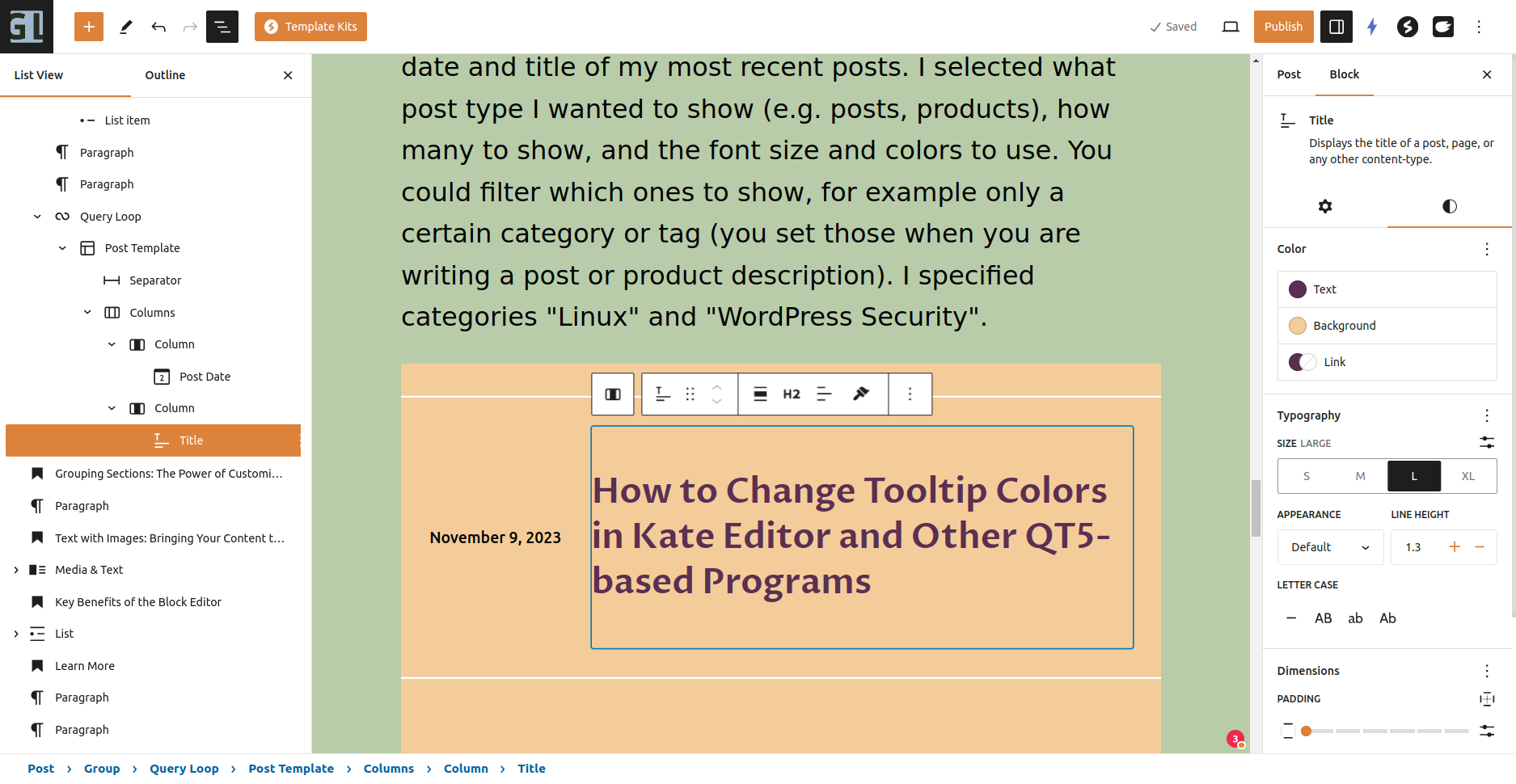
    Here is a pattern that I simply downloaded from the WordPress Pattern Library: A “Query Loop”, showing the date and title of my most recent posts. I selected what post type I wanted to show (e.g. posts, products), how many to show, and the font size and colors to use. You could filter which ones to show, for example only a certain category or tag (you set those when you are writing a post or product description). I specified categories “Linux” and “WordPress Security”.

    Block Editor Settings Panel

    Select the block you wish to style from the List View panel on the left, or click on it in the main section. Open or close the List View by clicking the black “3 line outline” icon at the top.

    The Block Settings panel is on the right. Open/close the panel with the “white on black” icon above it. Each block (and each sub-block of a complex pattern) has settings here.

    The “Post Title” block has options for text and background colors, typography (font size and letter case), padding, and margins. Less commonly used options, like font family, can be found in the “3 dots” icon.

    When you click on a block, that block’s settings panel appeares, and its hover menu appears.

    The hover menu has convenient buttons for that block, including selecting the block’s parent block (this example: the Post Title has a “Column block” as a parent, and the column is inside a “Columns Block”). Other blocks might have a simple conversion to another block, for example a Paragraph can easily be converted to a Heading, or to a List.

    That post title is currently displayed as an “H2” but you can change it to other heading levels; you can change the block width and text alignment (left/centered/right).

    This is the hover menu for a Paragraph block. You can select the parent block, convert it to different block types, move it by dragging or using the up/down arrows, change the text alignment, copy the block with all its settings (a Spectra feature), enhance the text using the AI Engine plugin, convert selected words to bold or italic or a link, and perform general operations like adding a block above or below this one.

    Learn More

    For a comprehensive tutorial on using the Block Editor, visit Learn WordPress. This set of videos, with transcripts, is very clear.

    Spectra – The Ultimate Blocks Library is a great introduction to both the Block Editor and Spectra (which is both a collection of great blocks, and blocks that make page layout easier).

    Conclusion

    The WordPress Block Editor is a game-changer, especially for those who value efficiency and ease of use. By embracing this tool, you’re not just building a website; you’re crafting an experience that resonates with your audience.

    Ready to take your website to the next level? Explore the Block Editor today and see the difference it makes in your online journey.

    If you have any questions about your website, please leave your comments here or contact me.
  • Mastering the Art of Flex Containers in WordPress 6.3 Block Editor

    In the realm of the WordPress 6.3 Block Editor, understanding flex containers and their settings can significantly streamline your site design process. Flex containers are versatile, allowing for diverse layouts that adapt seamlessly to various screen sizes.

    What Are Flex Containers?

    Flex containers, deriving from the CSS Flexbox module, enable you to design complex layout structures with a cleaner design logic than float or tables. The WordPress block editor has adopted this model, introducing blocks that utilize flex principles.

    Image 1: A diagram displaying a flex container with items inside.

    Alt tag: Overview of a flex container in WordPress.

    Full Width & Wide Width

    Full Width: This setting allows a block to span the entire width of the viewport. It’s useful when you want a background color, image, or pattern to extend edge-to-edge.

    Wide Width: Provides a wider design than the default width, but doesn’t span the entire viewport. It’s a middle ground between standard and full width.

    Image 2: Comparison of standard, wide, and full-width settings.

    Alt tag: Differences between standard, wide, and full-width in WordPress.

    Horizontal Alignment: Left, Center, Right

    This determines the alignment of blocks within a container:

    • Left: Aligns content to the left.
    • Center: Centers content.
    • Right: Aligns content to the right.

    Image 3: Blocks showcasing left, center, and right alignment.

    Alt tag: Horizontal alignment options in WordPress.

    Vertical Alignment: Top, Middle, Bottom

    This specifies the vertical placement of content within a flex container:

    • Top: Positions content at the top.
    • Middle: Centers content vertically.
    • Bottom: Anchors content at the bottom.

    Image 4: Blocks showcasing top, middle, and bottom alignment.

    Alt tag: Vertical alignment options in WordPress.

    Flex Spacing

    Flex spacing is all about distributing space among items within a flex container:

    • Space-between: Places equal spacing between each item.
    • Space-around: Distributes space around items, half on either side.
    • Space-evenly: Equal spacing around and between items.

    Image 5: Illustration of different flex spacing methods.

    Alt tag: Flex spacing methods in WordPress.

    Nesting Containers

    Nesting allows you to place a container within another container. It provides granular control over the design:

    • Outer Container defines the overarching layout.
    • Inner Container can have its unique properties.

    Remember, the properties of the outer container may influence the available settings for the inner container.

    Image 6: Diagram showing a container nested within another container.

    Alt tag: Nesting containers in WordPress.

    Flex Container Layout Suggestions

    • Card Layouts: Use flex containers to design card-based layouts, aligning them horizontally or vertically.
    • Navigation Bars: Flex containers can create responsive nav bars that adjust according to screen size.
    • Galleries: Showcase images in a flexible, responsive grid layout.

    Image 7: Examples of card layouts, navigation bars, and galleries using flex containers.

    Alt tag: Flex container layout examples in WordPress.

    What affects whether an element is full screen-width vs the width of the containing element?

    The width of an element in a web page, especially in WordPress, can be influenced by several factors:

    • Theme Restrictions: Your chosen theme might have default widths set for content. Some themes restrict content to a certain width to maintain a particular design aesthetic.
    • Block Settings: In the WordPress block editor, blocks like Group, Cover, and Column have width settings such as wide width and full width. If you set a block to full width, it’ll stretch across the entire width of the viewport.
    • CSS Styling: Custom CSS can be used to override default widths. Using properties like width, max-width, and min-width can define specific measurements.
    • Parent Container: If an element is inside a container (like a Group block in WordPress), the width of the parent container can limit the element’s width. For example, if the container has a maximum width set, all child elements within it will be restricted to that width.

    When do you put a “regular block” (such as heading and paragraphs) inside a container within a container, vs just using a single container?

    Using nested containers (a container inside another container) or a single container depends on the design complexity and functionality you’re aiming for:

    • For Basic Designs: If you’re looking to apply a basic background color, border, or spacing around a heading and paragraph, a single container would suffice.
    • For Complex Designs: Suppose you want to have a section with a distinct background color and within that, you want a heading and paragraph to have their own separate background, spacing, or border. In this scenario, you’d nest the heading and paragraph inside a container, and then place that container inside another container with the distinct background color.
    • For Advanced Layouts: Nested containers can help achieve complex layouts like grids with unique styles within each grid cell.

    What flex container settings interfere with other container settings? What is the right way to get different container layouts?

    Flexbox is a versatile layout model, but some settings can interfere or override others:

    • Flex Direction vs. Flex Wrap: flex-direction defines the direction of the flex items (row or column). If you have flex-wrap set to wrap and there’s not enough space for items to fit in a single line, they’ll move to the next line. This might change the appearance if you initially planned for all items in one line.
    • Justify-content vs. Align-items: justify-content arranges items horizontally while align-items does so vertically. If you change the flex-direction, the roles of these properties will swap, which can be confusing.
    • Flex-grow, Flex-shrink, and Flex-basis: These properties define how items grow and shrink within a flex container. If not used correctly, they can cause items to overlap or take up more space than anticipated.

    The Right Way to Get Different Container Layouts:

    • Plan Ahead: Before diving into designing, sketch out or note down the layout you want.
    • Use Developer Tools: If you’re unsure of how certain flex properties are affecting your layout, use browser developer tools to inspect elements. This allows you to see and experiment with applied styles.
    • Start Basic: Begin with basic settings, and then add complexity. For instance, start by setting the flex-direction and then adjust alignment, wrapping, and individual item properties.
    • Practice: Like all design tools, mastering flex containers in WordPress or any platform comes with practice. Experiment with different settings to understand their behavior and interactions.

    Remember, while flexbox is powerful, it might not always be the solution. Depending on your layout needs, consider other CSS layout models like Grid or traditional block and inline display properties.

    Setting Flexbox Widths and Heights

    Setting element widths in a flexbox layout is integral to achieving a desired design. You can use various methods, depending on the specific look and functionality you aim for.

    1. Setting Element Widths in Flexbox:

    Pixel Widths (px):

    • Offers fixed-width columns regardless of the viewport size.
    • Can be problematic for responsive design since the width remains constant across devices.
    • You should rarely (if ever) use pixel widths in a Flexbox design.

    Percentage Widths (%):

    • More responsive than pixel widths.
    • The columns adjust based on the percentage of the parent container’s width.
    • Since CSS can do simple calculations, you can specify widths as (100% / number of columns) to split evenly, e.g., 100% / 3 for 3 columns.

    Flexbox Relative Widths (flex):

    • Uses the flex property, which is a shorthand for flex-grow, flex-shrink, and flex-basis.
    • The default value is flex: 0 1 auto, which means columns don’t grow beyond their content width, can shrink, and have an initial width based on content.
    • For equal-width columns, you can use flex: 1 which ensures that all columns take up an equal amount of available space.
    • To make one column twice as wide as the others, or more accurately “grow wider twice as fast”, you can use flex: 2 for that particular column and flex: 1 for the others.

    2. Balancing Column Heights:

    Flexbox’s primary strength is its ability to align content vertically, making it easier to balance column heights. However, equal height columns do not guarantee equal content length due to variations in content density (e.g., text, images). Here’s how you can approach it:

    Equal Height Columns:

    • By default, flexbox child elements (flex items) will be the same height in a row. They stretch to the height of the tallest item.

    Balancing Content for Approximately Equal Heights:

    • This requires more strategic content planning rather than a pure CSS solution.
    • Aim for a balanced amount of content in each column.
    • Utilize content strategies like trimming text, using excerpts, or using CSS media queries to adjust font sizes for different devices to ensure uniformity.

    Row Wrapping:

    • If you have a multi-row flex container and want each row’s items to align to that row’s height instead of the tallest item in the entire container, you should separate your flex containers row-by-row.

    Example CSS of a 3-Column Flexbox:

    .container {
        display: flex;
        justify-content: space-between;
    }
    
    .column {
        flex: 1; /* Equal width */
        padding: 10px;
        box-sizing: border-box;
    }
    
    /* Optional: For a column to be twice as wide */
    .wider-column {
        flex: 2;
    }

    This CSS gives you a 3-column layout where each column adjusts to the container’s width. The .wider-column class allows one column to take up additional space twice as fast compared to the others.

    Making 3-column Layouts Using Flexbox

    1. Creating a 3-Column Flexbox using Block Editor:

    1. Add a Columns Block:
      • In your post or page editor, click the “+” button to add a new block.
      • Search for and select the “Columns” block.
      • Choose the “Three columns” layout from the patterns that appear.
    2. Adjust Column Widths:
      • By default, each column in the “Columns” block will have an equal width.
      • To adjust individual column widths, click on the particular column you want to modify.
      • In the Block settings panel on the right, there’s a “Percentage width” slider (or a width setting). Adjust the width of the columns as desired.
    3. Add Content to Columns:
      • Click inside each column to add blocks like “Paragraph”, “Image”, “Heading”, etc.
      • Add your content into these blocks.

    2. Applying Custom CSS like “flex: 2;” in the Block Editor:

    1. Add a Columns Block:
      • If you haven’t already, follow the steps above to add a 3-column layout.
    2. Use the Advanced Panel for Custom CSS:
      • Click on the column you wish to apply the custom CSS to.
      • In the Block settings panel on the right, scroll down to the “Advanced” section.
      • There’s a field labeled “Additional CSS class(es).” Here you can add a custom class, say, wider-column .
    3. Add Custom CSS in the Customizer:
      • Go to Appearance > Customize from your WordPress dashboard.
      • Navigate to Additional CSS.
      • Add your custom CSS, e.g.,
      • .wider-column { flex: 2; }
    4. Publish your changes.

    By following the above steps, you have successfully applied a flex: 2; style to the desired column, making it grow wider twice as wide as the other columns.

    Note: While the Block Editor provides a robust set of tools for designing layouts, sometimes it’s more efficient and offers greater flexibility to use a combination of Block Editor features and custom CSS for advanced styling needs.

    In conclusion, the method you choose for setting widths in a flexbox layout depends on your design goals. For most use cases, using the flex property offers the greatest flexibility and responsiveness. Balancing content visually is a mix of CSS techniques and content curation.

    Conclusion

    As you delve deeper into the world of WordPress 6.3 Block Editor, mastering the art of flex containers will undoubtedly elevate your design game. Remember, it’s all about understanding the tools at your disposal and experimenting until you find the perfect fit for your content.

    Note to Reader: Always keep your WordPress theme and plugins updated to ensure compatibility and make the most out of these features.


    This guide is ideal for dynamic entrepreneurs and business leaders, like those specializing in supporting course creators and life coaches. We understand the challenges of web design intricacies and aim to simplify them for you.

  • Asking ChatGPT for WordPress Block Editor format

    Asking ChatGPT for WordPress Block Editor format

    If you get content generated with the correct formatting commands, from ChatGPT or any other source, you can paste it into WordPress not as text, but as paragraphs, headings, lists, code, containers, quotes.

    You can train ChatGPT to deliver a long article in pieces, and have special formatting for a piece. For example, a container with two columns, with text in the left column and an image on the right.

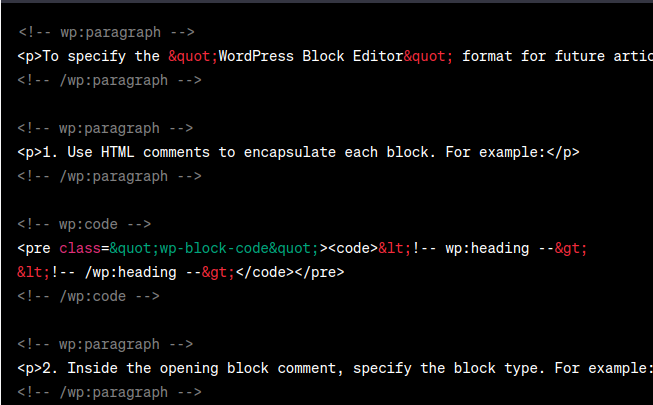
    To train ChatGPT, I took examples of different blocks made by WordPress. I viewed a block in the Code Editor, copied it and pasted it into ChatGPT. After a few rounds of “no, I don’t want you to repeat this to me, this is the format I want you to learn” I got what I wanted.

    (ChatGPT is like a naive genius child, it often doesn’t understand you, with a lot of words. So, ask a different way until you get what you want. Also, remember to use what it says as a 1st draft; you have to go over what it generates to make sure it wrote well, without misunderstanding you or including things you wouldn’t say.)

    Along the way, I found that Heading level 2 uses one format,
    <!-- wp:heading -->,
    but subheadings, with higher heading levels, require an additional parameter. For example an H3 heading needs this:
    <!-- wp:heading {"level":3} -->
    (otherwise, the Block Editor has to “attempt recovery”).

    Finally, ChatGPT gave me results I could paste directly into WordPress.

    Then, I asked it to give a succinct way to instruct it what format I wanted.

    It gave a good answer. Then I asked “Can you remember for my account, what “WordPress Block Editor format” is? Or should I paste what you said for each new article?”

    As an AI language model, I don’t have access to personal account information or the ability to remember specific details about individual users. Therefore, I cannot remember the specific details of your account or preferences.
    To ensure accuracy and consistency, it’s recommended to refer to the provided HTML code snippet or the guidelines mentioned earlier [see below] when working with the “WordPress Block Editor” format for each new article. By using the provided example and instructions, you can follow the proper syntax and structure for creating content in the WordPress Block Editor.

    ChatGPT

    You can use this to tell ChatGPT how you want it to output the article you are going to have it write.

    Here’s what it said.


    To specify the “WordPress Block Editor” format for future articles, you can follow these guidelines:

    1. Use HTML comments to encapsulate each block. For example:

    <!-- wp:heading -->
    <!-- /wp:heading -->

    2. Inside the opening block comment, specify the block type. For example:

    <!-- wp:heading -->

    3. To add attributes to a block, include them within the opening block comment. For example:

    <!-- wp:heading {"level":3} -->

    Using <!-- wp:heading {"level":3} --> for H3 headings, <!-- wp:heading {"level":4} --> for H4 headings, and <!-- wp:heading {"level":5} --> for H5 headings is the correct syntax to set the appropriate heading levels in the WordPress Block Editor format.

    4. Add content within each block using appropriate HTML tags. For example:

    <!-- wp:paragraph -->
    <p>This is a paragraph block.</p>
    <!-- /wp:paragraph -->

    5. Maintain proper indentation and spacing for better readability.

    6. If you want to include multiple blocks within a container or column layout, nest the appropriate block comments and HTML tags accordingly.

    7. Remember to refer to the WordPress Block Editor documentation for additional block types, attributes, and features that you can use to customize your content.

    So, you don’t tell ChatGPT “write me an article on _____”. You say “write me an article on _____ in this tone of voice, with about this many words. I want the article formatted for the WordPress Block Editor, and here is how to do that: (and you paste that entire set of guidelines, all 7 points).

  • How to Easily Add a Block Pattern from WordPress Repository

    How to Easily Add a Block Pattern from WordPress Repository

    The WordPress Repository now has Block Patterns, right next to where you find plugins and themes. You can very easily Add that Block Pattern from the Repository, for use in your WordPress sites. Then, you can change the images, colors, fonts, etc; everything that is appropriate for the pattern, using the Block Editor controls you are using for changing the appearance of a paragraph or columns.

    In the Repository, each pattern has a page demonstrating it. Notice the “handles” at each side of the pattern? Those are so you can see how the pattern looks at different browser window sizes.

    Here’s one example, a “large background image with title and description”. This pattern is on https://wordpress.org/patterns/pattern/large-background-image-with-title-and-description/

    Insert A Block Pattern

    Find a block pattern you like in the Repository, and on the page that shows an example of the pattern, there is a “Copy Pattern” button. Then you paste into your WordPress page or post, where you want it to appear. (Click on the block before where you want it, in the hover Options (three vertical dots) menu, select Insert After, then press Ctrl-V to paste the pattern.)

    FISHING BOATS

    Winslow Homer, 1903

    Winslow Homer was an American landscape painter best known for his marine subjects. He is considered one of the foremost painters in 19th-century America.

    Learn More →

    I changed the background color of the text, to one that fits more with the colors of the site. Specifically, I took a background color from the Palette. To do that, open List View (3 stacked lines icon at the top of the Editor near the left), select the Group that contains the two columns with paragraphs. Now, you can change the background color, for the entire group at once. In the Block Options panel, in Color, set the default text and background colors for the group. Do the same for the Group that contains the heading “Fishing Boats”.

    How did I move what part of the picture is shown? That is with the “Focal point picker”. When you select the correct block (in this example, the Cover block), you will see the focal point picker. Since the focal point picker is built into WordPress, most blocks that contain images have this. Drag the small circle around, to see the portion of the picture you prefer.

    How to Change the Image in This Pattern

    You probably want to change the image, to one that is in your Media Library. When you select the correct block (in this case the Cover block), it has a “Replace” button on the hover menu. You then have options to open the Media Library to pick a better cover photo, or to upload a new photo into the Media Library and use it here.

    Here’s how the same pattern looks with new photo and text:

    Block Patterns vs Reusable Blocks

    When you edit a reusable block, the change will be reflected in all the places where that reusable block was used.

    If you wish to update a reusable block on a specific page or post only, you can use the Convert to Regular Blocks option

    https://wordpress.com/support/wordpress-editor/blocks/reusable-block/

    So, Reusable blocks are best for something that should look the same on every page, and have the same text. For example your “Author Tagline” or the company contact info.

    Block Patterns are for when the layout stays the same, but the content will be different each time you use it. They are for when you want to reuse a pattern, not for when you want to reuse the contents.

    Saving Your Customized Pattern As A Block Pattern

    Block Patterns are easy to copy, including from the public WordPress Repository. Block patterns have no tie back to the original, so when you edit the pattern it is only in that one place.

    You might want to insert some dummy text “Put Text Here” so you remember to edit it every place you put the pattern. And use a default image, to remind you to replace it; don’t use some gorgeous image that you might forget to customize to the specific page it is placed on.

    To copy a Block Pattern, simply select the correct block, in this example the Cover block that contains the forest picture; then you can paste it into any programmer text editor (I like Atom and Visual Studio Code) to save it. You can, of course, copy it from any other page that has it (select the block, options (3 vertical dots), Copy.

    You can then simply paste it wherever you want to, just like you did pasting a pattern from the Repository.

    Saving Your Customized Pattern As A Reusable Block

    When I save a Reusable Block, I preface the name with my initials or the company initials, so I can find it easily.

    If you want to change a reusable block so all the places where you used the block will be affected, that is the perfect use of a Reusable Block.

    https://wordpress.com/support/wordpress-editor/blocks/reusable-block/ says “If you’d like to edit a reusable block in all the places on your site, add the reusable block and edit it by adding more paragraphs or other types of blocks. When you’re done with the changes, click the Publish button and then the Save button.”