Category: WordPress Troubleshooting

  • Troubleshooting WooCommerce: Steps to Resolve Cart Persistence Issues

    I have an old client with a precarious situation. Let me set the stage: We’re seeing some odd WooCommerce persistent cart behavior. Rather than merging the cart when signing in, it overwrites. I’ve tested numerous functions which help meet client needs in regards to how cart persistence is handled which work perfectly on my local, on the dev site, on the staging site but NOT on the live site. What is different about the live site vs these other environments? Live site has Object Caching and CloudFlare page level caching that I know of. So I tried: Turning off object caching at the host Cloudflare “Development mode” to turn off all caching temporarily I even turned of DNS proxy (as I see it a kill switch for cloudflare) All of my “next steps” are a bit volatile since it’s not something I can replicate locally or on a safe environment. I’m at a cross roads of less than ideal options so I’d welcome other ideas or suggestions. Here are some next steps down the troubleshooting path I can try: Pull Cloudflare NS entirely, wait for propagation and test (potential down time of live site) Host a copy of the site on another server to see if results persist –> feels like a waste of time because I don’t have the issue on dev/staging Start the old heave-ho by disabling plugins (on the live site :cry:) and test this live… Question: What would your next move be? What am I missing?
    A WordPress expert who supports client websites

    Troubleshooting WooCommerce is going to be complex, since there is so much to WooCommerce. Even limiting to “Cart and Checkout”, there are potential problems at several levels, including the database, WordPress core, plugins, payment processors, site security, information privacy, and more.

    1. Environment Consistency Check:
      • Confirming that the staging and production environments are identical (including PHP version, MySQL version, server configurations, and WordPress version) is crucial for accurate troubleshooting. Make sure there are no discrepancies.
      • If possible, clone the live site to a staging environment on the exact same server to replicate the environment as closely as possible.
    2. Database Synchronization:
      • Ensure that the staging database is a recent clone of the production database. This will help in reproducing the issue if it’s data-related.
    3. Error Logging:
      • Ensure that WP_DEBUG, WP_DEBUG_LOG, and WP_DEBUG_DISPLAY are configured correctly to capture any errors, warnings, or notices. Check the debug.log file, and the PHP error log, for any relevant entries that might indicate what’s going wrong.
      • See Debugging in WordPress – Documentation for these settings and where to set them.
    4. Cache Validation:
      • Although you’ve disabled caching at various levels, ensure that there’s no server-level caching or other caching mechanisms at play which could be causing discrepancies between environments.
    5. Transients:
      • Clearing transients is a good step. Corrupted or stale transients can cause unexpected behavior.
      • Transients are meant to be short term, to minimize complex database queries. So, (unless the plugin has bugs such as not using transients properly) you should be able to delete any transient at any time. If you have command line, wp transient delete --all or there are MySQL queries to delete them.
      • Transient Cleaner By David Artiss
    6. Plugin Conflict Test:
      • Although risky on a live site, disabling other plugins temporarily or doing a binary isolation (disabling half the plugins, then half of the remaining half, etc.) could help identify a conflicting plugin.
    7. Theme Conflict Test:
      • Temporarily switch to a default WordPress theme (currently Twenty Twenty-Three, or Twenty Twenty-Four is about to be released) to see if the issue persists. If the issue resolves, it could be a theme-related problem.
    8. Custom Code Review:
      • Review the custom functions you have written (if any) related to cart persistence to ensure they are coded correctly and are compatible with the live site’s environment.
      • Must pay attention to security, privacy, transients. Plus, you have to not conflict with parameters or settings of the main plugin.
      • Minimize your custom code as it requires a lot of testing and maintenance, every time the main plugin is updated.
    9. WooCommerce Configuration and Version Check:
      • Ensure that WooCommerce settings related to cart and sessions are correctly configured.
      • Check that the WooCommerce version on the live site is the same as on the staging and dev sites.
    10. Server Configuration Check:
      • Check server configurations for session handling and other server-level settings that might affect cart behavior.
    11. External Services:
      • Temporarily remove CDN such as Cloudflare from the equation by updating the DNS to point directly to the server, ensuring any changes have fully propagated. This can be risky due to potential downtime, but it could help rule out CDN caching as the culprit.
    12. Monitoring and Logging Tools:
      • Utilize monitoring and logging tools to observe the behavior of the cart during the login process to see if there’s any noticeable difference between environments. Debugging in WordPress (link above) suggests some.
    13. Support Channels:
      • Reach out to hosting support to see if they have any insights or if they can replicate the issue on their end.
      • Reach out to WooCommerce support or community forums with the detailed information about the issue to get more insights.

    Given the precarious nature of the live environment, some of these steps may come with risks or may not be viable. Each action should be weighed carefully against the potential impact on the live site. Taking a systematic, well-documented approach to troubleshooting will hopefully help isolate and resolve the issue with the least amount of disruption.

    Tip for all WooCommerce sites: never put a “live cart” on your pages; have a Link to the cart page on all your pages.

    Putting a live cart, or any frequently updated data, on a page prevents that page from getting cached. Every time the page is accessed, it must be generated again (or the page would get cached with old or “not theirs” data).

    Only work-around: you use a plugin that knows how to wait for the page to be completely loaded, and then use something (probably AJAX) to display this site visitor’s current cart, so the (private, secure) cart info never gets in the cache.

    Is having that info display so many places in your site really worth all that extra testing and maintenance work? A “See Your Cart” link is so easy.
    George Lerner

    Caches to Disable for Troubleshooting

    When debugging WooCommerce issues, it’s crucial to disable caches to ensure that you are seeing real-time, accurate results. Here are some of the key caches and caching layers to consider disabling:

    1. Browser Cache:
      • Your web browser stores static files to load pages faster. Make sure to disable browser caching or use incognito/private browsing mode to prevent old data from being displayed.
      • Many browsers have a right-click Inspector and on the Network tab there is a check-box to toggle the browser cache on/off.
    2. Page Caching:
      • Page caching is often managed by plugins or server configurations. This type of caching stores static HTML copies of your pages to serve to users, bypassing the need to generate the page from PHP and database queries, for every visitor.
    3. Object Caching:
      • This type of cache stores database queries or other objects to reduce the load on your database and speed up page loading times.
    4. Database Cache:
      • Some hosting platforms or plugins provide database caching to speed up database query times. Make sure to flush or disable this cache to ensure you’re seeing up-to-date data.
    5. CDN (Content Delivery Network) Caching:
      • CDNs like Cloudflare cache static content across their network to reduce loading times. Disable CDN caching or put it in development mode to prevent old content from being served.
      • WooCommerce pages like the shopping cart and the checkout pages should never be cached. That information must be private and current. Make sure all plugins you use, know how to prevent these pages ever getting cached.
    6. OPcache:
      • PHP’s OPcache speeds up PHP by storing bytecode in memory, preventing the need to re-compile PHP scripts on each request. Resetting or disabling OPcache might be necessary for debugging.
    7. Varnish Cache:
      • If your server or hosting provider uses Varnish, ensure it’s disabled. Varnish is a powerful HTTP cache that can mask issues.
    8. Server-Level Caching:
      • Check with your hosting provider to see if there’s any server-level caching enabled and if so, request to temporarily disable it while debugging.
    9. Transient Caching:
      • WordPress transients are used to store cached data temporarily. While not a traditional cache, corrupted or outdated transients can cause issues.
    10. Full Page Caching Plugins:
      • If you are using any full page caching plugins, ensure that these are deactivated during the debugging process.
    11. Asset Optimization Plugins:
      • Plugins that minify or concatenate CSS and JavaScript files also have a sort of caching mechanism. Ensure these plugins are deactivated during debugging.

    By ensuring that these caches are cleared or disabled, you can eliminate caching as a variable when troubleshooting and ensure you are viewing the most recent, un-cached version of your WooCommerce site.

    Always remember to re-enable these caching mechanisms once you’re done troubleshooting to ensure your site operates efficiently.
  • wp-cli errors, plugins need newer PHP?

    Is your wp-cli using an old version of PHP, older than WordPress runs in? If you get errors in wp-cli, for example with wp plugin list, about a plugin needing a newer version of PHP, this is how to fix it (temporarily).

    Sometimes website hosting companies upgrade your WordPress PHP version, but fall behind updating the PHP version for your SSH terminal connection to the site.

    The long-term solution is get your hosting company to update the ssh version of PHP.

    Boo, hiss to those negligent website hosting companies. They should always keep PHP versions updated, at least above the minimum recommended version for WordPress. In June 2023, that minimum is PHP 7.4.
    It is currently very common now for sites to be running on PHP 8.1 or newer.
    Even though the recommended minimum version of PHP for WordPress is PHP 7.4, I suggest don’t run WordPress anymore on PHP older than PHP 8.1, and it’s better to be using PHP 8.2 or newer.

    Plugin authors are starting to use the good enhancements in newer versions of PHP, setting their minimum PHP version to 7.4. Good for them!

    This error is not the plugin author’s fault. It is the hosting company’s fault, for still having an old version of PHP in use.

    Here is the full error message for one plugin, but understand that each plugin will have a different message. The important part is this: dependencies require a PHP version ">= 7____" whatever the version number is.

    Fatal error: Composer detected issues in your platform: Your Composer dependencies require a PHP version ">= 7.4.0". You are running 7.3.33-1+0~20211119.91+debian9~1.gbp618351. in /_____/wp-content/plugins/woo-store-vacation/vendor/composer/platform_check.php on line 24

    That site’s SSH terminal is running PHP 7.3.__ (even though WordPress on that site is using PHP 8.1), while the plugin requires at least PHP 7.4.

    Solution (the hard way):

    Change the wp-cli command to tell it to skip running the plugins that require a newer PHP. This is harder because you have to type so many characters for so many commands.

    For example, change wp plugin status to

    wp plugin status --skip-plugins=ti-woocommerce-wishlist,woo-store-vacation
    

    That “skip plugins” is a comma-separated list of the folder names of the plugins that require a newer version of PHP than your hosting company provides for your SSH terminal.

    Remember, if WordPress itself is being run in too old a PHP version, this won’t fix it. Have your hosting company run WordPress in a newer version of PHP, minimum version 8.1. If they can’t do that, eww, move to a better hosting company!

    How do you get a list of the plugins that need to be excluded? It’s right there in that error message. See “wp-content/plugins/woo-store-vacation/” in the error?

    So in this case, –skip-plugins=woo-store-vacation

    If you run wp plugin status again, you may see another plugin that has the same issue. Next time I ran that command, I saw “wp-content/plugins/ti-woocommerce-wishlist/” so, the new command includes --skip-plugins=ti-woocommerce-wishlist,woo-store-vacation .

    Everything from “/plugins/” to the next “/”, and separate each of them with a comma and no spaces. The order of the plugins doesn’t matter.

    Which wp-cli commands need this?

    Many of them. Most of the commands that I use every time I am updating plugins and checking every plugin is okay and every administrative user is okay.

    What is the Easy Way?

    Instead of modifying each wp-cli command, tell wp-cli to always use the settings you need.

    You can set global settings for wp-cli in a wp-cli.yml file in the WordPress root folder.

    The documentation for this is in Config – WP-CLI – WordPress.org .

    The hosts I use happen to all have nano as the text editor. Ask your hosting company what text editor to use.

    Navigate to your WordPress root folder (the folder with wp-admin/ and wp-content/ ). Edit wp-cli.yml (you are likely making a new file, so it is empty, unless you created one before).

    nano wp-cli.yml

    Add a line like this, adjusting it to exclude your set of plugins:

    
    skip-plugins: ti-woocommerce-wishlist,woo-store-vacation

    Save that file, and you’re done.

    Now, simple wp-cli commands such as wp plugin list should work normally.

  • Troubleshooting Invalid Characters in Website Forms

    I found this when I had trouble pasting a phone number from Google Voice, into Zoho Contacts.

    4158826300 typed in, works
    415-882-6300 typed in, works
    (415) 882-6300 typed in, works
    (415) 882-6300‬ pasted from Google Voice, invalid (has UTF-8 characters)
    415-882-6300, pasted from Google Voice, invalid (it’s not the parentheses)
    (415) 882-6300 pasted into Atom from Google Voice, copied from Atom into the form, invalid
    +14158826300 Google Voice, right-click Copy Phone Number, works
    (415) 882-6300 from Google Voice, Edit, select, paste into my programmer’s editor, copy to the form, works

    Change the Website Form

    The website form should either use UTF-8 (or perhaps UTF-16) encoding for the characters.

    If you are the developer of the website, you can easily specify what encoding to use.

    Then, with HTML5 you can specify what character ranges are acceptible, and how many characters are allowed. For example, for a City field, only allow the characters that make sense for the language of your website, and only allow probably 30 characters. Maybe you only allow the Latin alphabet characters (used in Europe and North America and South America, but most other languages in the world that aren’t based on Latin have “Latin spellings”).

    Using JavaScript to validate form entries is more complex, and harder to debug and maintain. I suggest only using JavaScript for validation after the HTML5 validation is done.

    But don’t reject a form entry for characters that are not visible to your users. That is very bad user interface.

    Are There Simple Filter Tools to Show Lines with Invalid Characters?

    How to Find Non-ASCII Characters in Text Files in Linux | Baeldung on Linux — https://www.baeldung.com/linux/find-non-ascii-chars is good, shows a lot of Linux commands for checking file contents.

    grep --color='auto' -n "[^[:alnum:]]" junk.txt shows only (, ), and – as not alphanumeric. So, that isn’t a valid test for these stray characters.

    (The Baeldung page has an option that doesn’t work on my Linux Mint: grep --color='auto' -n "[^[:ascii:]]" the “ascii” isn’t known, use alnum instead.)

    grep --color='auto' -P -n "[^\x00-\x7F]" junk.txt also shows only the line(s) that has irregular characters, but doesn’t show you what those characters are.

    Similarly, perl -ne 'print if /[^[:ascii:]]/' junk.txt doesn’t show what those characters are.

    On my computer, pcregrep --color='auto' -n "[^[:ascii:]]" junk.txt gives “Command ‘pcregrep’ not found, but can be installed with: sudo apt install pcregrep”.

    How Do You See The “Invisible” Characters?

    Linux Mint (and many other Linux varieties), have a utility to show the hexadecimal dump of a file.

    hd junk.txt
    00000000 34 31 35 38 38 32 36 33 30 30 20 77 6f 72 6b 73 |4158826300 works|
    00000010 0a 34 31 35 2d 38 38 32 2d 36 33 30 30 20 77 6f |.415-882-6300 wo|
    00000020 72 6b 73 0a e2 80 aa 28 34 31 35 29 20 38 38 32 |rks….(415) 882|
    00000030 2d 36 33 30 30 e2 80 ac 20 63 6f 70 69 65 64 20 |-6300… copied |
    00000040 66 72 6f 6d 20 47 6f 6f 67 6c 65 20 56 6f 69 63 |from Google Voic|
    00000050 65 2c 20 69 6e 76 61 6c 69 64 0a e2 80 aa 28 34 |e, invalid….(4|
    00000060 31 35 29 20 38 38 32 2d 36 33 30 30 e2 80 ac 20 |15) 882-6300… |
    00000070 70 61 73 74 65 64 20 68 65 72 65 20 66 72 6f 6d |pasted here from|
    00000080 20 47 6f 6f 67 6c 65 20 56 6f 69 63 65 2c 20 63 | Google Voice, c|
    00000090 6f 70 69 65 64 20 66 72 6f 6d 20 68 65 72 65 2c |opied from here,|
    000000a0 20 69 6e 76 61 6c 69 64 0a 28 34 31 35 29 20 38 | invalid.(415) 8|

    Atom in UTF-8 encoding doesn’t show the characters. Setting Atom to “Windows 1252” encoding, shows the invalid characters. On the bottom toolbar in Atom, right of where it shows either “LF” or “CRLF” (for the type of line endings), is the character encoding, probably shows “UTF-8”.

    In Atom, those stray characters display like this in Windows 1252 encoding:

    (415) 882-6300‬ pasted from Google Voice, invalid

    The invalid characters, from a site that uses UTF-8 encoding, that don’t work pasted into that form, as hexadecimal characters are: e2 80 ac

    Is The Problem the Page Encoding?

    Google Voice, and Zoho Mail, and Zoho Contacts, all have content-type text/html; charset=utf-8 encoding.

    So, it isn’t the Zoho Contacts form’s encoding, it’s the JavaScript they use for testing for valid phone numbers.

    How to Convert Text File Encoding

    Bash/Linux Find non-ASCII character in a .txt file and replace it with an ASCII character – Stack Overflow — https://stackoverflow.com/questions/44663963/bash-linux-find-non-ascii-character-in-a-txt-file-and-replace-it-with-an-ascii has a good way to convert multiple-byte formats to a different encoding that is single-byte.

    “I think the problem is that È in utf-8 is a multibyte character consisting of \xc3 and \x88 and sed can’t seem to deal with that for whatever reason… Another method could be to convert the whole file using iconv. iso-8859-15 (latin-9) is one example of single-byte character encoding. The command to convert the file using iconv would be:

    iconv -f utf-8 -t iso-8859-15 -o <converted-file> <input-file>

    Atom Changing File Formats

    Note: Opening a file in Atom in UTF-8 mode, then switching to “Windows 1252” encoding and saving it, then switching back to UTF-8, changes the non-ASCII characters.

  • WordPress White Screen of Death

    Errors in WordPress files can make WordPress only display a plain white screen. Since the screen is all white, it’s difficult to figure out what is going on.

    What Causes A White Screen?

    Some causes could be:

    • Errors in a WordPress update, leaving files incomplete. (Syntax errors)
    • Errors in a Theme update (or bugs in the theme)
    • Errors in a Plugin (or bugs in the plugin)
    • Exceeding the PHP memory limit of a web hosting provider (can be changed in most cases, try editing your php.ini to include: memory_limit = 33554432 (32MB, or a higher number)

    How to Find the Problem

    A temporary thing to try (don’t leave this set!) is to edit your .htaccess adding this line: php_flag display_errors on, which could let you see if files are missing or what file and line number has the syntax error. Any PHP programmer could then help you fix it, since it is highly likely something simple.

    But the most common solution you’re going to find online is to remove a blank line and that “blank line” was the problem, since removing it fixed it! (Not accurate) A Variant is “a space” did it (also not accurate).

    Simple Fix for the Most Common Problem

    (more…)

  • Blank web page during WordPress Add New Post

    Blank web page during WordPress Add New Post

    When trying to add a “New Post” in WordPress, I was getting a blank web page. I was getting no error message, no content at all. Even when viewing the page source (in Firefox or in Chrome, right-click on the page and select “View Page Source”) it was empty. When viewing the “network” data in the Chrome Inspector or in Firefox (Tools, Web Developer, Network), no data.

    I was logged in as a WordPress user with “Editor” permission. What the …

    When I tried to make a new post while I was logged in as an “Administrator” I got the normal WordPress “New Post” page.

    Ah, that’s a good clue what the problem is. Something was wrong with how permissions were set.

    WordPress knows if you are logged in as a user with permission to add/edit pages or posts. There are many specific permissions that can be assigned to individual users; “editor” is one of the pre-defined sets of permissions, “author” is another. There are also plugins that can help you assign permissions for specific scenarios, permissions to use data for specific plugins, etc.

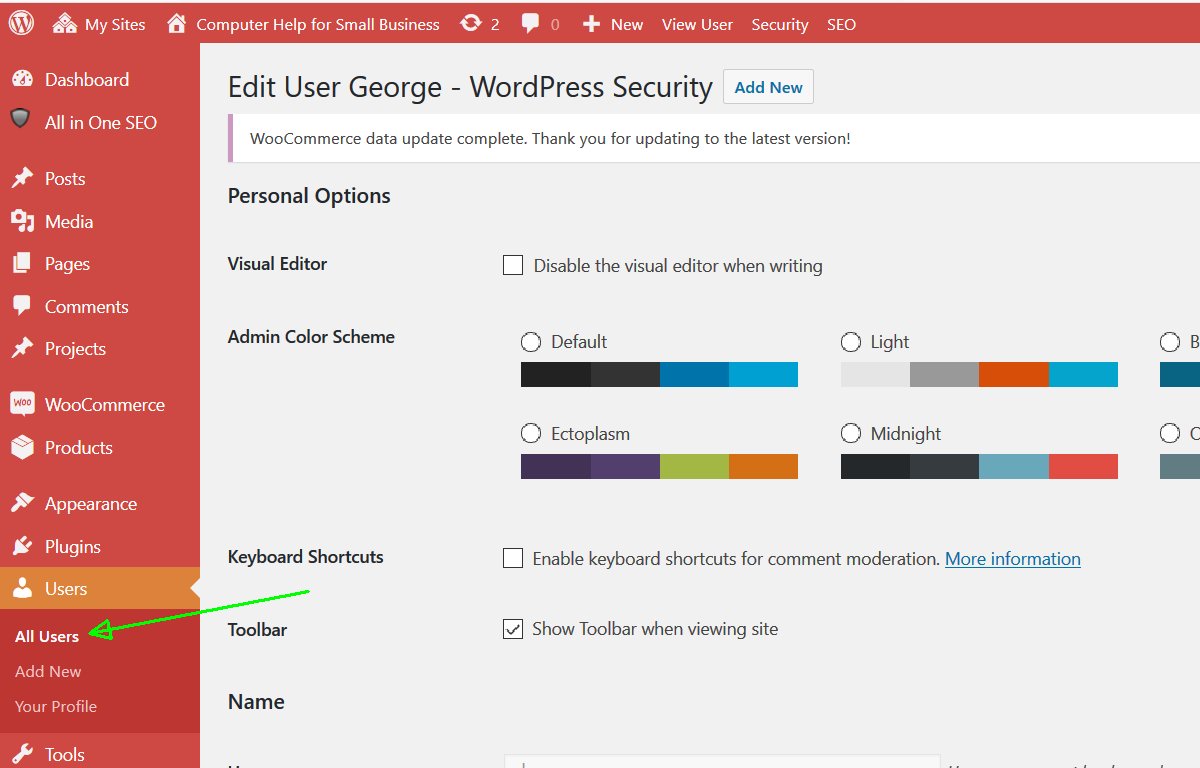
    But first, I tried a simpler approach to resetting the “Editor” permissions for that user. I changed (while logged in as Administrator) the permissions for that user, from “editor” to “administrator”, saved the changes, and changed back to “editor”.  This is done in the Users menu, hover over the user’s login name, and click “edit”.

    I don’t know what made the user’s permissions wrong, but that did reset the permissions.

  • What if your hacked site has custom code?

    Normally when a potential client brings you a site that is hacked, you do everything you can to get it cleaned thoroughly. That would include updating all files for WordPress and plugins and your theme, to the latest version. New versions of the software often contain fixes for recently discovered security issues.

    But what do you do if that client says there is custom code for WordPress or plugins? Code that is needed for something in the site, and updating WordPress and the plugins, would remove that. They have concerns that updating WordPress, the plugins, and the theme, would break something necessary for the site.

    The WordPress blog of a friend of mine has been hacked. It’s his fault because the core and a lot of plugins are out of date but he customized a lot of code and now he doesn’t want to update and manage (pay for…) the maintenance on the customization. I’ve reverted back the posts into pages, restored original revisions, changed all the password. I’ve installed WP security plugin. Now the site is apparently back to the normal condition but I’m not allowed to update the core nor the plugins so it’s not a safe condition. What other things can I do to prevent this kind of attack again?

    What Exactly Are the Changes For?

    Site owners have little ability to predict whether the change they want, that might be a big change visually, is going to take a slight tweak or a major change in the code. Developers have that expertise, not people whose businesses are other than website development.

    Most of the time, the changes made to WordPress or plugins are actually small changes, from a developer’s point of view. No matter how the change looks on screen, in code it is usually a very little change. Developers know that big changes would be better done by making a plugin specifically for this site’s needs. Developers who have the skills to make large changes, to a WordPress site, know how to make a plugin, and know the issues with making several changes to some other plugin or WordPress core.

    Good developers know WordPress well enough to know what small changes will produce the results; good non-WordPress developers might be able to make a change but in a way that is incompatible with WordPress updates; bad developers make changes not knowing what WordPress updates will do to their changes.

    Said another way, only amateurs make changes to someone plugins written by someone else, to be updated by someone else. (That of course is different than people submitting fixes or improvements to the author of the plugin, hoping they will be incorporated into future releases of the plugin.)

    The changes are likely to be inserting code for some external script; or changing the HTML of something. Small, targeted, specific changes. There are always better places to make these changes than in the WordPress core files.

    These probably seem “major” to the site owner, bringing some obvious visible changes to the site. But these would not be major changes for an experienced developer. These changes very likely can be brought into a simple plugin, or into a child theme’s CSS. Or maybe WordPress now has features that handle the information directly, no modifications needed. Examples would be incorporating YouTube videos, or Google Analytics code.

    Find out what the customized code is, and you might discover that there are simple ways of accomplishing the same thing while keeping your plugins and WordPress itself updated.

    While you are identifying the changes made to your site’s code, also have a programmer assess whether there are security risks in that code. Any form handling must be coded to prevent SQL injection. Any file uploads must be carefully screened, to not allow uploading malware; all files installed on your hosting account are given full permission to execute — if hackers install one file they can take over everything on your site. (Upload only into the default uploads folder, and have security blocking execution of all files in that folder, except image files and audio files, which still should be validated with your audio player.)

    Should You Update?

    What is the cost to their business of losing the custom code?

    What is the cost to their business of the site being hacked again, perhaps very soon? How is their reputation affected? How is their “reputation” with the search engines affected?

    If the changes were for important business information being displayed, move the changes into a properly written plugin.

    The costs of getting hacked almost certainly outweigh the costs of re-doing the changes the right way. Update early, at least weekly.

    What order do you perform updates in? Update your plugins, then your theme, then WordPress. There could be changes in the plugins to make them compatible with upcoming changes in WordPress, so update WordPress after the other updates. And, update WordPress now.

    What if there have not been any updates in a very long time? Probably best to update a few minor version updates at a time. That way, any changes to the database are more likely to be done correctly. (Plugins, themes, core, in that order, a few months at a time.)

    Do They Really Need to Re-Think Their Site?

    Have they clearly identified the specific people they want to talk to? So they can write as if to a single person, addressing exactly what that person is looking for?

    Do they know what problems that specific person is hungry to solve, that they can take care of?

    The old site is very likely not focused on the right person, or even worse is talking to “everyone” (which winds up meaning “no one”). The old site likely knows nothing about what search engines are looking for, which is current relevant content for exactly what their users are looking for.

    The old site likely doesn’t work well with mobile devices, which might be the biggest group of visitors that might become customers or clients.

    Is it time to redo the site, to fit what they want to accomplish with their potential clients via their website?

    What questions should the site answer for people? What is important to their visitors, that they really want to see on the site? What actions do they want visitors to the site to take? How can the site best have people interacting with them?

    Even if only briefly, find out what they want with their site, before updating it.

    Maybe the way to stop the malware is to quarantine the entire site, and copy/paste the text into the re-designed site.

    Ongoing WordPress Maintenance

    I do WordPress maintenance for small businesses. I know how to keep sites working well. Maybe it will make sense for you to have me take care of your site for you, so you focus on what to say to your visitors.

    Don’t get hacked, especially not again. I’ll keep your site safe.

  • Blocking Access to the Most Important WordPress Files, including .htaccess, wp-config.php

    Blocking Access to the Most Important WordPress Files, including .htaccess, wp-config.php

    There are several files that are part of every web site hosting account, that must be kept secret for security. Hackers are very interested in these files, as they contain key information about your hosting account and WordPress database.

    This is good to understand, and Everything here is covered by WordFence with less effort for You. Install WordFence on every WordPress site. I wrote this before I found out about WordFence.

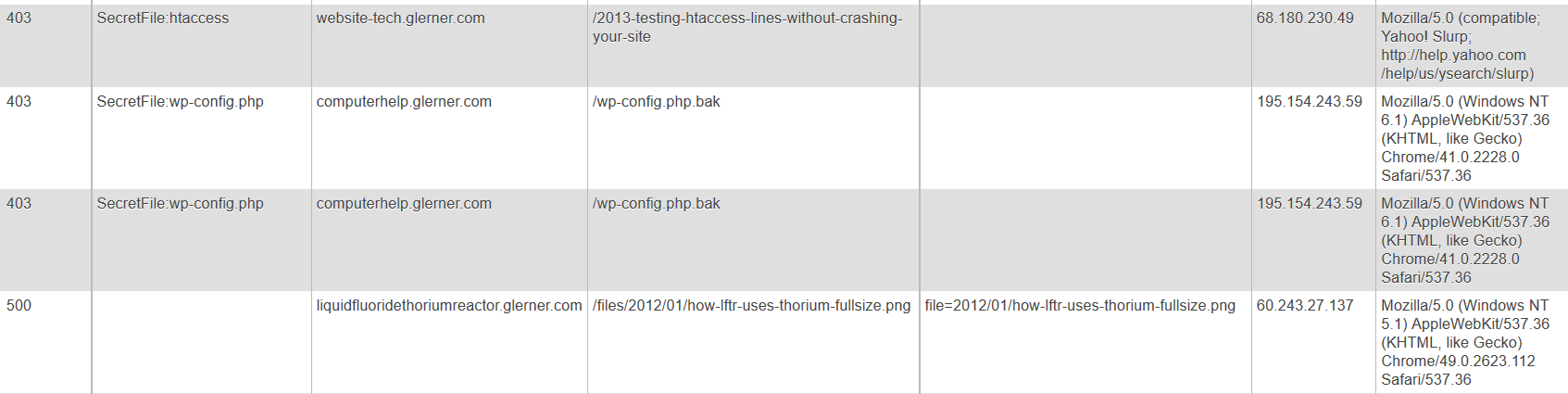
    403SecretFile:wp-config.phpcomputerhelp.lc.lndo.site/wp-config.php195.154.243.59Mozilla/5.0 (Windows NT 6.1) AppleWebKit/537.36 (KHTML, like Gecko) Chrome/41.0.2228.0 Safari/537.36Accept: */*
    403SecretFile:wp-config.phpcomputerhelp.lc.lndo.site/wp-config.php.bak195.154.243.59Mozilla/5.0 (Windows NT 6.1) AppleWebKit/537.36 (KHTML, like Gecko) Chrome/41.0.2228.0 Safari/537.36Accept: */*
    403SecretFile:htaccesswebsite-tech.lc.lndo.site/2013-testing-htaccess-lines-without-crashing-your-site68.180.230.49Mozilla/5.0 (compatible; Yahoo! Slurp; http://help.yahoo.com/help/us/ysearch/slurp)Accept: */* Accept-Encoding: gzip

    My error pages log the errors that are detected, into a database. This lets me easily search for errors, and also easily troubleshoot when a valid file triggers an error. These three examples were in my database coincidentally almost the same time, from someone (IP address 195.154.243.59) trying to get information about my site, and someone trying to read an article I wrote but my security system was blocking.

    How to Block Files

    This is in my .htaccess file:

    # prevent access to PHP error logs, other secret files
    # need to escape periods (or behaves as "any character"), don't need to escape underscores
    SetEnvIf Request_URI (?i).*(htaccess|php\.ini|wp-config\.php|wp-config\.bak|wp-configbak1\.php|debug_log|error_log|404\.log|ignore404\.log|error_log403|error_logbot|500\.log|readme\.html|readme\.txt) badSecretFile=$1
    
    # use syntax like this to enable any special case URLs, the exclamation point un-sets the environment variable
    SetEnvIf Request_URI (?i)(/2013-testing-htaccess-lines-without-crashing-your-site) !badSecretFile
    SetEnvIf Request_URI (?i)(/2013-xampp-limit-not-allowed-in-htaccess) !badSecretFile
    SetEnvIf Request_URI (?i)(/2013-error-reporting-from-htaccess) !badSecretFile
    SetEnvIf Request_URI (?i)(/2016-blocking-access-to-htaccess-wp-config-php-other-important-files) !badSecretFile
    SetEnvIf Request_URI (?i)(/files/2016/11/security-htaccess-wp-config.php-with-exceptions.*png) !badSecretFile
    SetEnvIf Request_URI (?i)(/tag/htaccess) !badSecretFile
    
    # deny doesn't transfer environment variables, except Deny from env= and should be inside a  or  to work
    RewriteCond %{ENV:badSecretFile} >"" [NC]
    RewriteRule (.*) - [F,L]
    

    Lines 1 and 2 are comments (start with a #)

    Line 3 uses a | to separate options. Set an Environment Variable if one of these things matches. Request_URI (the page being requested, so in http://www.yourdomain.com/abcdefg.html, the Request_URI is “abcdefg.html”) is checked for a match. Then (?i) says to ignore upper/lower case. Ignore anything before what we’re interested in, using .* (period for “any character”, asterisk for “zero or more times”). Then a list of file names to check for, e.g. htaccess or wp-config.php. Then we set an environment variable (badSecretFile) to $1 which is the first “something in parenthesis” that was matched. End result, badSecretFile gets set to “htaccess” or “wp-config.php” or “error_log”, etc.

    Line 5 through 11 “un-set” the environment variable badSecretFile for some of my pages. I’m writing about techniques on .htaccess, so I have to un-block my pages from the security rules saying nobody gets to read any file with “htaccess” in the name. (When writing security rules like this, be very specific, use the full name of your WordPress page.)

    Line 10 has something specific to WordPress. Images are often resized by WordPress to match the sizes your theme wants; the size is added in the file name. http://website-tech.lc.lndo.site/files/2016/11/security-htaccess-wp-config.php-with-exceptions-1080×425.png is the actual file name used in this case, so have to tell .htaccess to allow (with .* ) any extra characters in that location.

    Line 13 is a comment about the normal way of blocking access to files, using for example <Files> or similar statements. However, that method doesn’t allow exceptions (would block my articles on how to use .htaccess, for example) and doesn’t provide a way for error pages to report on what triggered the request getting blocked.

    Line 14 says that if the environment variable badSecretFile has been set, then the RewriteRule in line 15 gets executed. Line 15 says any file name (.*) gets redirected to – which is the shorthand for “nowhere”, and then the [F,L] says Fail (with a 403 status code, triggering your error page) and this is the Last thing to do (stop executing .htaccess now).

    How to Track .htaccess Errors

    This is a very long topic, so for now I’ll just say that PHP can read the environment variables that exist in .htaccess.

    Here is the snippet of PHP code I use for detecting this particular error, where I used badSecretFile to store what was blocked.

    if (!empty($_SERVER['REDIRECT_badSecretFile'])) {
    	$htaccessErrors[] = 'SecretFile:'.$_SERVER['REDIRECT_badSecretFile'];
    }
    

    PHP gets the environment values from the requested page in (for example) REDIRECT_badSecretFile, and the values for the error page do not have the “REDIRECT_” prefix. You also have to check for errors that get re-triggered by subdomains, and have REDIRECT_REDIRECT_ prefixes. All of the $_SERVER variables are available to PHP. For example if (!empty($_SERVER['REMOTE_HOST'])) { /* do something */ }

    Why Was My Page Blocked?

    Simple. I had been blocking page names with a trailing slash, and this person didn’t have the trailing slash in their request (http://website-tech.lc.lndo.site/2013-testing-htaccess-lines-without-crashing-your-site and I only enabled http://website-tech.lc.lndo.site/2013-testing-htaccess-lines-without-crashing-your-site/ )

    If I had not been logging my site errors, and checking my log, I probably wouldn’t have found this mistake.

    My logging to a database, including having the server tell me what made this be blocked (in this example, “SecretFile:htaccess”) had me see the error and be able to fix it.

    If I had not logged what triggered the error, even if my eyes had gone over the log entry, I would not have seen it; I would have thought it was blocked by User Agent (what type of browser was used), or by IP address, or “something”.

  • Troubleshooting Delays (several seconds) in PHP or WordPress

    Troubleshooting Delays (several seconds) in PHP or WordPress

    My custom error pages were running extremely slowly, taking about 60 seconds “waiting” and then displaying all at once.

    The hosting company said they don’t have any performance profiling software. “Have you tried renaming your .htaccess file, you have a lot of redirects, that’s probably what’s causing it.” (No, of course I’d already looked into that. Dumb hosting tech support advice.)

    Well, then “try checking your error logs”. No, I’ve already installed code in my WordPress wp-config.php, and in my error pages, to log extra PHP errors. No errors at all related to this; just some undeclared variables in one WordPress plugin. See my page on Error Information Only For You.

    I have been a PHP programmer for years. I know that there are debugging tools, and there are tools to measure where exactly in a program are the most resources being used, or where is the program taking the most time.

    I found Benchmark, a “framework to benchmark PHP scripts or function calls”. On some web hosts, you install Benchmark via cPanel under “PHP PEAR Packages”; on others you install it yourself with SSH commands; or your hosting company may not have any way for you to install it. (Even if you think you won’t ever use SSH, don’t even know what that is, “SSH included” is a good indicator for a good hosting company, and so is “PHP Pear Packages”.)

    Testing your own programs

    First put in some code so only I can generate testing results, as some of the testing methods (especially Iterate) can use many resources. You also may want to display testing items in the browser, only for you. There are also some required initialization lines for Benchmark. Much of this section of code is a long comment, giving examples of Benchmark calls.

    if ( in_array($ip, $myipaddress ) || in_array($forwardedfor, $myipaddress) ) {
    	echo "<p>Docroot $docroot</p>";
    	$onlyMe = true;
    } else {
    	$onlyMe = false;
    }
    if ($onlyMe) { 
    /* http://pear.php.net/package/Benchmark/docs/latest/ 
    Install via cPanel PHP PEAR Packages 
    */
    
    /* must add to path if haven't already */
    	ini_set("include_path", '/home/USERNAME/php:' . ini_get("include_path") );
    
    /* some examples of Benchmark calls
    	require_once 'Benchmark/Iterate.php';
    	$benchmark = new \Benchmark_Iterate;
    	$benchmark->run(10, 'err->update_errorlog', 'test');
    	$result = $benchmark->get();
    	$benchmark->display(true);
    	
    	require_once 'Benchmark/Profiler.php';
    	$benchmark = new \Benchmark_Profiler(TRUE);
    	$benchmark->enterSection('update_errorlog');
    	$err->update_errorlog();
    	$benchmark->leaveSection('update_errorlog');
    	//Returns formatted informations
    	$benchmark->display(true);
    end of examples */
    
    	require_once 'Benchmark/Profiler.php';
    	$benchmark = new \Benchmark_Profiler(TRUE);
    }
    

    Defining Sections of Your Code To Test

    Now you select parts of your code where you want to test the performance, especially separating out places that you think might be too slow.

    You use “enterSection” and “leaveSection” commands, and give your own description of the section of code. This short description will appear in the chart of results.

    if ($onlyMe) { 
    	$benchmark->enterSection('ini set');
    }
    
    /* code for initialization  */
    
    if ($onlyMe) {
     	$benchmark->leaveSection('ini set');
    	$benchmark->enterSection('which log file');
    }
    
    /* setting which log file to use */
    
    if ($onlyMe) {
     	$benchmark->leaveSection('which log file');
    	$benchmark->enterSection('define functions');
    }
    
    /* code for defining functions */
    
    if ($onlyMe) { 
    	$benchmark->leaveSection('define functions');
    	$benchmark->enterSection('gather error info');
    }
    
    /* code for gathering error info */
    
    if ($onlyMe) { 
    	$benchmark->leaveSection('gather error info');
    	$benchmark->enterSection('shutdown function');
    }
    
    /* code for defining shutdown function */
    
    if ($onlyMe) { 
    	$benchmark->leaveSection('shutdown function');
    	$benchmark->enterSection('get POST content');
    }


    You can define as many sections as you want. However, I suggest beginning with only a few, and narrow down the section of code that testing shows is taking the longest. In this case, it was inside ‘get POST content’ so I split it into 3 sections for further testing.

    if ($onlyMe) { 
    	$benchmark->leaveSection('get POST content');
    	$benchmark->enterSection('get POST content 2');
    }
    
    $junk = file_get_contents('php://input'); /* the POST content */
    
    if ($onlyMe) { 
    	$benchmark->leaveSection('get POST content 2');
    	$benchmark->enterSection('get POST content 3');
    }
    

    I never would have guessed it, but turns out the problem was with php://stdin… aren’t those supposed to be automatically enabled? Well, not on this server. Perhaps they are opening php://stdin for SSH but leaving php://stdin not opened for web pages, since it is so rarely used in web pages?

    /* this file_get_contents() delays 60 seconds, found with Benchmark */
    $junk = file_get_contents('php://stdin'); /* the POST content */
    
    parse_str($junk, $post_vars);
    $posts = implode_with_key($post_vars, $inglue = '-->', $outglue = "\n");
    
    if ($onlyMe) { 
    	$benchmark->leaveSection('get POST content 3');
    	$benchmark->enterSection('rest of file before update');
    }
    
    /* code for rest of file */


    PHP Benchmark Profile showing error with get-post-content 2016103110

    Results of Testing

    if ($onlyMe) { 
    	$benchmark->leaveSection('update_errorlog');
    	
    	//Returns formatted information
    	$benchmark->display(true);
    } else {
    	$err->update_errorlog();
    }
    

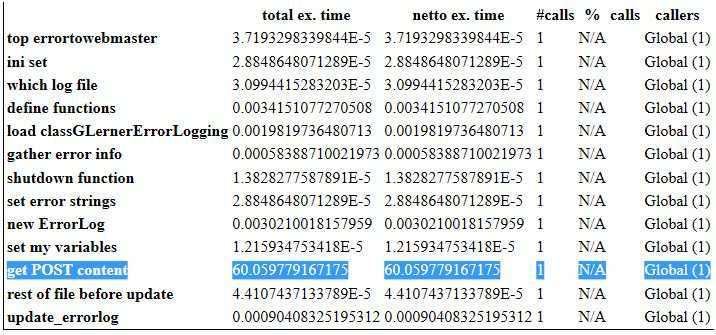
    The results are numbers that are hard to read; some people may never have seen “scientific notation”, with numbers displayed always with a single digit left of the decimal point, and a power-of-ten exponent. All you need to really know is any number ending in “E-5” or “E-6” is a very small number.

    The problem will likely be a number between “E-1” (multiply by 0.1) to “E+1” (multiply by 10). “E0” isn’t shown (multiply by 1).

    From the top line in the image, 3.7193 E-5 would be written in “standard” notation as 0.000037193

    From the highlighted line in the image, something in the “Get POST content” section of code is taking a full 60 seconds. (Happens to match the 60-second timeout tech support says is set for some things in PHP.)

    Add a few more enterSection and leaveSection profiling statements in the slow portion of your code, to narrow down what specifically the problem is, down to the single line of code in this case.

    Fixing the Problem

    Now that I have identified the problem, that tech support couldn’t identify, and that I wouldn’t have guessed, time to search for a solution to the problem.

    In this case, there are two likely explanations. 1) One of the standard input streams was waiting for 60 seconds for something to be typed in, and then timing out, or 2) the stream was never opened, and the function call timed out.

    /* what seems to fix the problem, declaring the STDIN before attempt to use it, though I'd thought it was always declared */
    
    if (!defined('STDIN')) {	/* not always defined, when PHP called by web browser; define to stop error warnings */
    	$stdin = fopen('php://stdin', 'r');
    	define('STDIN', $stdin);
    }
    

    This might be useful for reading STDIN from command line versions of PHP. I haven’t yet tested it.

    if (php_sapi_name() == 'cli' || php_sapi_name() == 'cli_server') {
    	$sapi = 'command line';
    	echo '<code>'; print_r($_SERVER); echo '</code>';  /* pre looks better than code, but my PHP display plugin uses pre */
    } else { $sapi = 'not command line'; }
    
    if (defined('STDIN')) { /* STDIN is available */ }
    
    $junk = file_get_contents('php://input'); /* the actual POST content */
    if (empty($junk) && $sapi == 'command line') {
    	/* Apache uses php://input, CLI uses php://stdin */
    	/* not tested on IIS server, might get 60 second timeout waiting for user input if isn't any */
    	
    	/* stream_set_blocking(STDIN, 0);
    	stream_set_timeout(STDIN, 2);
    	*/
    	
    	/* this doesn't work, can't have string parameter -- 
            stream_set_blocking('php://stdin', 0);
    	stream_set_timeout('php://stdin', 2);
    	should be a "valid path" not a string -- 
    	$junk = file_get_contents($stdin);
    	*/
    	
    	/* this file_get_contents() delays 60 seconds, found with Benchmark */
    	$junk = file_get_contents('php://stdin'); /* the POST content */
    }
    
    /* check if this works for reading STDIN from PHP-CLI */
    $ctx = stream_context_create(array(
    	'http' => array(
    		'timeout' => 1
    		)
    	)
    );
    $junk = file_get_contents('php://stdin', 0, $ctx); 


    Other Resources

    https://gregheo.com/blog/benchmarking-php/ has clear examples of using Benchmark.

    http://pear.php.net/package/Benchmark/docs/1.2.9/elementindex.html for the main Benchmark documentation

    Save

    Save

  • WordPress Ongoing Maintenance and Security

    WordPress Ongoing Maintenance and Security

    Having web sites run smoothly and safe from hackers, is important to me. It probably is important to you too, if you think about it a little. If you heard of any web site getting hacked, you know that could ruin your business day quickly.

    When you find out your site has been hacked, or your site stopped working so you can’t generate sales, you know you’re not going to be having a good day.

    After all, it’s easier to prevent problems like these, than to fix them…

    You have been told, already, you need to keep your software updated… You need to do regular backups… You know you should be blocking hackers, even if you don’t know how… Are you hoping you can last a little longer, letting maintenance slide?

    Preventing hackers from abusing your site is one very important part of running your web site, yet so many people and businesses just don’t have the time to do all the steps it takes. Even if you know how, or learn how, it’s not a good use of your time. You have better things to do!

    We all know your web site working, the way it should, helps to keep your reputation good. It also increases sales, right?

    Maintenance, done frequently, is important for your site.

    Latest updates to your WordPress software (and all other software) does several things, including fixing bugs that keep your site operating well, adding new features, and also fixing any security problems that have been discovered.

    Hackers know all those security problems. They study every security problem found world-wide, for how to take advantage of them.

    Updates Without Problems

    If an update does make a problem on your site, I know how to identify the problem very quickly, and get your site working again.

    However, I also prevent problems by testing plugin updates on a testing site, before doing the update on your site.

    I can replicate your site setup, plugins, theme, and content, on a testing site that is not accessible from the Internet. I will check the updates don’t introduce errors, whether with PHP or the WordPress database or other plugins.

    How Do You Get Your Site Secure From Hackers?

    Whether hackers want to post ads for their junk, or add links to steal traffic from you, or install malware to get your private information, or use your website hosting account to hack other sites, I hate hackers!

    Most businesses don’t have anyone who knows how to do maintenance and security checks properly. It’s complex. It takes time to learn, time to check everything each month. Most people could learn to do it themselves, if they were interested and had the time; but it’s just not your most fun and exciting thing to do. It’s not what you would best be spending your time on.

    (If that does sound good to you, contact me, I need more people helping have web sites run smoothly and be safe from hackers…)

    There are WordPress plugins that take care of many security steps. These have to be configured, and tested (some website hosting companies have non-standard server configurations, so not all security options will work on all hosting). [Note: If you’re on a Microsoft IIS server, which can’t use the most common WordPress security plugins, I feel for you, and I can help some…]

    You have to host your WordPress site on a company that has very strong security. Most of the best-known hosting companies are negligent about security; they don’t even keep the server software current; they don’t know WordPress security and troubleshooting; and they are not actively looking for ways to improve security. The best hosting companies have staff researching global security discussion boards for the latest hacker vulnerabilities, and put specific security rules in dedicated hardware installed between the Internet and the servers they host your site on.

    Another important security step is using passwords for every login that are difficult for hackers to guess. And the way we’ve been taught to make “secure” passwords, for example substituting punctuation for vowels or adding a digit and punctuation mark at the end, are known by hackers too — and now those passwords are easily and quickly guessed. Long computer-generated passwords are highly secure, but impossible for people to remember and difficult to type. I can teach you how to make secure passwords both easy to remember and easy to type.

    What I Provide

    Whether you want to learn to do it yourself, or you want me to take care of your maintenance and site security, here is what I provide:

    • Set up your WordPress site so it runs well. This includes removing plugins you don’t use, or that are security risks, or haven’t been updated in ages; adding plugins that are essential to the your site running properly; setting up site security so the most common attacks are blocked
    • Keep your site security updated so it is much harder to hack (so you keep out most hackers, but I can’t stop government-level hacking groups).
    • Keep current and past backups so your site can be recovered if something goes wrong. You always need a good backup!
    • If you have more than one site, or know you want more sites, I can set up WordPress Multi-Site for you, easier for most companies than working with many single-site installations of WordPress.
    • Select good plugins and themes. I find well written plugins and themes, that work well, don’t slow your site down, and are unlikely to have security vulnerabilities that hackers could exploit. Tip: with the WordPress block editor, you most likely can use the default TwentyTwenty theme, or a child theme that simply specifies your colors.
    • Migrate your site to an excellent hosting company, if you think you might already be hacked, or if you don’t know your host has excellent security and technical support. A few hosting companies charge comparable amounts per year of hosting, but provide much better quality service and much better protection against hackers, than the normal hosting company. You almost certainly can’t find better hosting on your own, than the Arizona WordPress Meetup has found.
    • Work with your hosting company technical support, to resolve any issues, so you won’t have to. (You’ll be able to use them or me for technical support.)
    • Improve your marketing, including install and configure software for telling Facebook, Twitter, LinkedIn, Pinterest and other social media sites what you want them to display (text and image) when someone references a page on your site.
    • Find what would speed up your site, which your visitors will love and so will search engines.

    Contact me about your site maintenance and security and what you want, and we’ll know if we’re a good match.

    Improve Your WordPress Site

    Consistent monthly amount, low $20 setup charge.

    Most basic sites, the kinds most small businesses need, I charge only $80/month, whether everything is working (that’s my job) or I have to put in many hours fixing something. This includes the first month, when I have to setup or reconfigure and check everything.

    For enhancing your website, we’ll talk about what you need and I’ll let you know if I can include it in your monthly maintenance, or if it will cost extra; we’ll agree before I make the enhancements.

    No contract, and I ask you set up minimum 6 months auto-pay so you don’t have to remember. Cancel any time, simply don’t pay for the next month and please let me know; but I don’t give refunds, since each month I will keep your site working.

  • Why Should You Not Host WordPress on IIS

    When I mention I have clients with WordPress on IIS7 at the local WordPress Meetup (definitely go, well worth it), I invariably get snickers and disparaging comments. Some of that, especially from the less technical people, is just “Apache/MySQL/WordPress are Open Source”, and “big bad Microsoft is not as good”; it’s like cheering for your home sports team.

    But the more technical people who have hosted WordPress for many clients, give different quality of answers.

    I have a client hosting about 300 sites for Realtors. They brought me in to install WordPress in Multi-Site mode, for them to switch from their old ASP system to WordPress, and to then help them keep it running smoothly. Their IIS7 administrator was good at IIS but didn’t know WordPress or PHP, certainly not at the diagnostic and troubleshooting level.

    Here’s the actual problems I have run into, over a few years of being their WordPress troubleshooter.

    Linux and Apache vs. Windows and IIS

    Linux (by far the most common operating system for web site hosting computers) and Apache (by far the most common web site hosting software, comes with Linux) and MySQL (the database that comes with Linux) are supported widely on web sites. You ask your search engine about an error message you get, or the tool you want, or the problem you’re having, and 15 of the top 17 sites listed will have the correct answer.

    On IIS, those answers aren’t listed on hundreds of web pages. You’re not supposed to need them. You’re supposed to have taken the expensive Microsoft certification classes, have the manuals on paper and DVD, have the official troubleshooting tools and know how to use them. If you’re still stuck, you contact your Microsoft troubleshooter that you’ve paid for.

    As a hosting client, you will either need to call your technical support to make the change to your IIS configuration, or you will hunt for months for a solution you can apply yourself. For something that, on Apache, you can fix yourself with a little learning in a few minutes from free resources.

    Getting Help On Apache is Much Easier

    WordPress Security on IIS vs Apache

    I’m sure there are IIS security experts. IIS is used mainly on corporate web sites; they require experts on their security.

    WordPress isn’t often hosted on IIS. WordPress has security issues that you aren’t going to see on web sites that are done by the one company, using only Microsoft tools for development.

    Most web sites hosted on IIS have to deal with security holes in the operating system (whether Windows or Linux), on the web server (whether IIS or Apache), on the database (whether MSSQL or MySQL), and on the vulnerabilities in the development tools (e.g. the file uploader or the JavaScript form checking).  But the site itself is written in house.

    WordPress sites are developed using themes and plugins, mostly available open source for free. These plugins and themes are written by programmers who have unknown attention on security; every vulnerability in every plugin and theme offered on the WordPress repository, and every other well-known plugin or theme store, is known by hackers.

    IIS security people are not used to thinking about security holes where every site owner can be installing plugins and themes that could unwittingly contain malware or insecure code.

    One of the most common routes for hackers to install malware on your WordPress site, is to access a plugin that has file uploading, for example to upload images to a scrolling image slider. But instead of uploading an image, they upload a PHP program, or they upload it with a file extension saying it is (should be) an image and then rename it to a PHP program. The hackers know the folder their new file will be stored in; they can execute it any time.

    There is a simple block for this — disallow execution of any PHP files, and since this is an IIS 7 server, any ASP files or C# files, in the wp-content/uploads folder. Really easy to implement, at the server level for all installations of WordPress on the server, once.

    An IIS security person who knows he is “good at security” emailed me he’s not going to do that, “We need not invest any time going after problems that don’t threaten us. For instance, while the server supports ASP, there may currently be no ASP scripts on it, but there might sometime be, and blocking calls to scripts that don’t even exists serves no other purpose except to possibly cause excessive troubleshooting in the future when someone tries to put an ASP script on the server. Such a change would have zero positive effects, and potentially create negative consequences.” Do you notice that he isn’t thinking of hackers uploading a file? Even though the hack he just got hit by, uploaded .php files but could have uploaded .asp files. He still hasn’t blocked execution of PHP files in the wp-content/uploads folder!

    IIS Administrators “know security” and have trouble adjusting their thinking to WordPress open-source plugin and theme attacks.

  • LESS for WordPress to compile Bootstrap 3.1+

    Many of the LESS compilers for WordPress or PHP use the Leafo LessPHP library, from https://github.com/leafo/lessphp (see http://leafo.net/lessphp/docs/ ). For example, the current (6/1/2015) version of AssetsMinify plugin for WordPress uses LessPHP.

    The Leafo LessPHP library doesn’t compile the LESS extend command, used heavily in Bootstrap 3.1+ and many other LESS packages. “Extend is a Less pseudo-class which merges the selector it is put on with ones that match what it references.” And it seems Leafo LessPHP isn’t getting updated.

    Even worse, many libraries haven’t modified the Leafo package to even catch the failure — they fail with a PHP fatal error such as

    PHP Fatal error: Uncaught exception 'Exception' with message 'parse error: failed at &:extend(.clearfix all);'

    At a minimum, the library should catch the exception, so that PHP doesn’t abort; the exception should leave a comment in the generated CSS such as “This version of LessPHP uses a version of Less that does not support this code: &:extend(.clearfix all);“.

    If you use the Leafo LessPHP library and it produces a PHP fatal error in WordPress, you will probably get a “white screen”. If you know how to turn on WordPress and PHP debugging information you can see that uncaught exception in your error logs, and at least know your LESS file having an unsupported command was what brought your site down.

    How do you get around this? One way is to simply use LESS without the ‘extend’. But the LESS extend command has been around for years now. The Bootstrap release log shows v3.1.0 released on Jan 30, 2014 had “With switch to LESS compiler, remove duplicate CSS generated from the nested .clearfix class and mixin by switching to &:extend(.clearfix all).” The Extend command has a lot of benefits.

    As of 6/1/2015, Bootstrap is currently v3.3.4 and there are many improvements over version 3.0. Good thing there are ways to use Bootstrap 3.3.4 .less files with WordPress.

    https://github.com/oyejorge/less.php is a different Less compiler for PHP. I haven’t compared the main package yet. But reading about it, I saw it has a section on replacing the leafo lessc.inc.php with oyejorge lessc.inc.php. You copy lessc.inc.php and the lib/ folder from oyejorge’s less.php-master.zip into a folder (I used the folder in my WordPress theme with my .less files, /wp-content/themes/THEMENAME/less)

    I’m able to generate a custom version of Bootstrap 3.3.4, incorporating my own changes (.less files that calculate a “color wheel” to produce background colors that look great with a main color I select, and making text colors that have good contrast against their background color, and applying those colors throughout Bootstrap.

    I have my main file, style.less, include all the other .less files; these are all in /wp-content/themes/THEMENAME/less
    Example:

    @import "scheme.less";
    @import "bootstrap/bootstrap.less";
    @import "my-bootstrap-variables.less";
    @import "my-mixins.less";
    

    The oyejorge version of lessc.inc.php is also in /wp-content/themes/THEMENAME/less
    The oyejorge lib/ folder and all the files in it are in /wp-content/themes/THEMENAME/less (making /wp-content/themes/THEMENAME/less/lib/)
    The Bootstrap Less files are in /wp-content/themes/THEMENAME/less/bootstrap

    (Since Less definitions found afterwards overwrite definitions found before, and only then are applied in functions and mixins, I have my-bootstrap-variables.less and my-mixins.less after the import for Bootstrap, and all the colors generated in scheme.less get put into Bootstrap goodies.)

    Here is the code I have in my functions.php (in /wp-content/themes/THEMENAME/) :

    require "less/lessc.inc.php"; // uses less/lib/ from less.php-master.zip
    $options = array( 'sourceMap' => true );
    $parser = new Less_Parser($options);
    $less = new lessc;
    
    try {
    // works, but autoCompileLess is better, this compiles every time -- $less->compileFile(__DIR__."/less/style.less", __DIR__.'/style.css');
    	autoCompileLess(__DIR__."/less/style.less", __DIR__.'/style.css');
    } catch (exception $e) {
    	echo '<p>Error making CSS files: ' . $e->getMessage() .'</p>';
    }
    

    Here is the autoCompileLess function, also goes in functions.php:

    /* from http://leafo.net/lessphp/docs/#compiling_automatically
    */
    function autoCompileLess($inputFile, $outputFile) {
    	// load the cache
    	$cacheFile = $inputFile.".cache";
    
    	if (file_exists($cacheFile)) {
    	    $cache = unserialize(file_get_contents($cacheFile));
    	} else {
    	    $cache = $inputFile;
    	}
    
    	$less = new lessc;
    	$newCache = $less->cachedCompile($cache);
    
    	if (!is_array($cache) || $newCache["updated"] > $cache["updated"]) {
    	    file_put_contents($cacheFile, serialize($newCache));
    	    file_put_contents($outputFile, $newCache['compiled']);
    	}
    }