Category: Windows

  • HTML Tag Selection in NotePad++

    I’m moving or deleting sections of HTML or XML code, several times a day. NotePad++ has the ability for you to press a single keystroke to select the entire block of code. Big time saver.

    You simply install a NotePad++ Plugin from http://docs.notepad-plus-plus.org/index.php/Plugin_Central

    The plugin you want for selecting and copying or moving HTML tags is the “HTMLTag (Unicode)” plugin, which “provides two core functions to Notepad++”:

    • HTML and XML tag matching, like the built-in brace matching (Ctrl+B / Shift+Ctrl+B)
    • HTML entity encoding/decoding (example: é to é and vice versa)

    Unfortunately, the HTMLTag plugin is a 32-bit plugin. That means if you are using the 64-bit version of NotePad++, you will get a message about the plugin “is not compatible with the current version of NotePad++”. The Compare plugin is also 32-bit, though there is mention of a 64-bit version on GitHub.

    The Compare plugin is one I use very often, to quickly compare two text files. It does much of what the Linux diff command does, showing the difference between files. It is smart enough to detect lines that have been moved or deleted. It can highlight the differences within lines of the two files. You can easily navigate among the differences. Even if you are using GIT to track version changes, you will likely find you want to compare files that are not in your version management system, and this is a good plugin for that.

    CSSlist is a very useful plugin, lists all the CSS classes and colors for easier inserting the names into your code. Even “adds the ability to list the different colors that are in the document and export the list as an SVG file for Inkscape or Gimp palette.”

    NppSnippets is another plugin that looks interesting. “A easy to use snippet / template plug-in: NppSnippets. Similarity with the TextPad Clip Library is no accident. To insert a snippet simply double click on the item in the list and the snippet is inserted at the current cursor position. To edit right-click on that item. ”

    Take a look at the TakeNotes plugin, too.
  • NotePad++ Settings to Edit .log Files

    NotePad++ Settings to Edit .log Files

    Getting an error in NotePad++ about a “session file” error when opening a .log file?

    What Is NotePad++ ?

    NotePad++ is an excellent text editor for Windows, much better than Windows Notepad, especially for editing multiple documents. If you are a website designer or computer programmer, I recommend it as one of the best available. NotePad++ knows the syntax of most computer programming languages, with Syntax Highlighting and Syntax Folding to help you see errors in your code. NotePadd++ has Perl Compatible Regular Expressions for searching and replacing. It has good macro recording and saving. (But, if you are wanting an integrated development environment, with debugging and viewing the results all in one, NotePad++ is not one.)

    There is also a NotePad++ portable version, running off a thumb drive without any installation needed, so you have your favorite text editor with you on any computer you’re using.

    NotePad++ Use of Log Files

    But if you try viewing a .log file, for example from a website you are managing, it gives an error “Session file is either corrupted or not valid”. Huh?

    Notepad++ lets you open a collection of files and remember them next time you start the program. The list of files, and other settings that make up your editing “session” are stored by default in .log files. So NotePad++ has default settings to open .log files as if they are NotePad++ session files.

    Editing Log Files

    Fortunately, almost all aspects of NotePadd++ can be configured how you want. Keystroke commands, menu items, tab settings, temporary file locations, and more.

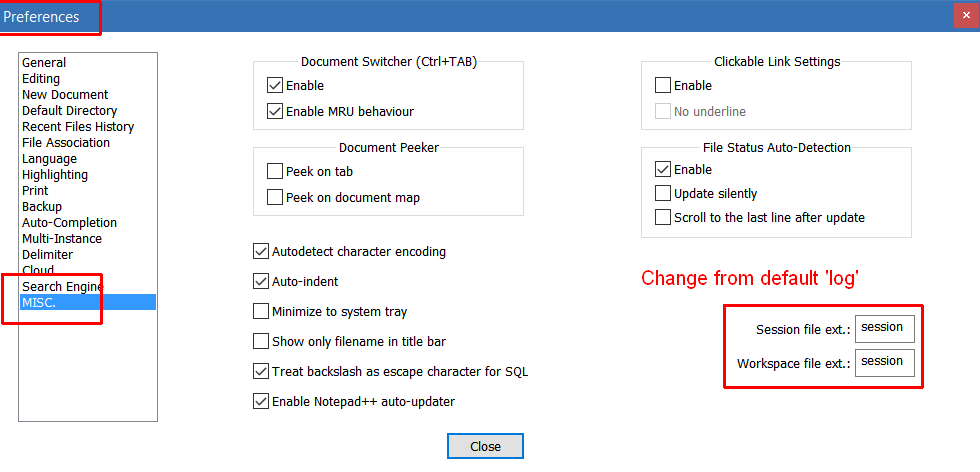
    To change the file extension NotePad++ uses for storing its own session information, go to the Settings, Preferences menu, and select “MISC”.

    On that screen, change “Session file ext” and “Workspace file ext” both to “log” (without leading period).

    Saving Your Editing Session

    You’ll probably want to save the editing session from time to time. Do this with File, Save Session. I put the date in my session file name, e.g. “notepad-plus-plus session 2018-02-05”.

    I also have Preferences set to automatically save the editing session and backup of all my (unsaved) edits. Do this with Settings, Preferences, Backup, put a checkmark in “Remember current session for next launch” and in “Enable session snapshot and periodic backup”.

    NotePad++ settings to save editing session


  • Starting and Stopping Xampp (Apache, MySql) in Windows 7

    There is a lot of confusion on the support boards, people saying they can’t get Xampp to stop, there “must be a bug in Xampp”, or they “had to kill the application with Task Manager”. No, they are trying an incorrect method for closing a Windows Service.

    Some versions of Windows (including Windows 7) prevent applications from starting or stopping services; you should use the Windows Services program to manage services.

    In the “Xampp Control Panel Application”, you specify whether to run Apache and MySql as Windows Services (by checking the “Svc” box).

    If Apache *is not* running as a Windows Service:
    you use the Xampp Control Panel Application to stop and start Apache.

    If Apache *is* running as a Windows Service:
    you use Windows Services to restart Apache. (Start button, search for Services; or Start, Control Panel, Administrative Tools, Services). Click on the Apache service (the version of Apache you are running will be in the service name), then click “Restart the service”.

  • Starting and Stopping Xampp (Apache, MySql) in Windows 7

    There is a lot of confusion on the support boards, people saying they can’t get Xampp to stop, there “must be a bug in Xampp”, or they “had to kill the application with Task Manager”. No, they are trying an incorrect method for closing a Windows Service.

    Some versions of Windows (including Windows 7) prevent applications from starting or stopping services; you should use the Windows Services program to manage services.

    In the “Xampp Control Panel Application”, you specify whether to run Apache and MySql as Windows Services (by checking the “Svc” box).

    If Apache *is not* running as a Windows Service:
    you use the Xampp Control Panel Application to stop and start Apache.

    If Apache *is* running as a Windows Service:
    you use Windows Services to restart Apache. (Start button, search for Services; or Start, Control Panel, Administrative Tools, Services). Click on the Apache service (the version of Apache you are running will be in the service name), then click “Restart the service”.

  • Moved Hard Disk to New Computer, Folders “Access Denied”

    Even creating a Windows User of the same name and password as on the old computer, I couldn’t access parts of the drive, for example “My Documents”. The password uses a security id, and the security ID for the user has changed.

    http://support.microsoft.com/kb/810881 has the solution:

    1. Turn off Simple File Sharing (Security tab, used below, won’t display with this on):
      1. On the Startmenu, click My Computer.
      2. On the Tools menu, click Folder Options, click the View tab.
      3. Under Advanced Settings, click to clear the Use simple file sharing (Recommended) check box, click OK.
    2. Right-click the folder that you want to take ownership of, and then click Properties.
    3. Click the Security tab. If a Security message appears, click OK.
    4. Click Advanced, and then click the Owner tab.
    5. In the Name list, click your user name, Administrator if you are logged in as Administrator, or click the Administratorsgroup.Take ownership of the contents of that folder: click to select the Replace owner on subcontainers and objects check box.
    6. Click OK. You may receive the following error message, where Folde ris the name of the folder that you want to take ownership of: “You do not have permission to read the contents of directory Folder. Do you want to replace the directory permissions with permissions granting you Full Control? All permissions will be replaced if you press Yes.”
    7. Click Yes.

    Now you are the owner of that folder.

  • WinXP Added a User, Where Did Administrator Go?

    I added a user to a friend’s WinXP computer. Next time I tried to log on, the Administrator user no longer showed on their computer! They Need That! All of their documents they are working on, are under that account.

    Some support sites say that when there is another user created (in Control Panel, User Accounts) with administrator privileges, the Administrator account is automatically not shown on the Windows Login screen.

    Here’s how to make the Administrator user show on the login screen:

    In a Registry editor (such as RegEdit, if you don’t know how to run that, then you shouldn’t attempt this yourself, you can mess things up Very Easily in RegEdit).

    Find:
    HKEY_LOCAL_MACHINE\SOFTWARE\Microsoft\Windows NT\CurrentVersion\Winlogon\SpecialAccounts\UserList

    Add a new DWORD Value:
    Name: Administrator
    Value: 1

    Save the changes (automatic in RegEdit) and when you log out, you will have Administrator as one of the login choices.

  • WinXP Logins, Know Password Forgot User Name

    If you don’t know all the login names for a WinXP computer (and probably most other versions of Windows), you can find them easily. (Of course, you still have to know the password…)

    Press Win-R (or Start, Run) and type CMD, then press Enter. The Command window appears (used to be called the DOS window).

    Type: Net user, and press Enter.

    You will see all the User Accounts that have been defined (in Control Panel, User Accounts) on this computer.

  • SysInternals Utilities

    SysInternals Utilities

    http://technet.microsoft.com/en-us/sysinternals/default.aspx

    If you learn all the tools, you can diagnose and troubleshoot some very complex system problems, crashes, annoyances, bugs, incompatibilities, CPU hogs, program lockups, etc.

    There are a few utilities that are very useful by people who just want their computers to run well. (more…)

  • Safely Remove Hardware icon Missing?

    Has your Safely Remove Hardware icon disappeared from the Task Bar? There is a Quick way to get it back!

    From the Start menu, pick Run, type cmd and you will have a Command window.

    Paste this into the command window (copy to clipboard, switch to Command window, Alt-Space, Edit, Paste):
    C:\WINDOWS\system32\rundll32.exe shell32.dll,Control_RunDLL hotplug.dll

    You will get the technical version of the Safely Remove Hardware tool, and the icon should be restored to your Task Bar.

  • Copying iPhone Files to/from OS-X or PC

    Software to copy music, pictures, files between your iPhone and Computer. Most of the best solutions are cross-platform (OS-X, Windows, and sometimes Linux). All are free or inexpensive. Copying is much faster using USB transfers than WiFi.

    (more…)