Welcome to WordPress. This is your first post. Edit or delete it, then start writing!
Category: Uncategorized
-
Affordable Toner and Dual-Sided Printing: Choosing a Reliable Laser Printer for Your Needs
Buy a laser printer that has inexpensive toner cartridges.
(Check the “per page” cost, don’t get a low-capacity toner cartridge by mistake, because it “costs less”.)
Buy a laser printer that automatically can print on both sides of the paper. That is a very handy feature, much easier than having to put the stack of papers printed on one side, properly back into the paper tray, to print the second side.
Figure out if you need a printer, or a printer/scanner.
Many people don’t need a scanner, can do the occasional “scan” by phone photo instead; or a separate device might work better.
You don’t need to worry about a printer description saying works with OS/X or with Linux. They “all do”, since all laser printers use either HP’s basic command set, or Postscript, or both.
(Okay, check the reviews, there might be some “weird” printers that truly don’t work at all on OS/X.)
You might miss out on some special driver features, like telling you the current toner levels, or alerting you on your screen when the printer is out of paper.
(In Arizona, buy a laser printer instead of an inkjet, unless you print Every Week, inkjet cartridges dry out quickly; if they dry out you might have to replace them. If you need a color print occasionally, send it to a Kinkos et. al.)
There might be companies in Phoenix that sell refurbished laser printers and refill toner cartridges.
I’ve had good experiences with HP, especially if you don’t need “latest greatest”, aren’t buying based on fastest print speed for hundreds of pages per day. Canon, Brother, several other brands are good too.
PC Magazine reviews from a few years ago might be good, the great printer a few years ago might be lower priced today. They would mention if a printer doesn’t work at all on (then current) OS/X.
A Hewlett-Packard HP LaserJet 400 M401dne has lasted for years.
Bonus tip: Keep your printer and your computer on a top-quality surge suppressor. Lightning can kill the brains of a laser printer.
A few brands (APC is one, for both surge suppressors and uninterruptible power supplies) have a feature where, if the surge suppression part has failed, then it will not deliver power at all.
With most brands, you have no way of knowing if the surge suppressor is “still working”. If the surge suppressor stopped a big power surge, it protected your equipment, but can’t any more.
-
Close Shaves with Double-Edge Safety Razors
Baili Classic 3-Piece Double Edge Safety Razor Review (Great for Beginners)
As a new wet shaver with big hands, I found the Baili Classic 3-Piece Double Edge Safety Razor (model BD176) to be a great introduction to double-edge shaving. Here’s a breakdown of my experience:
Model: BD176 (mild aggression, good for beginners), aka Victory 176
Features:
- Mild design: This is a good choice for beginners, as it offers a close shave with a lower risk of nicks and cuts (compared to the more aggressive BD171 model). Note that many brands do not specify “mild to aggressive”, so check shaving experts reviews.
- 76g weight: The razor feels well-balanced and easy to control.
- Length 94mm / 3.7”: Short for travel. With my “size L” hands, I place my pinkie finger past the handle. I use my thumb and forefinger to control the razor.
- Three-piece design: Easy to disassemble and clean, and put in a new blade. I prefer this over the “Butterfly” or “twist-to-open” design, fewer moving parts that could get jammed or break. Three-piece razors should last longer (decades) than butterfly razors.
- Mirrored travel case: Perfect for storing and transporting the razor.
Tips for Beginners:
- Identify the sharp blade: Be careful when handling the razor, especially the blade compartment. All razors are very sharp. Know what sides are sharp. (The long sides of the blade are very sharp, the short sides are safe to gently handle.)
- Loading the razor: Place the razor head on a flat surface, handle pointing up. Unscrew the handle, then carefully remove the baseplate and blade (holding it from the narrow sides). Insert a new blade and reassemble the razor, screwing the handle until snug but not overtightened.
- Baseplate: must be installed proper direction. Upside down you will cut yourself.
- Light pressure: Apply minimal pressure when shaving, unlike using cartridge razors. Bad habits from using cartridge razors with thick shave cream, will get you nicks with a single-blade razor. With proper technique, these razors will get your shave smoother than any cartridge razor, at much lower cost.

My Shaving Experience:
- Learning curve: After reading and watching YouTube videos on using a double-edged razor, I experienced a few minor nicks during my first few shaves, but zero nicks with a little practice. Use minimal pressure against your skin, letting the weight of the razor head hold the blade against your face.
- Close shave: After a few shaves, I achieved a close shave with minimal irritation. A few areas, like under the jawline, require a second pass for me. I have coarse hair, that grows in different directions. Notice what directions your hairs grow, in different parts of your face; first pass always with the grain, then you can touch up, only where needed, with 90 degrees across the grain.
- Shaving soap and brush: I recommend using a shaving brush and soap (like Proraso) for a richer lather. Store-bought shave creams are far too thick! The thick creams force you to use too much pressure.
- Blades: I am using a sampler pack of blades, and while the Dorco blade (mild) worked well, I expect the Astra Platinum blade to be even better.
- Easy to clean: The razor rinses clean easily, unlike cartridge razors that can get clogged with shaving cream.
Overall:
The Baili Classic 3-Piece Double Edge Safety Razor is an excellent option for beginners who want a close shave with a lower risk of irritation. The mild blade, well-balanced weight, and easy cleaning process make it a user-friendly razor.
Other Razors
Krisp Stainless Steel Heavy Duty Double Edge Safety Razor Wet Shaving Kit for Men with 5 Platinum Blades
-
Can you Verify an Email Sender?
Remember, everyone, the “Reply To:” field is Easily faked.
Looking at that is Not a way to check whether an email is legitimate.
Your email reader software (whether a website or an app on your phone or an app on your computer)
should indicate whether an email passes some validation (e.g. DMARC, DKIM, SPF) or not.
Do not click on links in an email.
The “link text” can show anything, different than the link address
Verify the link address has no “tricky characters” in it.
Copy the link address to your clipboard, paste it into a text editor (preferably with a mono-spaced font like Fira Code) and verify it.
Or, browse to your “known important site” your normal way (e.g. your bank) and read the message directly on the Real site.
p.s. Fira Code is on Google Fonts https://fonts.google.com/specimen/Fira+Code , free to install on your computer, easy to set your programming editor and spreadsheet to use it. It was designed so all the “look similar” characters, such as a one and an el and an eye, are easily distinguished.
I use Kate https://kate-editor.org/ for “general text” and Visual Studio Code (very powerful programmer editor, free, cross platform, the only Microsoft program I use https://code.visualstudio.com/ ) as my editors, and LibreOffice https://www.libreoffice.org/ as my spreadsheet, all with Fira Code font.
-
Sym.ai plugin for WordPress
Empowering AI Development in WordPress
Welcome to a transformative journey where Artificial Intelligence meets WordPress development.
This guide is tailored for AI developers venturing into what is available using WordPress, specifically those who have not yet tried plugin development within this platform.
I am going to introduce an innovative concept: WordPress plugin designed to integrate seamlessly with ChatGPT, enabling the creation of advanced AI prompts and revolutionizing AI prompt creation while reducing development effort.
Revolutionizing Content Creation with AI and WordPress
This innovative tool is more than just an AI integration into WordPress; it’s a paradigm shift in content creation, management, and customization. It’s designed for content creators who are intelligent, confident, and looking to make a substantial impact in their communities and businesses, as well as their personal lives, without being overwhelmed by technical details.
The Foundation: Layout and Design
- Utilize the WordPress TwentyTwentyFour theme for all layout aspects, ensuring consistency in design and user experience.
- Rely on WordPress’s inherent styling capabilities for elements like headings, paragraphs, and buttons.
- Emphasize accessibility with checks for color contrast and menu design, ensuring that the tool is user-friendly for all audiences.
- WordPress already knows how to display entire pages so they look good on desktop monitors, tablets, and mobile phones.
This approach leverages the powerful features of WordPress, allowing developers to focus more on the plugin’s functionality rather than the nuances of layout and presentation.
Creating a Basic WordPress Plugin
- Develop a plugin that introduces ‘SYM-Question’ and ‘SYM-Response’ blocks, tailored for seamless AI integration.
- Inherit core functionalities from the WordPress Block Editor’s existing blocks, such as Form Fields and Text blocks, for inputting and displaying text.
- Each Block in a WordPress page comes with its own settings panel, offering customization options like text input, radio buttons, checkboxes, multiple-selection check boxes.
- The settings panel can also have more complex elements, such as: selecting from posts or categories, or custom post types.
- All settings in the block’s settings panel, are developed using the WordPress API, so you do little more than specify each setting to use (e.g. description on screen, data type).
This method streamlines the development process, ensuring that the plugin aligns well with the WordPress ecosystem, is secure from hacker inputs, and is user-friendly.
Storing and Managing Prompts and Results
- Store each ChatGPT conversation as a WordPress page.
- Enable users to save and resume conversations, enhancing the functionality and user experience of the plugin.
- Some complex prompts will likely save the result to a new WordPress page, and display just the URL for the new page. Example: “Make a sales page for this potential client, for this course”.)
Reusable Information for Prompts and from Results
- Allow users to manage their AI prompts and AI responses as they would with any standard WordPress content.
- Offer the flexibility to copy, edit, and reuse portions of prompts, across various AI conversations, enhancing the overall utility of the plugin.
- Use Custom Post Types for structured prompts, as they will aid in the organization and retrieval of the specific information needed for each type of advanced AI prompt.
- Users will then be able to select from several variations of their prompt sections. For example, have multiple niches and ideal customers defined, for writing content for multiple client websites; or have health & wellness descriptions for everyone in your family, for translating doctor recommendations into understandable steps.
These features ensure that the plugin is not only powerful but also versatile and adaptable to various content creation needs.
Make Custom Post Types for structured prompts
- If you ask several questions to prepare for a complex prompt, make a custom post type for asking for, and storing, and retrieving, each set of answers to the questions. Then make custom blocks for the input form and the results.
- These custom post types and blocks can inherit the abilities of what you have already written. In many cases, a complex prompt would just be assembling the text from several input fields, with any additional prompting statements; submitting that as an AI prompt; getting the results back; any processing you need to do for formatting and storing the results.
- Provide a detailed and user-friendly interface for customizing and previewing complex prompts.
- Make a Block, to input each custom prompt’s information,
- Make a Block, to receive the results from the AI and display it. Your results block can translate the AI’s responses to display them in a better way.
- The input form for the custom post type would show all instructions for making the AI prompt, such as what the overall prompt is to accomplish, what each field is for, and recommendataions of what to include in each field.
- The entire form’s data gets saved as a page (of the custom post type), much like you can have an “employee info” custom post type that keeps their name, department, job title, email address, a description, a favorite quote.
- Let the users “preview the entire assembled prompt, and make any edits” (in the original form) before submitting it to the AI.
- How to make, input, save, display, query all the information in a custom post type, is well documented, and easily coded. Mostly coding for a custom post type involves describing the fields you want to store, and what type of data to store in each (text line, text box, check box, selection list, radio button, etc.)
This level of customization makes the plugin an invaluable tool for content creators looking for precision and control in their AI interactions.
Diverse AI Prompt Types
- Create custom blocks for inputting and receiving AI results, tailored to the specific needs of the AI prompt.
- You specify what elements (text input, radio button, check box, multiple-select check box, URL selector, image selector, etc) you want for settings, or for more complex inputs.
- what Knowledge Domain(s) the AI is to use and what levels of expertise (“AI, you are ___”)
- What do you want to learn? what is your current knowledge of that? What learning style do you prefer?
- What is your niche, who is your ideal client, what is your brand?
- What is needed to make a sales page, once the AI has a good description of your product?
- Product name,
- URL (probably the domain’s main page),
- Signup page URL (for the “Register Now” button), phrase for the “Register Now” button,
- List of testimonials,
- List of key features of the course,
- List of benefits of the course,
- What people get out of the course,
- List of objections to registering and answers to each,
- Guaranty,
- Payment methods.
- “Publish as a sales page” assembles everything in a new page and tells the user the new page URL.
- “Rewrite this page and make an excerpt”
- prompt for an existing page URL on this site,
- Specify the knowledge domain the AI should use,
- Specify your niche and target audience
- Publish the results on a new page. Have the AI make a new title and excerpt based on the new page contents. When everything on the revised page is how you want it, item on the Settings panel of the new page to redirect traffic from (old page _____) to this new page”. Use the Redirection plugin https://wordpress.org/plugins/redirection/
- Online Training articles
- what kind of people are you training?
- what learning styles do people prefer? (Most groups have multiple learning styles)
- what specific skills will people learn, so you and they can tell they learned every part of the lesson?
- how will you know whether a person has learned? What measurable results would show that?
- Rewrite a list
- ask who to write for, what domains of knowledge to be an expert in, prompt user for a list item heading and list item text, repeat, until user responds “done”;
- Option for the list: do not rewrite item headings (e.g. you are writing documentation for software, matching the on-screen prompts)
- Option: unordered, or numbers or letters for the list ordering
- AI generates the new list, output as an HTML list (the item heading) and paragraph (the rewritten item text)
- Option: whether to give a summary of the new list
These diversified block types cater to a wide range of AI outputs, making the plugin a comprehensive solution for various AI prompting requirements.
Saving and Selecting Prompts
- Allow users to save the same prompt fields for different clients or projects or family members
- Input each prompt as the custom post type, save it with a post title
- In a complex prompt, the user selects each prompt element by its “Title” in a selection field that lists posts of that custom post type. (Describing it is hard, using it is very easy.)
- Instead of copy/pasting in “AI You Are “, “My Niche Is”, “My Ideal Client Is”, “Output in This Format”; you simply pick each of those from a selection box, just like WordPress has a “Categories” selection in each post’s Post Options panel.
- Each of those selections should have a “create new” option, so users don’t have to save what they have done so far, go to the Add page for that prompt type, and come back to what they were doing.
- Short selections can create a new one simply in a text field. Longer entries can use a pop-up window of the current page, and save as a new post using the appropriate custom post type.
This feature makes the plugin able to re-use whole sets of answers, in different combinations, as prompts for multiple projects or clients.
Output Format Options
- Offer a range of output formats like sales pages, social media content, video scripts, and more.
- Provide the flexibility to choose multiple output formats, based on the specific question or content type.
- WordPress article
- Sales page
- About Me page
- Social media series of posts
- Product description
- Course description
- Video script or podcast script (edit in Descript.com or Veed.io or DaVinci Resolve)
- YouTube video scripts (ChatGPT seems to think these are different than video, results tend to be for short videos with fewer details)
- Presentation slides text (can these be output directly into Google Workspace’s presentation program, now that Google Gemini Pro accesses it?)
- PDF (most browsers have “print to pdf”, but the AI could optimize page breaks
- Kindle (or other eBook formats)
- title page, table of contents, cover image, generate XML much like HTML, send to Amazon’s converter program;
- have a way to specify the order of pages from a website, each webpage is a chapter, to make a Kindle of the entire site or selected pages)
- Math and science equations in Latex
- Gemini knows how to output Latex to display equations in textbook quality
- Research journal format
- take sources from a common WordPress research source plugin
- Press release
The variety of output formats ensures that the plugin can cater to a wide range of content creation needs, making it a versatile tool for different types of creators.
Train the AI to output all its responses as JSON or WordPress Block Pattern format
- From JSON, can use the WordPress API to make:
- Hero block (image description, heading text);
- Contact form (field names & labels, submit button text and URL, text before form, privacy notice);
- Pricing table (heading & list of what’s included, and price, and order button),
- or any other WordPress block type or non-WordPress format (Google Workspace presentation?).
- From WordPress Block Pattern format, you can including styling of each sub-block (e.g. font, colors or palette entry, text alignment, or flex-box columns).
- Block Patterns can simply be copy/pasted into any WordPress site (since WordPress 6.__), complete with multiple “simple blocks”, block styling, layout; all block patterns and the blocks they are made of, can be customized by the Block Editor just like any other block.
- Block Patterns – Add a beautifully designed, ready to go layout to any WordPress site with a simple copy/paste. https://wordpress.org/patterns/
Leveraging WordPress API and Resources
- Utilize the WordPress API for efficient development and seamless integration.
- Learn from GPL-licensed plugins, adapt the code they have already written, reducing your development workload.
- Learn from existing AI plugins in WordPress to enhance the functionality and usability of the new plugin.
- One plugin to start with: “AI Engine: ChatGPT Chatbot, Content Generator, GPT 3 & 4, Ultra-Customizable”, By Jordy Meow https://wordpress.org/plugins/ai-engine/
This strategy ensures that the plugin is not only efficient in its development but also robust in its functionality and integration with WordPress.
Just think of how much you do not have to code, because you are using what WordPress, and WordPress plugin authors, have already done for you.
Future Enhancements: AI Website Maker
- Envision the plugin evolving into a full-fledged AI Website Maker within WordPress, offering a comprehensive solution for creating and managing AI-driven websites.
- Contemplate hosting options for WordPress with partner companies, each student getting their own hosting account, hosting and security and CDN (for speed and security), with plugins configured and theme all set up for them.
- Explore the potential of FutureCoach hosting with an enterprise-level hosting company, offering sites on WordPress Multi-site for instant creation and management of thousands of websites.
- 10web already has hosting with an AI Website Builder installed
- Adrian Twarog I used AI to Automatically Generate Websites Without Coding https://youtu.be/Hqr38-mPks8
- – Check out 10Web AI Builder: 10web.io/ai-website-builder
- – 10Web is a major website hosting company. My quick check of their offering: they include strong website security against hackers, have a fast infrastructure for serving WordPress websites, have good features for professional website developers.
These future enhancements aim to elevate the plugin from a mere interface to a complete AI-driven website creation and management solution within WordPress.
Other resources
WordPress Block Patterns Tutorial: How to create custom block patterns in Gutenberg https://youtu.be/-ZDxSh-vxUA
Microsoft Copilot: 4 things ChatGPT can learn from Microsoft Copilot https://www.xda-developers.com/chatgpt-learn-microsoft-copilot/
- “Here’s a little secret: You don’t need to pay for ChatGPT Plus to use ChatGPT 4 or DALL-E 3 integration. Copilot has it all for free.”
How to Use Google Gemini Pro & Is it Better Than ChatGPT? https://youtu.be/Vh4bhoKjFOg
- Place a ball of pink yarn and a ball of green yarn on the table, it responds what it sees; ask what you can make with it, it says dragon fruit and shows picture of one made with the yarn.
- Black marker, draw a guitar, it plays a made-up song. Add an amplifier, changes to electric guitar; add a drum, changes to 1980s heavy metal.
- The video was edited for time. You upload a picture from your computer, prompt with text like “Tell me what you see”.
- 9:07 show image of student’s hand-written answer to printed physics math problem; it says what the student got wrong and the correct answer, with Latex-formatted equations
Google Bard
- https://bard.google.com/ then top-right corner, jigsaw piece = extensions
- YouTube extension @youtube Discover and get answers from Bard about YouTube videos
- Google Workspace extension @gmail, @drive, @docs Summarize, find, and get quick answers from your own content to fuel your personal journey
- Bard has “upload image” icon next to the text prompt box.
- Instead of using Google, browse to labs.google (not labs.google.com), in Google Search section click Get Started, toggle on “SGE, Generative AI in Search”
- “Gemini Ultra is still under development and not yet publicly available. While it outperforms Gemini Pro and even other cutting-edge models like GPT-4 in some benchmarks, it requires extensive computational resources and isn’t currently accessible for individual users or small businesses.”
from labs.google
- Journalist x Large Language Models | Google Lab Sessions Dec2023 https://www.youtube.com/watch?v=s9BMGSYmJgI
- For video journalist @CleoAbram sifting through the infinite access of information is both a privilege and a challenge. In this Lab Session, Cleo explores how NotebookLM might accelerate her research process as she works with author Steven Johnson to investigate complex topics like memory retrieval, fact checking and second brain workflow. Try NotebookLM at https://notebooklm.google/
Hands-on with Gemini Interacting with multimodal AI Dec2023 https://www.youtube.com/watch?v=s9BMGSYmJgI
Conclusion
As I wrap up this guide, I invite you to explore this innovative plugin design, a tool that not only bridges AI and WordPress but also opens new horizons in web development. Whether you are an AI developer new to WordPress or a seasoned web developer curious about AI integration, this plugin offers a unique and powerful approach to content creation.
-
The Best Alternatives to Email for Sending Large Files
Introduction
As dynamic entrepreneurs, especially course creators and life coaches, you often need to share large digital files containing educational content, video sessions, or extensive program materials. Email, while a powerful tool for communication, falls short when it comes to sending large files. Understanding this limitation and the alternatives at your disposal can significantly streamline your operation, ensuring your valuable time is spent on what truly matters: creating impact.
Why Email Isn’t the Best Medium for Large Files
Email services are designed for quick, text-based communication and are constrained by file size limitations. Most platforms, including popular ones like Gmail or Yahoo, restrict attachments typically to 25MB. This limitation isn’t arbitrary, but intended to keep email servers fast and reliable.
For reference on email file size limitations, check out this insightful article: Understanding Email File Size Limitations
The Risks Involved
When attempting to circumvent these limitations by compressing files or splitting them across multiple emails, you risk:
- Compromising file integrity. Make sure when you split files, that you and the person you are sending to know how to re-combine the file sections, and the result 100% matches the original.
- Overwhelming your recipient’s inbox, creating an unprofessional impression. Remember that most people delete an email to the trash folder; for large attachments, they would also need to remove the email from their trash folder.
- Exposing sensitive information through less secure methods. Unless you turn on (and use) an encryption plugin with your email, all emails are sent un-encrypted; anyone on the Internet can read them, not just your intended recipient.
Smart Solutions: Alternatives to Email
Thankfully, various secure, efficient solutions specialize in transferring large files. Here are some options:
- Cloud Storage Services: Platforms like Google Drive, Dropbox, and OneDrive allow you to upload files and share access links. These services offer free storage up to a certain limit and can be upgraded for more space. For a comparison of various cloud services, visit: Best Cloud Storage and File-Sharing Services
- Secure File Sharing Platforms: Services like TitanFile provide secure file-sharing solutions, bypassing email restrictions and ensuring end-to-end encryption for your files.
- Wormhole: A revolutionary service allowing quick, secure sharing of large files. Wormhole offers end-to-end encryption and time-limited links, providing an extra layer of security. Learn more about their unique offering here: Wormhole’s Secure File Transfer
Key Considerations When Choosing a File-Sharing Service
Selecting the right service requires considering the following factors:
- Security: End-to-end encryption is crucial, especially for confidential coaching materials.
- Ease of Use: An intuitive interface is essential to prevent technology from becoming a hindrance.
- Cost-Effectiveness: While many services offer free tiers, evaluate the pricing against your specific storage needs.
- Integration: Consider how well the service integrates with other tools you use.
Conclusion: Embracing Efficiency and Security
The technical side of running a transformative coaching business shouldn’t overshadow your core mission. By leveraging smart, secure, and efficient file-sharing tools, you free up more space—both digital and cognitive—for the work that truly matters. Invest in tools that respect your expertise, time, and the privacy of the impactful content you share with the world.
Call to Action
Interested in more insights on streamlining your business’s technical side, from WordPress setup to content creation? Connect with a specialist who understands your hurdles. Contact George Lerner, your expert in navigating the digital world, and focus on what you do best: creating life-changing experiences.
-
LC Color Palette and Branding
You are a Website Accessibility and color wheel expert able to make color palettes that look great together, and have accessible color contrasts, for use on websites.
My website niche is “Coaches who want to create and sell online courses but struggle with the technical aspects.” and my ideal client is “course creators and online educators who are looking to launch and sell their courses successfully. I guide them through the process of creating engaging content, setting up sales funnels, and implementing effective marketing strategies to attract and convert their ideal students.”
Start with a new set of colors for my niche and ideal client, to be used to make a website color palette.
Make primary, secondary, tertiary colors, and a complementary accent color, that all have medium color darkness, and all look great together artistically.
Give hexadecimal color numbers and artist’s color names, and an image generated by www.singlecolorimage.com
Label the colors as primary, secondary, tertiary and accent.
Format the response as Markdown or any WordPress 6.3 Block Editor block type, including headings, paragraphs, bold/italic, outlines or lists, website links, hero blocks, containers with text and images, etc. ; for pasting into WordPress.Assemble these color codes, without leading #, in a URL. Example: https://coolors.co/9ff1f0-007d7a-04d3cd-ffded7-d89c87-ffbfa4-fa95d5-960066-dd269c
Here’s the URL assembled with your color codes:
[20 colors doesn’t work anymore, use one for light and one for dark]
WebsiteTech light https://coolors.co/a0b7cd-7593b1-f3cc9a-e8bd82-b8ccaa-a0b797-c49bb0-ad7f9e
WebsiteTech dark https://coolors.co/3a5c7d-284568-b68350-8f5e31-67825f-47603d-78466a-5b2f52ChatGPT
Website Color Palette for Online Course Coaches
Of course! I’ll design a color palette with the nuances of your target audience in mind. Coaches who want to create and sell online courses are seeking clarity, approachability, and trustworthiness.
Here’s a new set of colors tailored for your niche:
- Primary – Calm Cerulean: A serene blue that signifies trust and clarity. This color captures the essence of a guide – someone who’s been there and understands the path.
- Hex:
#517FA4
- Hex:
- Secondary – Approachable Amber: This warm hue signifies warmth, understanding, and the human touch, emphasizing the personal guidance and accessibility.
- Hex:
#DAA464
- Hex:
- Tertiary – Sage Serenity: An earthy green shade, evoking growth, knowledge, and organic reach.
- Hex:
#89A77F
- Hex:
- Accent – Passionate Plum: A pop of color to draw attention to CTAs and highlight essential features. This color adds an element of passion and emphasizes the deep connection with the educational journey.
- Hex:
#985E82
- Hex:
Let’s put this into a WordPress 6.3 Block Editor format:
Website Color Palette
Welcome to your tailored website color palette, crafted especially for your niche: coaches wanting to sell online courses.
Primary Color – Calm Cerulean
A serene blue signifying trust and clarity. Perfect for your main headers and navigation.
- Hexadecimal:
#517FA4
Secondary Color – Approachable Amber
Warm and welcoming, this color captures the essence of personal guidance.
- Hexadecimal:
#DAA464
Tertiary Color – Sage Serenity
Evoking growth, knowledge, and organic reach. Ideal for subheadings and content background.
- Hexadecimal:
#89A77F
Accent Color – Passionate Plum
For that extra pop and emphasis. Great for CTAs and highlights.
- Hexadecimal:
#985E82
Light and Dark Shades of Each
Take the primary, secondary, tertiary and accent colors you generated, and adjust each color lighter for use as a background with 16px black text, so color contrasts follow the accessibility level “AAA” of WCAG, and adjust each color darker for use as 16px text against a white background with contrast level “AAA”.
Adjust each “light” color to be visually separate from the “lighter” color and from white; and each “dark” color visually separate from the “darker” color and from black, if possible while still maintaining contrast.
Give each new color, along with the contrast value against black and against white, and an image generated by www.singlecolorimage.comCalm Cerulean (Primary):
Lighter:
- Color: #A0B7CD
- Contrast against black: Approx. 9:1
- Contrast against white: Approx. 2.7:1
Light:
- Color: #7593B1
- Contrast against black: Approx. 7.5:1
- Contrast against white: Approx. 3.2:1
Dark:
- Color: #3A5C7D
- Contrast against black: Approx. 3.8:1
- Contrast against white: Approx. 8:1
Darker:
- Color: #284568
- Contrast against black: Approx. 5.6:1
- Contrast against white: Approx. 11.5:1
Approachable Amber (Secondary):
Lighter:
- Color: #F3CC9A
- Contrast against black: Approx. 9.6:1
- Contrast against white: Approx. 2.5:1
Light:
- Color: #E8BD82
- Contrast against black: Approx. 8.2:1
- Contrast against white: Approx. 2.9:1
Dark:
- Color: #B68350
- Contrast against black: Approx. 3.9:1
- Contrast against white: Approx. 8.5:1
Darker:
- Color: #8F5E31
- Contrast against black: Approx. 5.2:1
- Contrast against white: Approx. 11.2:1
Sage Serenity (Tertiary):
Lighter:
- Color: #B8CCAA
- Contrast against black: Approx. 8.3:1
- Contrast against white: Approx. 2.9:1
Light:
- Color: #A0B797
- Contrast against black: Approx. 7.1:1
- Contrast against white: Approx. 3.4:1
Dark:
- Color: #67825F
- Contrast against black: Approx. 4.2:1
- Contrast against white: Approx. 8.9:1
Darker:
- Color: #47603D
- Contrast against black: Approx. 6.1:1
- Contrast against white: Approx. 11.7:1
Passionate Plum (Accent):
Lighter:
- Color: #C49BB0
- Contrast against black: Approx. 8.1:1
- Contrast against white: Approx. 3:1
Light:
- Color: #AD7F9E
- Contrast against black: Approx. 7:1
- Contrast against white: Approx. 3.4:1
Dark:
- Color: #78466A
- Contrast against black: Approx. 4.5:1
- Contrast against white: Approx. 8.8:1
Darker:
- Color: #5B2F52
- Contrast against black: Approx. 6:1
- Contrast against white: Approx. 11.3:1
You can visually inspect each color via the links provided.
- Primary – Calm Cerulean: A serene blue that signifies trust and clarity. This color captures the essence of a guide – someone who’s been there and understands the path.
-
Advanced Prompt Techniques: Generating Words Beginning with a Specific Letter
There are plenty of questions you can ask of ChatGPT where it gives answers that match the meaning of what you asked, but not all the details. Asking for words that start with a certain letter is one type of question that ChatGPT often ignores.
7 advanced ChatGPT prompt-writing tips you need to know by ZDNet gives some great ways of making prompts.
Tip 7 starts with simple prompt “Word similar to devolve that begins with a B”.
It gives words with similar meaning, but start with differing letters.Then he realizes that the word “devolve” has several meanings, so specify which one: Generate a verb that starts with the letter “B” and has a similar meaning to “devolve,” specifically indicating the idea of something deteriorating or getting worse.
Tip 7 is about having ChatGPT keep trying its initial result until it finds an answer that meets additional criteria:
Perform the following steps until step 3 is resolved:
1. Generate a verb that starts with the letter "B" and has a similar meaning to "devolve," specifically indicating the idea of something deteriorating or getting worse.
2. Determine the first letter of the generated verb
3. If that letter is not "B", repeat steps 1 and 2
That is a very useful technique!
And, for this query there is an easier approach: Ask it to match the meanings, in its language, and then find those that match your English spelling requirements.
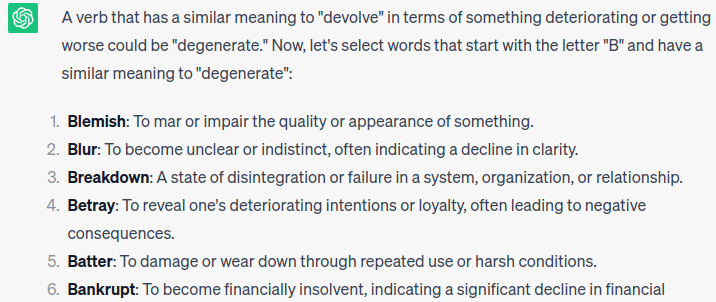
Generate verbs that have a similar meaning to "devolve", specifically the meaning of something deteriorating or getting worse. Then select those words that in English start with the letter "B".ChatGPT 3.5 gives several answers that all match, on the first try.
A verb that has a similar meaning to "devolve" in terms of something deteriorating or getting worse could be "degenerate." Now, let's select words that start with the letter "B" and have a similar meaning to "degenerate":

1. **Blemish**: To mar or impair the quality or appearance of something.
2. **Blur**: To become unclear or indistinct, often indicating a decline in clarity.
3. **Breakdown**: A state of disintegration or failure in a system, organization, or relationship.
4. **Betray**: To reveal one's deteriorating intentions or loyalty, often leading to negative consequences.
5. **Batter**: To damage or wear down through repeated use or harsh conditions.
6. **Bankrupt**: To become financially insolvent, indicating a significant decline in financial stability.
7. **Blight**: To cause harm or deterioration, often used to describe the negative impact on plants and environments.
8. **Brutalize**: To treat someone or something in a harsh and degrading manner, leading to a decline in their condition.
9. **Besmirch**: To tarnish or damage the reputation or purity of something.
10. **Becloud**: To obscure or make something unclear, contributing to its deterioration.

Please note that while these words share a similar meaning to "devolve" in terms of deterioration, they might have slightly different nuances or contexts.
Sometimes thinking of how ChatGPT stores knowledge, helps you make a good prompt. You will often need to combine several advanced prompt techniques.
-

Google Authenticator codes not updating
Google Authenticator is a common Two-Factor Authentication (2FA) app for mobile phones. When you log into a website, it asks for a code, you get the code from your 2FA app, type that code into the website form.
I’m using Google Authenticator and Authy. Why both? I had Authy already, and it works great, and then started seeing Google Authenticator is popular, so I simply added it also. Either should work for all your sites.
WordFence (my favorite WordPress security software), has 2FA as one of its many features, and connecting with Google Authenticator is built-in.
Now that I have 2FA set up for a few accounts, the code often doesn’t work. Huh?
The codes expire quickly. Google Authenticator shows a “decreasing pie” icon; the code expires when the pie is “all eaten”. You’d think the code would automatically update. But it doesn’t.
On my old phone, the code doesn’t always update when I start the app, either.
Updating Your Authenticator Codes
Updates are paused while they are visible. I’d prefer noticing a code is about to expire and wait for it to refresh before typing it into a website, but okay, they are paused.
To update the code, finger-hold (or very-long-tap) for a few seconds on any of the codes, and all the codes will get updated.
It is that simple.
p.s. The other thing many sites say to do is check the app’s settings, refresh the “Time correction for codes”, the time on your app should be synchronized with the “real time”, but they can get out of synch. This time is different from your phone’s clock (resetting the time correction doesn’t change your phone’s time). If this “time correction” setting fixes your problem with 2FA, you could check your phone’s time is being updated, normally to your phone network clock.
-

Removing Spilled Coffee, Wine or Soda from your Computer Keyboard
Probably Sticky, Not Damaged
There are keyboards that are marketed as “spill proof”, but most keyboards are made so that water is unlikely to get inside the individual keys. And most keyboards are made with holes so water spills can be gently shaken out.
While it is possible that the liquid shorted something in the keyboard, and it’s damaged, that doesn’t happen often.
Cleaning Liquids You Can Use
Wouldn’t distilled water be a good way to get the wine or soda out? A little bit of mild dish detergent can also help, maybe two drops in a bowl of water.
But don’t use unfiltered tap water, you don’t want any chemicals in your water eating at the plastic of the keyboard. If you live in an area with hard water, you shouldn’t use even filtered water, since those minerals can mess up the tiny levers of your keys. Or, understand that if the keyboard starts getting “sticky”, you’ll replace it.
Power Completely Off
Turn off your computer, all the way off not just low-power mode. Unplug the keyboard from the computer.
Tools
Find the old toothbrush that you kept for cleaning electronics, the one that has a rubber band around it so you never again put it in your mouth.
Not the toothbrush you use for cleaning bathrooms or cars or anything else, that now has traces of harsh chemicals on it.
A camera lens brush “so old you can replace it” would be great. Just don’t later use the keyboard brush on an expensive camera lens.
You’ll also want compressed air (those small cans, specially made for use on electronics). They usually have a tiny straw to get the air into tiny places.
Initial Cleaning
First, use the toothbrush and compressed air to get the crumbs and dust and pet hairs from the entire keyboard.
Then check for all the places where there is dried wine visible.
Notebook Computers Need More Cleaning
If you have a notebook computer, the keyboard was probably designed to keep spills out of the rest of the computer.
Hopefully, tipping the computer to let liquids drip out, is all that is needed to keep liquids from the rest of the computer.
After removing “most” liquid, remove the keyboard from the computer. That is usually one of the easiest things to remove from a notebook computer. Find your specific model’s repair instructions, and follow those instructions exactly. It probably requires remove a few screws, slide the keyboard so it is away from the rest of the case, then carefully disconnect the keyboard cable.
Check carefully for any signs of liquid in the rest of the notebook. Warning: likely any liquid on a notebook battery will cause corrosion, and with some batteries that could be dangerous. Maybe it is time to replace it with a new battery.
Keep yourself grounded (touch any large metal piece of electronics, maybe the bare-metal screw on a power strip) working in a notebook computer. Use only all-natural cloth (cotton, hemp, probably not silk) as nylon and polyester and so many other fabrics generate static. Wipe out all the liquid you can, then make sure the computer is completely dried before you power on again.
Don’t try rinsing inside a notebook computer. Only use a damp cloth to soak up drinks. Any slight residue: probably best to completely ignore it. Or find a cleaner that is specifically designed for cleaning electronic circuits. Or have a computer repair professional do it.
Removing Keycaps (Only if needed)
Only remove a keycap if you cleaned most of the dried gunk, and the key still doesn’t work. There is a risk you will break the tiny clip the keycap attaches to, every time you remove and replace a keycap.
There are small plastic clips that hold the keycap in place. These clips are usually located on the top and bottom edges of the keycap.
Gently pry up one of the clips using a small screwdriver or other thin tool. Be careful not to apply too much force, as this could damage the key or the keyboard.
Remove Spilled Liquid and Dried-On Gunk
Pour water on the coffee or wine or soda, then very gently rub after it has soaked a few minutes, until there is none visible.
Rinse, then gently shake water off the keyboard, many angles to get water out of all the corners and edges.
Dry Thoroughly
Let the entire keyboard dry thoroughly. Do not put any keycaps you removed back on, until it has dried thoroughly.
Maybe have a dish with a puddle, next to the keyboard, and you can only proceed when the puddle is completely dried.
Gently Put Keycaps Back On
If you have the keycap in exactly the right position, it will snap on with very little force. If it doesn’t snap on with very little force, you have it positioned incorrectly, even if by 0.1 millimeter, or one degree off the correct angle.
Do not use more force, you can very easily break the tiny clips the keycap attaches to. Use the minimal force to depress the key, plus ever so slightly more.
Keep gently trying, and suddenly what you did, seemingly no different than what you did before, will work.
Get A New Keyboard
If that sounds like too much work, or if the keycap breaks, buy a new keyboard. Or your friend probably has a keyboard “that came with their old computer” and you can have it.
Notebook replacement keyboards are available, just make sure it is for the exact model computer you have. Or, leave the bad keyboard in the notebook and use a USB keyboard. (If the whole keyboard is defective, you have to replace it, don’t leave blown circuits in the notebook.)
Keyboards on Amazon or at the swap meet, are inexpensive, especially if you don’t have to have the expensive brand. If the reviews of a keyboard aren’t “crappy feel” then you’ll likely find it is just fine.
If you need a keyboard “right now!” any Windows keyboard will work on a Mac, use the “windows flag” and the “Alt” keys, you’ll figure it out.
Don’t Do It Again
Now that you’ve done all that work, maybe you will change to “only water in a closed container” at the computer desk. No crumby or oily snacks.
-
Should You Repair Backup Drives
There are a lot of backup programs. Some back up your documents, some back up your operating system and programs. Some back up your choice of folders, and you should check often you included all of your project folders in the list.
There are now many programs that back up to some Internet server. I recommend you also backup to an external hard disk. You will likely find it easier to restore your operating system and programs and documents, to a new computer, from a hard disk.
It is much quicker to restore from backup, than to re-install the operating system and each of your programs, and all of your configurations and settings.
I recommend you backup your documents every day or every week (depends on how often you make changes to your documents, and how much work you could lose without being upset).
What if a Backup Drive Fails?
Don’t mess with a backup drive that doesn’t work. Or with a single backup file that doesn’t work.
Make a new backup.
Before you need to use it.
Of course, test the backup. How do you do that? 1) the backup software should have a “verify backup against the files on disk”, and 2) test by restoring to another computer, probably your old computer that you keep around.
Do This Before Backing Up Your Operating System
First, make another backup of Your data, on another drive.
Remember, different backup software defaults to backing up different folders. Check that you are backing up your documents, settings, pictures.
Music and videos, large files that you want but don’t change often, don’t belong in your daily backup. Back these up on a different schedule.
Check that you are backing up every one of your projects that isn’t in your documents folder.
Check that you are not backing up temporary files, or folders that you used as a “temporary backup” months ago. For example, your Internet browser makes thousands of temporary files, in a folder that is probably inside your documents folder.
Why? Because Murphy’s Law is having a lot of fun with you.
Can You Re-Use a Drive That Gave Errors?
Backups need to be Reliable. Don’t simply make a new backup on a drive that had some issue, where you couldn’t restore a backup.
If you have errors with a backup, keep it. You might need it. But label it as “probably damaged”. Then when you know you have a couple of other backups made, you can delete it.
Reformat a drive (as soon as you know there’s nothing on it you need, or nothing more can be recovered).
Test the drive, while it is empty, the longest sector-by-sector test your software allows. Do the test with writing different patterns to each sector. Do the test that takes all night.
A freshly formatted drive, that you ran full error checking on, will work for storing backups.
However, if the drive gives errors during formatting, for example many bad sectors, trash it. Hard drives used to be much more expensive, so it made sense to try to fix them; now it is simply too much work.
(If the information on that drive is truly valuable, pay for a company that specializes in data recovery; the more you do on a drive that isn’t working, the less likely anyone will be able to recover the data.)
New Drives for Backups
New drives, especially the slower drives, e.g. USB 2 drives, are very inexpensive.
Backup drives don’t have to be fast, they have to be reliable.
Buy a “spinner” for backups, don’t buy an SSD. SSDs cost more.
As of April 2023, 4TB USB 3.1 drives on Amazon $92 + free shipping.
USB2 drives would be a little less yet completely adequate for backups
What About Online Backups
Your files, excluding all OS/X and application files, will also likely fit on common online backup locations. (Pay more and you can store anything online.)
Ideally, you have both an online backup, and a backup stored in another room in your house, not next to your computer (if someone steals your computer, they will steal anything else on your desk). Consider storing an occasional backup at another location, maybe a friend’s house.
Backup Software
The Best Backup Software and Services for 2023 | PCMag
-
Flush Your Computer DNS Cache
Flushing your DNS cache is separate from flushing your Browser cache.
Your computer’s operating system will save DNS information for sites you’ve recently visited, to load them faster. Sometimes that old information can conflict with the site’s most recent version
If your computer’s DNS cache is old or bad, some sites might just “not load”. They load on other computers, just not on yours.
Where I’ve seen this most, is when I use a notebook that hasn’t been used for a while. I mainly work on my desktop computer; the notebook I might not use for many weeks.
If a website hosting company changes the IP address of the server a site is on, the DNS records need to be updated. Normally that update happens seamlessly (probably with a “change of address” notice, for a while). If it doesn’t happen seamlessly, you can manually clear your DNS cache, so all DNS entries will be queried anew.
Types of Errors That Have Pages Not Load
Preloader
You might simply see the “loading” icon spinning endlessly. This could be a JavaScript error in the page preloader, not a DNS error. Try right clicking in your page, select the Inspector. Find the element that has “preloader”
<div id="si-preloader">
...<!-- Probably stuff here -->
</div><!-- END .si-preloader-1 -->
Change this to not display the preloader, like this:
<div id="si-preloader" style="display:none;" >DNS Propagation
You would see errors like “This site’s domain name is either not yet pointed or is still propagating. Propagation may take up to 72 hours. Please check back later.”
400 Bad Request
You might get a “400: Bad Request” error in your browser (similar to how when you attempt to visit a page that doesn’t exist, you get a “404 Not Found” error).
There are other problems that can give you a 400 error, including illegal characters in the URL. So check on that first, before you clear your DNS cache.
For example, spaces aren’t supposed to be in a URL, you’re supposed to replace a space character with %20. Instead of “somesite.com/error code.html” you should have “somesite.com/error%20code.html“.
Another problem would be a % sign in the URL that isn’t followed by one of the valid characters it can be paired with (for example a two-digit hexadecimal number).
Clearing your browser cache is another easy thing to do, that can eliminate a 400 Bad Request error.Flush DNS Cache In Windows
open the command prompt (tap the Windows key, type cmd and press Enter).
ipconfig /flushdnsFlush DNS Cache In OS/X
open Terminal.
sudo killall -HUP mDNSResponderIf that doesn’t work, try
sudo discoveryutil udnsflushcachesFor more on mDNSResponder, http://manpagez.com/man/8/mDNSResponder/
Flush DNS Cache In Linux Mint and Ubuntu
https://www.techrepublic.com/article/how-to-flush-the-dns-cache-on-linux/
sudo systemctl is-active systemd-resolvedResponds “active”
sudo systemd-resolve --statisticsResponds with output like this:
"DNSSEC supported by current servers: no"
Transactions
Current Transactions: 0
Total Transactions: 924990

Cache
Current Cache Size: 74
Cache Hits: 16066
Cache Misses: 3662

DNSSEC Verdicts
Secure: 0
Insecure: 0
Bogus: 0
Indeterminate: 0
use this command to flush your DNS cache:
sudo /etc/init.d/dns-clean startTroubleshoot DNS — DIG Command
https://phoenixnap.com/kb/linux-dig-command-examples
The dig command in Linux is used to gather DNS information. It stands for Domain Information Groper, and it collects data about Domain Name Servers. The dig command is helpful for troubleshooting DNS problems, but is also used to display DNS information.
dig -v                      confirm you have it installed
dig google.com
The most important section is the ANSWER section:
The first column in the Answer section, lists the name of the server that was queried
The second column is the Time to Live, a set timeframe after which the record is refreshed
The third column shows the class of query – in this case, “IN” stands for Internet
The fourth column displays the type of query – in this case, “A” stands for an A (address) record
The final column displays the IP address associated with the domain name
Example:
; <<>> DiG 9.11.3-1ubuntu1.15-Ubuntu <<>> google.com
;; global options: +cmd
;; Got answer:
;; ->>HEADER<<- opcode: QUERY, status: NOERROR, id: 38377
;; flags: qr rd ra; QUERY: 1, ANSWER: 1, AUTHORITY: 0, ADDITIONAL: 1

;; OPT PSEUDOSECTION:
; EDNS: version: 0, flags:; udp: 65494
;; QUESTION SECTION:
;google.com.			IN	A

;; ANSWER SECTION:
google.com.		114	IN	A	142.250.68.110

;; Query time: 158 msec
;; SERVER: 127.0.0.53#53(127.0.0.53)
;; WHEN: Wed Jan 12 16:33:56 MST 2022
;; MSG SIZE  rcvd: 55
If a new domain name shows no IP address
dig preludemusicstudio.com

; <<>> DiG 9.16.1-Ubuntu <<>> preludemusicstudio.com
;; global options: +cmd
;; Got answer:
;; ->>HEADER<<- opcode: QUERY, status: NOERROR, id: 47922
;; flags: qr rd ra; QUERY: 1, ANSWER: 0, AUTHORITY: 0, ADDITIONAL: 1

;; OPT PSEUDOSECTION:
; EDNS: version: 0, flags:; udp: 65494
;; QUESTION SECTION:
;preludemusicstudio.com.		IN	A

;; Query time: 244 msec
;; SERVER: 127.0.0.53#53(127.0.0.53)
;; WHEN: Mon Jul 25 10:58:35 MST 2022
;; MSG SIZE  rcvd: 51
Notice there is no “Answer Section” after “Question Section”? That tells you that the DNS record for the domain name hasn’t propagated to wherever your computer gets the DNS information from.
If you have moved the hosting for the domain name to a different hosting company, look to see the new server IP address showing.
When new domain propagated to the host
See IP address of the host, in the Answer section? (IN A 34.125.9.164)
dig preludemusicstudio.com

; <<>> DiG 9.16.1-Ubuntu <<>> preludemusicstudio.com
;; global options: +cmd
;; Got answer:
;; ->>HEADER<<- opcode: QUERY, status: NOERROR, id: 19329
;; flags: qr rd ra; QUERY: 1, ANSWER: 1, AUTHORITY: 0, ADDITIONAL: 1

;; OPT PSEUDOSECTION:
; EDNS: version: 0, flags:; udp: 65494
;; QUESTION SECTION:
;preludemusicstudio.com.		IN	A

;; ANSWER SECTION:
preludemusicstudio.com.	5401	IN	A	34.125.9.164

;; Query time: 3 msec
;; SERVER: 127.0.0.53#53(127.0.0.53)
;; WHEN: Mon Jul 25 12:07:21 MST 2022
;; MSG SIZE  rcvd: 67
Long delay on web pages that use Google Fonts
dig fonts.google.com
Other Resources
TecAdmin — https://tecadmin.net/flush-dns-cache-ubuntu/
“Our systems keep a cache of DNS records, which allows for faster resolution of IP address. After changing of IP address of any domain, it takes time to update local cache. In the meantime, you may get a broken page error. In this situation, you need to flush the local DNS cache.”
In terminal, use this command to flush your DNS cache:
sudo /etc/init.d/dns-clean startFor other operating systems and a full rundown of DNS caching as a whole, you can check out Kinsta’s excellent guide: How to Flush DNS Cache (Windows, Mac, Chrome)