Category: Hardware

  • Apple Thunderbolt Display for sale

    The Apple A1407, also known as the Thunderbolt Display, is a high-resolution monitor that was designed primarily for use with Mac computers. However, its compatibility extends beyond just Apple products. Below, I’ll detail the compatibility with various brands and models of computers, as well as any necessary hardware or software.

    Apple Computers

    • MacBook Pro (Mid 2011 and newer): Supports Thunderbolt and Thunderbolt 2 connections. No additional hardware is necessary.
    • MacBook Air (Mid 2011 and newer): Also supports Thunderbolt and Thunderbolt 2. Directly compatible without additional adapters.
    • iMac (Mid 2011 – Late 2015): These models have Thunderbolt ports that can directly connect to the A1407.
    • Mac Mini (Mid 2011 and newer): Equipped with Thunderbolt ports, making them compatible with the A1407.
    • Mac Pro (Late 2013): Features Thunderbolt 2 ports for direct connection.

    For these Apple computers, macOS should automatically recognize the Thunderbolt Display without needing additional software.

    Windows and Linux Computers

    Compatibility with Windows or Linux PCs is less straightforward due to the specific hardware requirements (Thunderbolt 2 port), which are less common on non-Apple devices. However, some workstations and laptops are equipped with Thunderbolt ports.

    • Dell XPS 15 (9550 and newer): Models with a Thunderbolt 3 port can connect to the A1407 using a Thunderbolt 3 to Thunderbolt 2 adapter.
    • Lenovo ThinkPad X1 Carbon (5th Gen and newer): These also feature Thunderbolt 3 ports and require an adapter for connection.
    • HP EliteBook (G3 and newer): Select models come with Thunderbolt 3 ports, making them compatible through the use of an adapter.

    For these connections, ensure your PC’s BIOS settings are configured to enable Thunderbolt support. Additionally, Windows or Linux may require the installation of specific Thunderbolt drivers available from the PC manufacturer’s website.

    Required Adapters and Software

    • Thunderbolt 3 to Thunderbolt 2 Adapter: Necessary for connecting newer devices that have Thunderbolt 3 ports to the Thunderbolt 2 input of the A1407.
    • Drivers: Windows PCs may need Thunderbolt drivers installed, available from the manufacturer’s support site.

    Important Consideration

    While the Apple Thunderbolt Display can technically be connected to a wide range of devices, its functionality is best supported on Macs. Features like the built-in camera, speakers, and USB ports on the display may require specific drivers or may not be supported at all on non-Apple computers.

    Conclusion

    The Apple A1407 Thunderbolt Display offers broad compatibility with both Apple and select Windows or Linux computers. Its use outside of the Apple ecosystem may require additional adapters and driver installations. Before attempting to connect the display to a non-Apple computer, verify the presence of a Thunderbolt port and the availability of any required adapters or software to ensure the best experience.

    First Name
    Last Name
    Email
    Message
    The form has been submitted successfully!
    There has been some error while submitting the form. Please verify all form fields again.
  • Essential Guide to Uninterruptible Power Supplies and Voltage Regulators for Your Computers

    As an ambitious entrepreneur, safeguarding your digital assets is paramount for seamless operations. Whether you’re a life coach, course creator, or a visionary leader, your mission to make a positive impact shouldn’t be hindered by technical setbacks. Understanding and implementing effective power solutions, such as Uninterruptible Power Supplies (UPS) and Automatic Voltage Regulators (AVR), can be a game-changer in maintaining the integrity and continuous workflow of your computers. You really want one for each of your computers. Here’s a simplified guide to navigating these often overlooked, yet essential components of your business infrastructure.

    The Role of Uninterruptible Power Supplies

    Why A UPS Is Essential for Your Business Every business leader understands the consequence of unexpected disruptions. In the whole computer realm, power fluctuations or outages can cause data loss, hardware damage, and unscheduled downtime. A UPS is your first line of defense against these interruptions, providing emergency power without skipping a beat when your primary source fails.

    • Protection: Safeguard hardware and maintain operations during power surges or failures. All top UPS brands have very good surge suppressors in them, and if the surge suppressor fails (it did its job and stopped a large surge) the UPS will deliver no power rather than leave your computer equipment unprotected.
    • Peace of Mind: Focus on core business processes without fretting over data loss or unscheduled downtime. All top UPS models communicate with your computer, telling it in a power outage to save your work and hibernate or shut down, before the UPS battery is drained.
    • Productivity Assurance: Prevent disruptions that can affect your team’s productivity and client experience.

    Estimating Your Power Protection Needs

    Before investing in a UPS, it’s crucial to understand your system’s specific power needs. Thankfully, resources are available to make this process less daunting.

    Sites like APC provide specialized calculators designed to help you discern the power requirements of your system based on individual components like your CPU, storage devices, and graphics cards. By inputting your system’s specifics, you can obtain a more accurate estimate of what you’ll need in terms of power protection.

    Shut-Down Time: Additionally, consider the operational aspect: the time it takes to safely save your work and shut down your systems. This often-overlooked detail is vital in selecting a UPS with sufficient battery capacity. It’s not just about keeping your systems running during an outage but also allowing for a proper, orderly shutdown. This process prevents data corruption or loss, ensuring the integrity of your valuable digital content.

    Capacity Reduction: Over time, UPS batteries undergo natural degradation and wear, which is a normal aspect of their operation. This wear leads to a reduction in their capacity to hold charge, which subsequently affects their performance.

    1. First Year: Most quality batteries retain optimal functionality through the first year of use, with minimal capacity loss.
    2. Year 2-3: From the second year onward, capacity loss becomes more noticeable. A quality UPS battery may lose approximately 30% of its capacity by the end of the third year, depending on usage and environmental conditions.
    3. Year 4-5: As the battery approaches the end of its typical lifespan, the capacity could degrade by as much as 50% or more, significantly impacting its ability to provide power during outages.

    When selecting your UPS, factor in this natural reduction and aim for a unit that guarantees an adequate shutdown period, even as the battery ages. It’s an investment in the resilience of your business, ensuring continuity and peace of mind.

    Invest in a reliable UPS today to keep your business running smoothly

    Not sure where to start? Contact me for personalized recommendations tailored to your needs.

    Understanding Automatic Voltage Regulation

    Stabilize Your Success with AVR: Automatic Voltage Regulators (AVR) are unsung heroes, quietly normalizing voltage levels that can otherwise harm your computer equipment or affect performance. By instantly correcting voltage fluctuations, AVRs ensure that your devices receive consistent power, thereby extending their lifespan and reliability.

    • Consistency: AVRs provide a consistent power supply, vital for the optimal performance of your hardware. Low voltage “brownouts”, such as from an air conditioner turning on and off, are especially hard for computers. Computers with “cheap” power supplies can freeze or reboot.
    • Longevity: Protect your investment in technology by preventing premature failures due to power fluctuations. AC power “noise” and voltage fluctuations make computers fail sooner.
    • Efficiency: Enhanced operational efficiency by reducing the risk of downtime and maintaining the performance integrity of your equipment.

    You can plug an AVR into the AC outlet, and plug your UPS into the AVR. The AVR will protect your UPS, and your UPS likely costs more than the AVR.

    AVR models include: “Tripp Lite Voltage Regulator And Line Conditioner LS606M 6 Outlet”,

    Some UPS models have AVR built-in. Some are:

    Selecting the Right Product

    Navigating the Technical Landscape: Choosing the appropriate UPS and AVR can be daunting. However, it’s crucial to align these solutions with your business demands. For instance, models like the APC Back-UPS 1000 (BX1000M) offer compelling features for computer systems. Still, the key is to consider your specific requirements.

    • Check Specifications: Always verify product details from official sources like APC’s official website. Not all models may suit your needs regarding voltage regulation or noise filtering. Look for “AVR” or “voltage regulation” in the product description; or buy a separate voltage regulator.
    • Buy Sufficient Capacity UPS: Sites like APC’s have calculators for you to estimate your needs, based on the power your CPU, storage devices, and graphics cards use. Also, time how long it takes you to save all your application data and shut down completely. You need a battery with capacity to shut your computer down properly, even as the battery ages and has reduced capacity.
    • Quality Matters: Opt for new, quality batteries to enhance the service life and reliability of your chosen UPS.
    • Price Shopping: Compare prices from different vendors once you’ve settled on a model. Platforms like eBay often offer competitive pricing but be wary of the conditions under which the equipment is sold.

    [Image Block: Product Images or Comparison Chart]

    [Section 4: Beyond Standard Solutions] Demand More from Your Hardware It’s not uncommon to find motherboards or power supplies that fall short in ensuring the stable operation of your systems. Entrepreneurs should consider hardware that goes beyond standard provisions for power stability. Commit to brands and models known for superior in-built voltage regulation.

    • Informed Buying: Make future hardware purchases with power stability in mind. Research and invest in brands that offer superior internal voltage regulation.
    • Non-Negotiables: Establish your standards. Knowing the technical requirements that align with your business needs helps avoid future disappointments.

    [Conclusion] Take Charge of Your Digital Environment Your journey as an entrepreneur is about creating impactful experiences and a legacy that resonates. Don’t let technical hiccups stand in your way. By understanding and investing in the right UPS and AVR solutions, you’re not just protecting your hardware; you’re safeguarding your business vision, ensuring that every step you take is powered with confidence and reliability.

    [Call to Action or Contact Block] Struggling with technical specifics or need guidance tailored to your business? Reach out today, and let’s ensure your digital foundation is unshakable. Get in touch for a consultation.

  • Choosing the Right Modem and Setting Up Reliable Wi-Fi and Ethernet Connections

    You don’t need to buy the expensive modem/router, with all the latest features and greatest Wi-Fi signal strength.

    Check with your Internet provider for what exact model modem works, there are many different (incompatible) standards. For Cox, see their official list: Cox Certified Cable Modems https://www.cox.com/residential/support/cox-certified-cable-modems.html but unofficially, any “DOCSIS 3.1” modem should work for cable Internet (if you have fiber Internet, get one from the official list).

    Avoid DOCSIS 3.0 modems as the older standard won’t be compatible with Cox for as long; but they are much less expensive, if you don’t need the extra speed of DOCSIS 3.1.

    “Only modems and gateways purchased or rented directly from Cox are supported by Cox Customer Support.” Yeah, and you won’t have the monthly amount added to your bill for their modem and support.

    If you buy used or new, as long as it is the exact model listed (look closely, model numbers are long gibberish) and it functions, you can use it. 

    Cox doesn’t (or at least didn’t) require registering your modem. You just connect it, and it should work. 

    One excellent modem is Motorola Surfboard DOCIS 3.1, you will likely use it for years. Rock Solid and compatible with Cox. It is very simple to install, but expensive…

    Wi-Fi Throughout Your House

    You can buy the high-powered Wi-Fi router. But often if there are “things in the way” even 50 feet might be too far for a reliable Wi-Fi signal.

    Instead, consider installing Ethernet cables to the far rooms of your house. You will get faster speeds than using Wi-Fi, especially as the distance from the router gets longer. (Wi-Fi signal strength decreases with distance, and as the signal gets weak, there will be more transmission errors; so your computer will have to re-try getting the data.)

    While you are installing Ethernet cables, always install new coaxial cables too. Coaxial (cable TV) wires deteriorate over time (moisture corrodes the shield); in less than 20 to 30 years they won’t meet Cox standards for use in attached condominiums or apartments. The old cable TV wires will have more visible glitches on your TV programs.

    You don’t have to cut holes in the walls to drill through each beam inside each wall, to install Ethernet; that costs far too much.

    There is molding, like you already have for covering the gap where the wall meets the ceiling or floor, but with hidden places for several wires. Add a connector, or a wall plate with a connector, in each room.

    Search for “baseboard cable molding” or “Ethernet cable hider” or “cable raceway”. Raceway is probably along the wall; baseboard is where the floor or ceiling connects to the wall. Lots of options, pick the price and look you want.

    There is also “direct bury” outdoor Ethernet cable, simply scrape an inch deep in the dirt, lay the cable in it, cover it up. It is designed to last for years exposed to weather and moisture. Have a licensed contractor drill the hole to bring the wire into the building, since they know how to not drill into anything else that might be inside the wall.

    It is easy enough for anyone “good with wires” to make an Ethernet connector, you can learn how. It certainly would cost less to hire someone to only make the connector for you, or to install the cable hiders, than to wire through your walls.

    Install high-quality wires. You will get faster speeds, and the wires will work for longer (often several years longer). The cost of the wire is small compared to the work of installing the wire.

    With Ethernet in each room, use any inexpensive Wi-Fi router in each room. Since the Wi-Fi signal doesn’t have to reach far, it will be very reliable. Almost all Wi-Fi routers also have Ethernet connections to attach several devices.

    Wi-Fi 6 vs Older Wi-Fi

    For your main room, for example where you will be streaming movies to your best television, Wi-Fi 6 makes a lot of sense. Wi-Fi 6 is also best when several people might be streaming at the same time.

    For rooms where you do less demanding movie streaming, Zoom calls, browsing the Internet, inexpensive Wi-Fi routers will work just fine.

    Note: for your computer, get a Wi-Fi 6 interface. It will connect to older routers, doesn’t cost much more, has the latest security standards.

    Ethernet, if you use quality cables, will be faster and more reliable than any Wi-Fi. Desktop computers, televisions, security cameras, anything stationary, should be connected by Ethernet, if possible.

    Routers and Ethernet Connections

    Plan how many connections you need in each room, both Wi-Fi and Ethernet.

    If the Wi-Fi router you pick doesn’t have enough Ethernet connections, you can buy very inexpensive Ethernet switches.

    For example, TP-Link TL-SG108 8 Port Gigabit Unmanaged Ethernet Network Switch is currently $18.99. Connect your modem to the input of this, and wires to each room using the 8 ports.

    Power Surge Protection

    Power surges can pose a significant threat not only to computers, but also to modems. Use a surge protector to safeguard your modem’s functioning properly and prevent any potential damage.

    When connecting your modem, I recommend using the “surge protected” section of an “uninterruptible power supply” (UPS). A UPS, (more accurately a “supplemental” power supply), is a reliable safeguard against power surges. It ensures that your modem receives a steady and regulated power supply, shielding it from any sudden electrical spikes. Don’t connect your modem to the “battery + surge protected” outlets; those are primarily to provide backup power during outages, for shutting your computer down properly.

    For computers and modems, look for a UPS that has noise filtration and line voltage regulation. They only cost a little more, and computers (especially with cheap power supplies) are sensitive to changes in voltage. AVR corrects for low voltage (brown-outs) or high voltage coming from your power lines.

    CyberPower AVRG750U AVR UPS System, 750VA/450W, 12 Outlets,
    CyberPower CP685AVRG AVR UPS System, 685VA/390W, 8 Outlets, Compact
    both have automatic voltage regulation (but not noise filtration), both should work fine for all but the most high-power-use computers such as gaming machines with multiple graphics cards.

  • HP Desktop Power Supply Issues: Unstable Power to Erica 3 Motherboard’s Non-Standard Connectors

    I bought a HP desktop computer with an AMD Ryzen 5 4600G CPU. The computer reboots or locks up, mostly when the apartment’s air conditioning goes on or off, or sometimes when I hear the neighbor’s air conditioning go off. It isn’t the version of operating system, nor the applications I’m running at the time. The power supply doesn’t give steady power to the computer when the line power fluctuates (too little voltage difference, or too short a time, for a good Uninterruptible Power Supply to take over).

    HP Pavilion Gaming Desktop PC TG01-1070m CTO Product 3G825AV, with Ryzen 5 4600G CPU with internal graphics.

    Erica3 motherboard, Customized (meaning not standard ATX): 29.09 x 20.3 cm (11.45 x 7.99 in), Chipset B550A

    Erica motherboards (all? Certainly Erica 3) have non-standard power connectors, so as far as I can tell, only Delta Electronics makes a power supply for it.

    Erica motherboards (all? Certainly Erica 3) have front-case connectors soldered on the motherboard (USB, power, headset) so probably won’t work with standard cases, maybe only HP’s case.

    See Choosing the Best Motherboard for AMD’s Ryzen 5 4600G – TechReviewer, which says: 

    For AMD’s Zen 2-based Ryzen 5 4600G processor, you’ll need a motherboard with an AM4 socket and a compatible chipset.

    Ryzen 4000-series CPUs, which includes the Ryzen 5 4600G, are compatible with all 400 and 500-series consumer chipsets. Supported chipsets include the X570, B550, A520, X470, and B450.

    The X570 is our recommended chipset for the Ryzen 5 4600G CPU, as it provides the most functionality and the ability to upgrade to a newer AM4 CPU in the future.

    Note: Make sure that your motherboard also has a video output port (e.g., HDMI) if you want to use the integrated graphics in the Ryzen 5 4600G CPU.

    Other options?

    Buy a recommended motherboard, that uses ATX-standard power connectors.

    Buy a top brand power supply, e.g. Thermaltake, Corsair, Seasonic. See Top PSU picks for gaming and more | Windows Central for several excellent power supplies, and what to look for in a power supply.

    Buy a new case, with the power supply and motherboard installed (so you know they fit each other).

    Move your CPU, RAM, M.2 SSD, other drives, WiFi/Bluetooth card, everything else you can, to your new case + motherboard.

    While you are moving the CPU, replace the heat transfer thermal grease between the CPU and the CPU Fan. I talk about this on Computer Slow? Check “Thermal Protection Mode”, and Fix It Fast. Yeah, we’re supposed to replace that every year or so!

    Erica Motherboard Use Non-Standard Power Supplies

    It has an Erica 3 motherboard, which uses non-standard power connectors, and non-standard port connectors.

    The Delta Electronics power supply, with custom connectors for this non-standard motherboard, does not give stable power. It outputs power that fluctuates when the input power fluctuates. The motherboard protects the computer by locking up or rebooting.

    Is it the power supply design? Is it getting worse over time, and now it’s defective? I don’t know. I don’t care.

    Power Supply

    These Erica motherboards are super proprietary – the one I had was like mATX height but double length as the front panel connectors were physically built onto the board. (a normal mATX or board will be taller than it is wide, not the opposite).
    The issue here isn’t the motherboard – it’s the PSU. These HP use a weird 10 pin power supply to the motherboard. A normal aftermarket motherboard doesn’t support this standard.
    an Erica2 motherboard user

    My Specific Model Computer

    HP Pavilion Gaming Desktop PC TG01-1070m CTO

    Erica3 motherboard, HP model: 87D6
    Customized: 29.09 x 20.3 cm (11.45 x 7.99 in)
    Chipset B550A
    front case ports are soldered to the motherboard (so the case has to match exactly)

    Low Voltage House Power and Computers

    In theory, SPSs [standby power supply, aka “uninterruptible” power supply] have another drawback relative to online and line-interactive units. Actual switching time may be considerably longer than nominal under extended low-voltage conditions and with partially depleted batteries. Because the hold-up time of a PC power supply decreases under marginal low-voltage conditions, in theory an SPS may require longer to switch than the hold-up time of the PC power supply, resulting in a system crash. In practice, good SPSs have typical switching times of 2 to 4 ms and maximum switching times of 10 ms or less, and good PC power supplies have hold-up times of 20 ms or longer at nominal voltage and 15 ms or longer during sustained marginal under-voltage conditions, which means this is seldom a problem.

    I think this computer’s power supply has unusually low “hold-up time”, despite being rated “80 Plus Certified”.

    original power supply Delta Electronics
    HP P/N L76557-003
    DPS-400AB-43 A rev 0C

    (all quick hand measurements, definitely not precise)

    Power supply is 6-3/8″ x 2-5/8″ x 3-3/4″, mounted to case with 4 screws on power switch side

    SysPwr 14″ 360mm (approx) 4-pin Molex square with beveled pin plastic so only fit proper orientation, labeled on motherboard “SYS_PWR P1”

    2x CPU Pwr 26″ 660mm 4-pin Molex square with beveled pin plastic so only fit proper orientation, labeled on motherboard “CPU_PWR” (only 1 used)

    6+2 or 8-pin PCIe 12″ 305mm (unused, for graphics card, but many graphics cards need two of these)

    7-pin labeled on motherboard “P2 PWRCMD” only pins 7,5,4 used
    may be a “7 pin 6 wire connector” going into the motherboard labeled PWR CMD. See https://www.techpowerup.com/forums/threads/power-supply-psu-pwr-cmd-help.273208/ “JST connector with a PH/2.0 mm spacing”, so what looks like 7 pins from the top is probably 6 pins with one filled hole.

    12.1V Main 18A
    12.1V CPU1 18A
    12.1V G1 18A

    80 PLUS® Certified Power Supplies and Manufacturers | CLEAResult 
    search by model DPS-400AB-43, manufacturer listed as “HP, Inc.”
    https://www.clearesult.com/80plus/sites/80plus/files/manufacturer-certificate/HP%2C%20INC._DPS-400AB-43_400W_SOCE%205861_Report.pdf
    ID 5861, Year 2019, Type: OTHER
    TYPICAL EFFICIENCY (50% Load): 91.40%
    AVERAGE EFFICIENCY : 90.36%

    https://fccid.io/RR-DVP-DPS-400AB-43A

    https://www.datasheets.com/en/search?q=DPS-400AB-43
    searched for pinout by Erica3 motherboard and by part number DPS-400AB-43, found Nothing. Not listed by DPS-400AB-43 on Delta Electronics site.

    Measure the voltage with a volt meter, maybe it’s standard and a simple adapter will work for the PWRCMD.

    Since the motherboard and power supply are non-standard, you Have to measure Every connector’s every pin, to make sure it is compatible with standard ATX power supplies.

    Yuck!

    Better answer: buy a new case + power supply + motherboard, making sure the motherboard works with your existing CPU (and a few newer more powerful CPUs too). Make sure the power supply is a top brand, such as Thermaltake, Corsair, Seasonic. Transfer your CPU, RAM, SSD, other drives, WiFi card, etc.

  • Audio Equipment

    “Life Force: How New Breakthroughs in Precision Medicine Can Transform the Quality of Your Life and Those You Love”. “In this book, Tony Robbins brings you more than 100 of the world’s top medical minds and the latest research, inspiring comeback stories, and amazing advancements in precision medicine that you can apply today to help extend the length and quality of your life.”

    I really like the JBL Flip 4 cylindrical speaker. It delivers amazing sound quality for listening to music, the battery lasts a good time, it is water-resistant, and it is easy to carry. 

    JBL Flip 4 Replacement Battery

    QaoMrt 4000mAh High Capacity Replacement Battery with Repair Tool Kit
    Compatible with JBL Flip 4, Flip 4 Special Edition, GSP872693 01 Speaker 

    From the product description:
    Upgraded the original capacity from 3000mAh to 4000mAh.
    Our Flip 4 battery has a standard test report from ILAC ISO 17025 certified laboratory. And we use the latest high-quality smart IC chip, which has the short-circuit protection, over-heating protection, over-charging protection, over-discharging protection, effectively improves power conversion rate and stable performance.
    KEEP THE ORIGINAL WATERPROOF PERFORMANCE: Whether the replacement will affect the original waterproof performance of the speaker must be one of the factors you will worry about. We deeply understand your concerns. After the replacement process, you don’t need to worry about rain or splash, and daily use will not be affected. At the same time, both ends of the GSP872693 01 battery replacement are equipped with anti-vibration sponges, which can avoid vibration noise even at the maximum volume.

  • Removing Spilled Coffee, Wine or Soda from your Computer Keyboard

    Removing Spilled Coffee, Wine or Soda from your Computer Keyboard

    Probably Sticky, Not Damaged

    There are keyboards that are marketed as “spill proof”, but most keyboards are made so that water is unlikely to get inside the individual keys. And most keyboards are made with holes so water spills can be gently shaken out.

    While it is possible that the liquid shorted something in the keyboard, and it’s damaged, that doesn’t happen often.

    Cleaning Liquids You Can Use

    Wouldn’t distilled water be a good way to get the wine or soda out? A little bit of mild dish detergent can also help, maybe two drops in a bowl of water.

    But don’t use unfiltered tap water, you don’t want any chemicals in your water eating at the plastic of the keyboard. If you live in an area with hard water, you shouldn’t use even filtered water, since those minerals can mess up the tiny levers of your keys. Or, understand that if the keyboard starts getting “sticky”, you’ll replace it.

    Power Completely Off

    Turn off your computer, all the way off not just low-power mode. Unplug the keyboard from the computer. 

    Tools

    Find the old toothbrush that you kept for cleaning electronics, the one that has a rubber band around it so you never again put it in your mouth.

    Not the toothbrush you use for cleaning bathrooms or cars or anything else, that now has traces of harsh chemicals on it.

    A camera lens brush “so old you can replace it” would be great. Just don’t later use the keyboard brush on an expensive camera lens.

    You’ll also want compressed air (those small cans, specially made for use on electronics). They usually have a tiny straw to get the air into tiny places.

    Initial Cleaning

    First, use the toothbrush and compressed air to get the crumbs and dust and pet hairs from the entire keyboard.

    Then check for all the places where there is dried wine visible. 

    Notebook Computers Need More Cleaning

    If you have a notebook computer, the keyboard was probably designed to keep spills out of the rest of the computer.

    Hopefully, tipping the computer to let liquids drip out, is all that is needed to keep liquids from the rest of the computer.

    After removing “most” liquid, remove the keyboard from the computer. That is usually one of the easiest things to remove from a notebook computer. Find your specific model’s repair instructions, and follow those instructions exactly. It probably requires remove a few screws, slide the keyboard so it is away from the rest of the case, then carefully disconnect the keyboard cable.

    Check carefully for any signs of liquid in the rest of the notebook. Warning: likely any liquid on a notebook battery will cause corrosion, and with some batteries that could be dangerous. Maybe it is time to replace it with a new battery.

    Keep yourself grounded (touch any large metal piece of electronics, maybe the bare-metal screw on a power strip) working in a notebook computer. Use only all-natural cloth (cotton, hemp, probably not silk) as nylon and polyester and so many other fabrics generate static. Wipe out all the liquid you can, then make sure the computer is completely dried before you power on again.

    Don’t try rinsing inside a notebook computer. Only use a damp cloth to soak up drinks. Any slight residue: probably best to completely ignore it. Or find a cleaner that is specifically designed for cleaning electronic circuits. Or have a computer repair professional do it.

    Removing Keycaps (Only if needed)

    Only remove a keycap if you cleaned most of the dried gunk, and the key still doesn’t work. There is a risk you will break the tiny clip the keycap attaches to, every time you remove and replace a keycap.

    There are small plastic clips that hold the keycap in place. These clips are usually located on the top and bottom edges of the keycap.

    Gently pry up one of the clips using a small screwdriver or other thin tool. Be careful not to apply too much force, as this could damage the key or the keyboard.

    Remove Spilled Liquid and Dried-On Gunk

    Pour water on the coffee or wine or soda, then very gently rub after it has soaked a few minutes, until there is none visible.

    Rinse, then gently shake water off the keyboard, many angles to get water out of all the corners and edges.

    Dry Thoroughly

    Let the entire keyboard dry thoroughly. Do not put any keycaps you removed back on, until it has dried thoroughly.

    Maybe have a dish with a puddle, next to the keyboard, and you can only proceed when the puddle is completely dried.

    Gently Put Keycaps Back On

    If you have the keycap in exactly the right position, it will snap on with very little force. If it doesn’t snap on with very little force, you have it positioned incorrectly, even if by 0.1 millimeter, or one degree off the correct angle.

    Do not use more force, you can very easily break the tiny clips the keycap attaches to. Use the minimal force to depress the key, plus ever so slightly more. 

    Keep gently trying, and suddenly what you did, seemingly no different than what you did before, will work.

    Get A New Keyboard

    If that sounds like too much work, or if the keycap breaks, buy a new keyboard. Or your friend probably has a keyboard “that came with their old computer” and you can have it.

    Notebook replacement keyboards are available, just make sure it is for the exact model computer you have. Or, leave the bad keyboard in the notebook and use a USB keyboard. (If the whole keyboard is defective, you have to replace it, don’t leave blown circuits in the notebook.)

    Keyboards on Amazon or at the swap meet, are inexpensive, especially if you don’t have to have the expensive brand. If the reviews of a keyboard aren’t “crappy feel” then you’ll likely find it is just fine.

    If you need a keyboard “right now!” any Windows keyboard will work on a Mac, use the “windows flag” and the “Alt” keys, you’ll figure it out.

    Don’t Do It Again

    Now that you’ve done all that work, maybe you will change to “only water in a closed container” at the computer desk. No crumby or oily snacks.

  • Should You Repair Backup Drives

    There are a lot of backup programs. Some back up your documents, some back up your operating system and programs. Some back up your choice of folders, and you should check often you included all of your project folders in the list.

    There are now many programs that back up to some Internet server. I recommend you also backup to an external hard disk. You will likely find it easier to restore your operating system and programs and documents, to a new computer, from a hard disk.

    It is much quicker to restore from backup, than to re-install the operating system and each of your programs, and all of your configurations and settings.

    I recommend you backup your documents every day or every week (depends on how often you make changes to your documents, and how much work you could lose without being upset).

    What if a Backup Drive Fails?

    Don’t mess with a backup drive that doesn’t work. Or with a single backup file that doesn’t work.

    Make a new backup. 

    Before you need to use it. 

    Of course, test the backup. How do you do that? 1) the backup software should have a “verify backup against the files on disk”, and 2) test by restoring to another computer, probably your old computer that you keep around.

    Do This Before Backing Up Your Operating System

    First, make another backup of Your data, on another drive. 

    Remember, different backup software defaults to backing up different folders. Check that you are backing up your documents, settings, pictures.

    Music and videos, large files that you want but don’t change often, don’t belong in your daily backup. Back these up on a different schedule.

    Check that you are backing up every one of your projects that isn’t in your documents folder.

    Check that you are not backing up temporary files, or folders that you used as a “temporary backup” months ago. For example, your Internet browser makes thousands of temporary files, in a folder that is probably inside your documents folder.

    Why? Because Murphy’s Law is having a lot of fun with you. 

    Can You Re-Use a Drive That Gave Errors?

    Backups need to be Reliable. Don’t simply make a new backup on a drive that had some issue, where you couldn’t restore a backup.

    If you have errors with a backup, keep it. You might need it. But label it as “probably damaged”. Then when you know you have a couple of other backups made, you can delete it.

    Reformat a drive (as soon as you know there’s nothing on it you need, or nothing more can be recovered). 

    Test the drive, while it is empty, the longest sector-by-sector test your software allows. Do the test with writing different patterns to each sector. Do the test that takes all night.

    A freshly formatted drive, that you ran full error checking on, will work for storing backups. 

    However, if the drive gives errors during formatting, for example many bad sectors, trash it. Hard drives used to be much more expensive, so it made sense to try to fix them; now it is simply too much work.

    (If the information on that drive is truly valuable, pay for a company that specializes in data recovery; the more you do on a drive that isn’t working, the less likely anyone will be able to recover the data.)

    New Drives for Backups

    New drives, especially the slower drives, e.g. USB 2 drives, are very inexpensive.

    Backup drives don’t have to be fast, they have to be reliable.

    Buy a “spinner” for backups, don’t buy an SSD. SSDs cost more.

    As of April 2023, 4TB USB 3.1 drives on Amazon $92 + free shipping.

    USB2 drives would be a little less yet completely adequate for backups

    What About Online Backups

    Your files, excluding all OS/X and application files, will also likely fit on common online backup locations. (Pay more and you can store anything online.)

    Ideally, you have both an online backup, and a backup stored in another room in your house, not next to your computer (if someone steals your computer, they will steal anything else on your desk). Consider storing an occasional backup at another location, maybe a friend’s house.

    Backup Software

    The Best Backup Software and Services for 2023 | PCMag 

  • Computer Slow? Check “Thermal Protection Mode”, and Fix It Fast

    “Reduce overheating”. Don’t just put up with your computer running very slow. Your computer could be overheating, and going into “thermal protection mode”.

    The “thermal protection mode” is your CPU automatically slowing way down when it is too hot, to protect from destroying the entire computer. You should not run your computer in thermal protection mode, it still has brief yet frequent times at “too hot”, so will eventually ruin your CPU.

    What Causes Thermal Protection Mode?

    Thermal protection mode is from either the CPU fan not working (whether it is clogged or has failed), or from the CPU thermal grease being old. The thermal grease conducts heat from the CPU to the fan. CPU thermal grease needs to be replaced every few years, before it dries out and no longer conducts heat properly. Yeah, nobody ever told you, right?

    How do you know if your computer is in thermal protection mode?

    Check your system information apps, to see the temperature of the CPU (look up in search engines how to do it in your version of operating system).

    Every CPU model has a recommended maximum temperature, but most should never exceed 100 degrees Celsius, and better not to exceed 95 degrees. Some should never exceed 80 degrees. Check https://www.cputemper.com/maximum-and-normal-cpu-temperature/ for some CPU max temperatures, or the Intel/AMD page for your exact model of CPU. Also, see Normal CPU Temperature: How Hot Is Too Hot For CPU

    Note: my computer’s CPU is currently 34 degrees Celsius, but if I run an application that is extremely CPU intensive, such as BOINC, it runs at a maximum of about 85 degrees (briefly, before the fan speed increases cooling). My graphics GPU maximum temperature is 62 degrees, but I don’t do much graphics-intensive work.

    What Can You Do To Cool Your Computer?

    If you’re comfortable working inside a computer (for example, adding RAM or replacing a hard disk), you could likely learn how to replace your CPU thermal grease, yourself; any computer technician should definitely be able to do it.

    While you are replacing the thermal grease, make sure the fan is clean, and the path the dust should flow out of the computer is clear. Gently hold the fan with your fingers so the blades won’t spin, and blow it with compressed air. Never let the fan spin while you are blowing it clean, as it can break, and because the spinning fan can generate electricity that could damage parts. Don’t spray any part in a computer for more than a brief burst, as the air comes out of the can very cold; that cold could damage parts.

    Then learn how to check for applications that are constantly using high CPU, which will make the CPU hot. There may be a bug in that version of the program, or there may be a better written program that does the same thing.

    If you have a desktop computer, consider Buy a better CPU cooler.

    How Do You Replace CPU and GPU Thermal Grease?

    Find the instructions for your model of computer, to get to the CPU. Then there is a simple clamp that holds the fan against the CPU. Carefully take off the fan, wipe off or (carefully!) scrape off the old grease, and apply new grease. Then re-attach the fan, and put together the rest of the computer. Same idea for applying thermal grease to your graphics processor.

    Replacing the CPU thermal grease on notebook computers is harder than on desktop computers, because you usually have to disassemble the entire computer just to get to the CPU fan; but it is more important to keep your notebook computer running cool, as the notebook is more enclosed and so will tend to run hot.

    The thermal paste (aka thermal grease) gets applied to the top of the CPU. You either use a flat edge (maybe a clean Popsicle stick or expired credit card) or a tool designed for this, to spread the paste over the entire top of the CPU without going past the edges of the CPU. Or, you apply what the instructions say should be the right amount in a “pea sized ball” at the center of the CPU and when you press the CPU fan in place it will spread the thermal paste for you; you hope it spreads it right.

    Figure out for your next computer if you really need a notebook, or if a mini desktop (about 5″ by 5″ by 2″, very easy to open up) will be easy enough to move around. Mini desktops tend to have faster CPUs than mobile computers, and cost less, so getting two monitors and USB hubs, one for home and one for office, will still likely cost the same or less than buying a notebook.

    What Thermal Paste Should You Use?

    There are several different types of thermal paste to use in computers. (Don’t use one made for use in other equipment, not computers, those could damage computer parts.)

    You’ll know you spread the thermal paste right, when you see the CPU temperature staying cool enough.

    There are thermal pastes made with metallic particles. Good at cooling, but you have to be careful applying it so you don’t short pins on the CPU.

    There are thermal pastes made with carbon, or even artificial diamond particles. These are good heat conductors that don’t conduct electricity, so you don’t have to be as careful to not put too much on the CPU. But of course it is still good to only apply the amount you need, not have it squeeze out past the edges of the CPU.

    There are also some sheets of thermal conductor, and you buy or cut it to be the right size for your CPU (or GPU). These normally can be peeled off and used again, if you didn’t get the position exactly right.

    Look for a thermal grease that lasts long enough for how infrequently you want to replace the grease. Some good brands last two years, some with different materials last 6 years.

    Look for a consistency you like, some are thicker and hard to spread exactly how you want; some are thin and if you apply too much in a ball could spread paste the edges of your CPU onto the pins.

    There are websites that have good reviews of quality thermal pastes.

    Some good ones:

    ARCTIC MX-4 Premium Performance Thermal Paste for all processors (CPU, GPU – PC), very high thermal conductivity, long durability, safe application, non-metalic paste, incl. Spatula to apply it.
    https://amzn.to/3WdC4LD

    SYY-157 thermal paste is metal-free and non-conductive, which eliminates any risk of short circuit and adds more protection to the CPU and VGA card. Very high thermal conductivity. Should last 5 years, longer than many CPU pastes.

  • How to Connect Your Water Filter to Your Faucet Aerator

    What size water filter diverter do you need for your sink? Do you need a male or female diverter? Should you get a diverter that sends water to your water filter, or one that also takes filtered water to your faucet? There is a lot to think about when buying a diverter for your water filter.

    Some sinks have a hole with a cover, at the side of the hot and cold water valves, for you to add a soap dispenser or a filtered water faucet. Can you connect a water filter that is expecting you to have a faucet mounted in your sink, to your regular water spout? If your faucet has an aerator at the end then yes you probably can.

    If your sink has no place to mount a “filtered water only faucet”, and the faucet has an aerator, you can install a diverter to connect your counter-top water filter.

    If your sink has a place to mount a faucet or soap dispenser, the water filter could go under the sink. If your filter will go under your sink, consider the option of installing a valve that pierces into your cold water pipe, to send water to your filter and then connect to the mounted “filtered water only” faucet; this doesn’t use a diverter on your sink’s faucet. (You might want to have a plumber install this piercing valve, so it doesn’t leak.)

    If your sink doesn’t have one of these “cut-out” places to mount a faucet, you will have to either drill a hole in your counter to mount a faucet, or use a water filter designed to be on your counter.

    An aerator (pronounced “air-ator”) is a small tip on your faucet, that makes the water come out with less splashing, by adding air into the water flow. The tiny air bubbles make the water flow white instead of clear.

    You can probably remove the aerator by placing a towel around it (the towel protects the finish so it doesn’t get scratched) and gripping the towel with an adjustable wrench. Looking from above the faucet, turn the wrench from right to left to loosen the aerator.

    What Size Aerator Do You Have?

    Aerators come in several sizes. Common sizes are the size of a USA quarter dollar coin, a nickel coin, or a penny coin.

    There are also different “gender” threads. If the threads are on the inside of your aerator, you need a female diverter. If the threads are on the outside of your aerator, you need a male diverter.

    There are adapters available to connect to other size faucets, and for faucets that need the other gender threads.

    Faucet Diverters for Water Filters

    After finding out what size and gender aerator you have, to know what size diverter you need, you have to pick getting one with a one-way diverter or a two-way diverter.

    A one-way diverter sends tap water to your filter; the water filter must have a built-in faucet or connect to a faucet mounted on your sink.

    A two-way diverter sends tap water to your filter and also sends filtered water to come out of the diverter. The filtered water comes out right next to where the un-filtered water would.

    Both types have a lever or knob, for you to let water out your normal faucet or divert the water to your water filter.

    I have not tested these diverters, they just look like they will do the job.

    PureSec 2-Way Kitchen Faucet Diverter Valve/Splitter for Counter Water Filter

    with Female M22 (≈22mm) Thread

    For 1/4″ Outer Diameter Tubing, OR for 3/4″ OD tubing, you select on the order page.

    Two way diverter, diverts tap water to your water filter, and then filtered water out of your faucet

    Hydicmart Faucet Diverter Valve with Aerator M22 Female Thread, for Faucet Tap to Countertop water Filter

    with Female M22 (≈22mm) Thread

    Three Styles: Fits Single Way 1/4″ OD Tubing, OR Fits Two Way 1/4″ OD Tubing Outlet, OR Fits Single Way 3/8″ OD Tubing

    One-way diverter, diverts tap water to your water filter. You’ll need a faucet wtih your water filter.

    Two-way diverter, diverts tap water to your water filter then filtered water out your faucet.

    Avalon 2052-1 Faucet Aerator Water Filter Adapter with Diverter 1/8 Inch to 1/4 Inch Barb, Polished Chrome Finish

    with Female M22(≈22mm) Thread

    1/4 inch barb, fits 1/8 inch to 1/4 inch tubing

    2.2 GPM at 60 PSI

    One-way diverter, diverts tap water to your water filter. Your water filter needs to have a built-in faucet or connect to a counter-mounted faucet.

  • Securely Wipe Unused Hard Disk Space

    Securely Wipe Unused Hard Disk Space

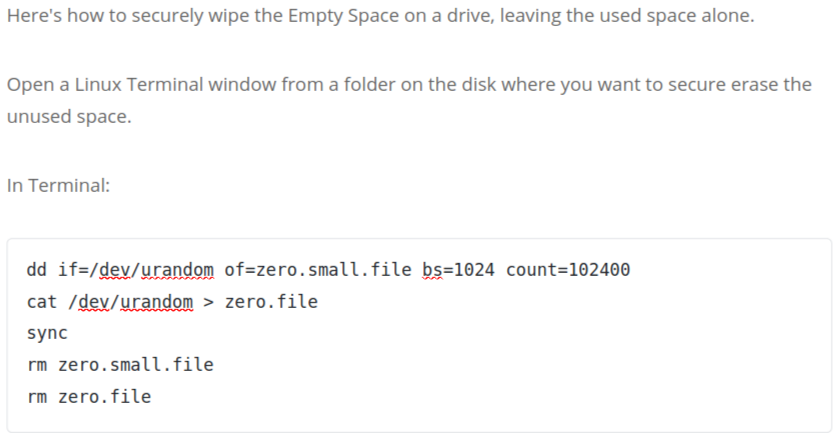
    Here’s how to securely wipe the Empty Space on a drive, leaving the used space alone.

    Open a Linux Terminal window from a folder on the disk where you want to secure erase the unused space.

    In Terminal:

    dd if=/dev/urandom of=zero.small.file bs=1024 count=102400 
    cat /dev/urandom > zero.file 
    sync 
    rm zero.small.file 
    rm zero.file

    That makes a small file (100 MB = 1024x1024x100 bytes) filled with a random character,

    then fills the disk with a random character (which takes a very long time),

    then sync (prevents a smart disk cache from blocking writing to disk),

    then deletes the small file so the time you have with “disk full” is short,

    then deletes the big ‘zero.file’.

    Run this several times for even more security, if you really need to.

    Instead of /dev/urandom you can use /dev/zero to fill the disk with zeros.

    All the sectors that are filled, will be tested by the drive’s SMART test, and any bad blocks will be marked so they aren’t used any more.

    You should then check the SMART disk tool, to make sure there are few bad blocks; if there are many, or the number increases over time, immediately move data to a new drive and discard this one.