Category: Elementor

  • If You Do Not See a Page Builder, Can You Add Elementor?

    For future reference, I do know of a “convert to Elementor” tool, and it is well-done and even free. It will read each page, convert it to Elementor. If the client wants to switch to Elementor, that makes it much easier to then make a page template in Elementor, and modify each page to use the template. It can even convert “pure HTML/CSS/PHP” sites. Anyone curious, can ask me about it.

    It is a “bad idea” to have multiple page builders installed (mainly the page speed is hurt by loading all those program files).

    That said, you can certainly take a WordPress site made recently (meaning, running a current version of WordPress and a theme that at least works with the current version of WordPress) that was done in the Block Editor, and add Elementor to it.

    I’ve done many sites where “only the few special pages” used Elementor, and the rest was made with the Block Editor. This works if you know how to edit “most pages” in the Block Editor.

    What if you Do have another page builder?

    As an example, let’s say you have Beaver Builder.

    (I will guess Beaver Builder is still one of the better page builders. It certainly is one I would say is okay to use; there are many I’d urge you to get that other junk builder off your site. I haven’t done a comparison in a long time so maybe BB is better than Divi (the Divi Builder, not the junk theme bundled with it, use Divi Builder with 2025 or Spectra One themes).

    What if You Like the Block Editor, Do you Need a Page Builder?

    I like the TwentyTwentyFive theme, or the Spectra One theme.

    Spectra One Theme and Spectra Builder

    Spectra is a freemium page builder that integrates with the WordPress Block Editor (Gutenberg), allowing you to create a WordPress site with ready-to-use blocks, and some great templates.

    Spectra One is a modern and versatile WordPress theme that leverages Full Site Editing (FSE), allowing for extensive customization using blocks throughout the site, from headers to footers. It was developed by Brainstorm Force, the creators of the popular Astra theme, and is available for free on WordPress.org.

    Spectra – WordPress Gutenberg Blocks generates Blocks, so it is designed to work smoothly with any theme, including the free Spectra One theme, https://wpspectra.com/ or Spectra – WordPress Gutenberg Blocks. Most of the features of full page builders, with zero page builder bloat; your site loads fast.

    Spectra One is beautiful and modern, suitable for blogs, portfolios, businesses, and more.

    It is fully compatible with WooCommerce, and has some WooCommerce-specific features that will significantly enhance the experience. If you want to set up a WooCommerce shop, or online course, or coaching program, Spectra One is a solid choice, especially if you plan to start with basic features and gradually expand.

    Spectra Pro, the premium version of Spectra, offers advanced website design options and is designed to work smoothly with any theme, including Spectra One. Start with the free version, and upgrade when you find specific features you need.

    In summary, Spectra and Spectra One are well-suited for coaches and course creators.

    Also by Brainstorm Force: Ultimate Addons for Elementor (Elementor elements much like Spectra’s blocks); Schema Pro (Schema Pro offers all major types of schema, including recipe, book, article, job posting, and a lot more.) Presto Player for embedding videos and audios in your site; SureMembers if you want to have a Membership site.

  • Make Your Own Page Header and Page Footer, for your Entire Site, in Elementor free version

    Normally, you have to pay for Elementor Pro to edit templates for your site.

    Yes, the simplest solution is pay a little money for Elementor Pro. You will likely find that Elementor Pro is worth the money.

    What if you Don’t Want Elementor Pro?

    If you don’t want to purchase Elementor Pro, then the Ultimate Addons for Elementor Lite by Brainstorm Force is a free plugin.

    All of Brainstorm Force’s plugins that I’ve tried focus on minimal overhead for your site, and your PageSpeed scores. Using the Block Editor with Spectra (another free plugin by Brainstorm Force, Spectra – WordPress Gutenberg Blocks ) is faster than Elementor will ever be; using UAE and Elementor will be faster than using Elementor and Elementor Pro, without some of the features of Elementor Pro.

    How Do you Make a New Header or Footer?

    One thing Ultimate Addons for Elementor Lite has is an “Elementor Header & Footer Builder”. In UAE in the WordPress left menu, you pick “Header & Footer Builder”. Click “Add New”, then select the type of template you want, either “Header” or “Footer”.

    It opens up for you to edit in Elementor. Make it look how you want, and Publish.

    Apply This Header and Footer to your Site Templates

    In Site Editor, Templates there is one template named Index, “Used as a fallback template for all pages when a more specific template is not defined.”

    In that fallback template for the Block Editor, edit the Header element to include a Shortcode Block with the Shortcode from UAE. Most likely you will only have that shortcode (do all editing in Elementor). Do the equivalent for the footer.

    If Index is set to “All Pages”, the Home Page Template should Not have anything in its Header or Footer section.

    You probably want that. If you want the Home page to have a different header or footer, exclude it from the Index template.

    Single Posts Template: nothing in header or footer areas, let Index take care of that.
    All Archives: nothing in header or footer areas, let Index take care of that.
    etc.

    Tip: You want the theme to control all layouts for all pages and posts and WooCommerce, etc. You can make exceptions, but set the defaults that way.

    Have Elementor Use the Theme’s Templates

    In Elementor’s Settings, set “Page Layout: Default” to use the theme’s layout.

  • What Makes Elementor Slow and Can You Speed It Up?

    Quick Version

    Elementor is doing a Lot of work, so is Elementor Pro. Each element that you have enabled gets loaded for every page edit. Too many scripts, each loading slowly, has the entire loading process time out. On a “decent” hosting, there are many that could each take 300ms or longer to load. Superb hosting will load “the gazillion files” faster.

    — WordPress left menu, Elementor, Element Manager, Scan Element Usage, then Deactivate Unused Elements.

    — Disable your browser extensions, many of them really slow down your page load. I’m using screen shots so much in my site, I have Fireshot extension. I’m copying URLs so much I have Copy URL to Clipboard on. I’m using Bitwarden as my Password Keeper. All the others? Enable them only when you need them.

    — Check that at the hosting account level or the CDN level (but not both), you have caching on, for all the scripts and css files (one or more for each Elementor element).

    — Keep your WordPress plugins as low as possible, for what your site needs. Have Wordfence so you are much less likely to get hacked; Google Site Kit so your pages all get on the search engines; The SEO Framework a lower-resource and easier tool than Yoast so social media and search engines use an image heading and description for each page. If you are going to sell anything, use Surecart instead of WooCommerce as much lower resources on your site.

    Here is the quick, unpolished, no screen-shot answer

    Why is your Elementor “Edit with Elementor” page loading so slowly?

    Lets separate the page load time of the finished page, which a “great host” will definitely help with, from “Editing the page in Elementor, the page takes a long time to load”.

    Is it “taking too long” or is it “frozen while loading”?

    Frozen while loading: Go back to the page where you clicked “Edit with Elementor” from the top menu and do it again; or go back to the list of pages, and click “Edit with Elementor” again. Internet glitches or timeouts will interrupt “the gazillion things Elementor has to load”. I notice it is not enough to “refresh the page”; going back and re-launching Elementor seems to work better.

    Find out specifically “what is loading slow”, for example in your browser’s Inspector you can go through the Network tab to see how long each tiny “thingy” (to avoid using the word “element” so we don’t confuse it with Elementor) takes to load.

    In Chrome (or Brave) browser you can use the Lighthouse tab to get an outside analysis of the page loading (make sure you select Performance in the Categories).

    Gives an enormous amount of data, and some of the things it shows you can not do anything about (for example, /wp-admin/load-scripts.php is required and you can’t change it).
    You might see some external service is slow and holding everything up.

    Make sure Network tab has “Disable cache” un-checked for when you are using Elementor; and “No Throttling” (don’t want to be emulating a 3G mobile phone).

    You definitely want Inspector’s “3 dots” menu, Dock side “In separate window”, since both it and Elementor need Screen Space.

    You won’t be able to make out the Waterfall graph, too tiny.

    Don’t click on any of the column headings yet (Name, Status, Type, Initiator, etc) so you see things in the order they load.
    Once you’ve glanced at the load times, in order, and not found anything obvious delaying everything, you can click on the Time heading, to see the ones that take the longest.

    On a client’s “inexpensive but WordPress optimized hosting” site, there are many things that load in over 200ms:
    frontend.min.css 303 ms
    elementor.js 209 ms
    widget-image.min.css 306 ms
    widget-google_maps.min.css 303 ms

    You’ll see a lot of “widget-” scripts and css, so if you don’t use an Elementor Element at all on this site, disable it in the main page of Elementor settings.

    If you do not Need a plugin, uninstall it; that is always important for page speed in any WordPress site. Unless you take the time to configure a “load plugins only when needed” plugin, and then test Everything, which most people will never do… Then in WordPress every file needed by every plugin enabled on the site, loads for Every page.

    On a more complex site (with Elementor, Elementor Pro, WooCommerce with several add-ons, Astra, Astra Pro, several other plugins), on a host that gives this site a mobile PageSpeed score of 90, yet still at a great price:
    frontend.min.css 289 ms
    elementor.js 153 ms
    widget-image.min.css 126 ms
    widget-google_maps.min.css 241 ms
    Superb hosting has “all those gazillion files” overall load faster.

    One thing that definitely will slow down Elementor loading is a slow browser add-on. Minimize your browser add-ons.

    If you use the Lighthouse tab of Inspector, you will see: “There were issues affecting this run of Lighthouse: Chrome extensions negatively affected this page’s load performance. Try auditing the page in incognito mode or from a Chrome profile without extensions.”

    To measure the actual page, Incognito mode will work. To analyze Elementor editing the page, you have to be logged in.

    Your password keeper needs to be enabled.
    Your AI meeting note taker doesn’t need to be enabled.
    Your screen capture add-on (likely) needs to be enabled.
    Your video capture add-on probably doesn’t need to be enabled, at least not while editing.

    Your grammar checker shouldn’t be on for WordPress editing; too many interruptions. (Check grammar on the text of your post, before you put it into WordPress, and check grammar again on the text of the final post. Don’t check while you are using Elementor.)

    Don’t have multiple tabs open, each editing the Same post. That could make Elementor (or WordPress?) have to check both for changes the other is making.

    Check if your browser itself is slow.
    Chrome/Brave has “3 dash menu”, More tools, Performance. Shows you which pages or sub-page is, right now, taking up CPU or memory. Pages “sitting idle” with a video on them often hog resources.
    Brave (probably Chrome too) has “free up memory from inactive tabs”; you should enable this.
    Firefox has equivalent tools. Many other browsers are “based on” Chrome or Firefox; but if your browser isn’t, it likely won’t have the website developer tools you need.

    Don’t blame Elementor if your computer is slow because you’re trying to run a lot, with only 8GB RAM in your computer. Windows in particular barely runs in 8GB. Find out if your computer can be upgraded to 16GB RAM or even 32GB RAM. I’d rather buy a computer with a slower CPU that has plenty of RAM.

    If your computer won’t run Windows 11, but runs fine with Windows 10, or if it won’t run the latest OS/X, test Linux Mint booting off a thumb drive, and if you like it even running slower-on-thumb-drive, you can install Mint dual-boot. It loads all the same disk types, runs many of the same programs such as Chrome, Brave, Firefox, LibreOffice, OpenOffice, VLC Media Player. As a user (not command line user/troubleshooter), the user interface is very similar to Windows and to OS/X.

    There are a few good suggestions on https://elementor.com/help/elementor-not-loading/ mainly keeping Elementor and Elementor Pro similar versions; and “X frame restrictions and Cross-origin issues”.

    If you “must have Windows”, let me know, I might take your “now worthless” computer and refurbish it with Linux Mint and sell it to a needy family at a “lower than a new Windows 11 computer” price.)

    Any questions, or need something explained in more detail? Contact me, or add a comment here.
  • Elementor Container Width Issues on Frontend: How to Troubleshoot and Resolve Display Problems

    “It seems like all our pages that are build with Elementor have container width issues now on the FRONT end of the site, but they display just fine when in the editor. (See image. The 6 purple boxes should be on two rows, three boxes in each). Any thoughts on how to fix this or what the actual problem is?”

    What Does Not Fix the Problem

    Of course the Internet is full of “helpful tips”, that mostly don’t work.

    • No, you don’t need to disable some plugins (do that when you have some evidence it might be the problem).

    Troubleshooting

    Here is my answer in that online group:

  • “Guide to Managing Containers and Sections in Elementor 3.26.3: December 2024”

    “Guide to Managing Containers and Sections in Elementor 3.26.3: December 2024”

    This is for Elementor December 2024, Version: 3.26.3. Elementor recently changed the user interface, perhaps so the options are less cluttered, but some things are now not easy to figure out.

    I used to easily be able to move an element up/down. I could move a container from being a sub-container to being the container above or below the current one. Getting the position exactly right with the mouse was tricky, but I could do it.

    Where Containers, Grids, Sections Get Added Now

    I usually use the Structure panel to make sure I am selecting the element I want; for example, whether I have selected the image within a container, or the container itself.

    Structure panel dragged below its icon (3 stacked pages). 1st Container is just below the Featured Image and Page Title. 2nd Container is inside it, has a Text Editor.
    Structure panel below its icon (3 stacked pages). 1st Container below the Featured Image and Page Title. 2nd Container is inside it.

    Add a Container Within the Selected One

    Select a Container (either click an element inside the container and then the gray icon top left for the container, or in Structure click the container)

    If in Elements you click on Container, the new container will be added as the bottom element of the original container.

    You might want to add a background color to this new container, so you can see what moved where. (Remove the background color later, or set it to a good color for your site.)

    In Structure, you can drag this element within this container or any other container.

    But you can not move it to be a new top-level container.

    Adding a Top-Level Container

    To make sure the HTML commands remain in the correct order and correct closure, it is good to not move an inner container to being a top-level container.

    There is a way to make a new top-level container. This new container can switch order among other top-level containers. Just drag the container in Structure.

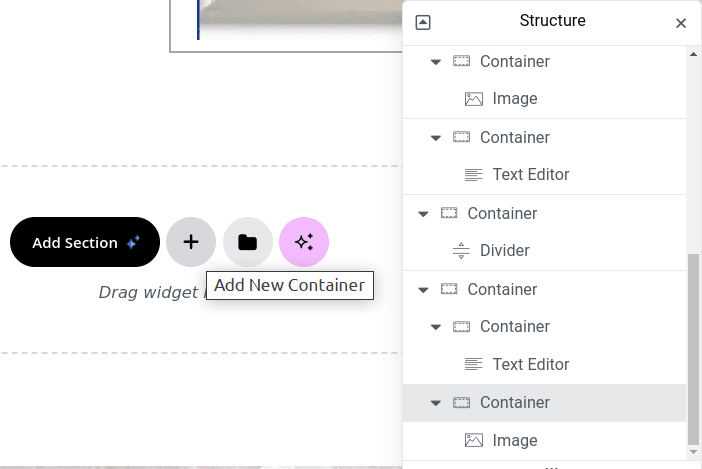
    To make a new top-level container, scroll down to the bottom of the content. There you see the AI-based “Add Section” and next to it the “+” icon to “Add New Container”.

    Elementor bottom page icon "Add New Container" for top-level containers (can be moved above first container on page)

    This will be placed at the bottom of the page, as a top-level container. From here, you can move it to the top of the page, or between other top-level containers.